
To factory reset Windows 11, open Settings, go to System, then Recovery, and click Reset PC. Choose Keep my files or Remove everything, then pick Cloud download or Local reinstall. Confirm the summary screen and click Reset. The PC restarts, reinstalls Windows, and walks you through fresh setup. Back up your files first, because apps and settings are removed either way.
A short plan makes how to factory reset windows 11 far less stressful, because you decide about backups and sign-ins before you touch Settings.
Reading the whole guide first helps you understand how to factory reset windows 11 without rushing the choice between keeping files and removing everything.
If you are new to this, the safest way to learn how to factory reset windows 11 is to work through the checklist, then follow the steps in order.
A factory reset is the deepest fix that Windows offers home users. It can cure months of slowdowns, strange errors, and broken updates in one pass. It also prepares a laptop safely before you sell it or pass it on. This guide shows every choice in plain words, so you press Reset with confidence.
Answer Box 1
In short, how to factory reset windows 11 comes down to backing up, choosing Keep my files or Remove everything, and letting Settings finish the job.
That direct answer is the core of how to factory reset windows 11, and the sections below explain each decision in plain language.
Open Settings and go to System, then Recovery, and click Reset PC. Pick Keep my files to save documents and photos, or Remove everything for a full wipe. Choose Cloud download for fresh files from Microsoft, or Local reinstall to use files on the PC. Review the summary, click Reset, and keep the PC plugged in.
Contents
- What Happens When You Factory Reset Windows 11
- How to Factory Reset Windows 11 From Settings in 7 Steps
- Keep My Files vs Remove Everything: Which One Should You Choose
- How to Factory Reset Windows 11 With Cloud Download or Local Reinstall
- Before You Press Reset: A 6-Point Safety Checklist
- The First Hour After Your Reset: A Routine Other Guides Skip
- 5 Mistakes That Make a Reset Go Wrong
- Frequently Asked Questions
What Happens When You Factory Reset Windows 11
Understanding what changes helps you approach how to factory reset windows 11 with realistic expectations about apps, settings, and personal files.
A reset does not magically fix hardware faults, so part of how to factory reset windows 11 is knowing when a reset is the right tool and when it is not.
Before you begin, it helps to picture how to factory reset windows 11 as a fresh start for Windows itself, not as a repair for a failing drive or battery.
A factory reset reinstalls Windows 11 and returns the system to its default state. Microsoft built this tool, called Reset this PC, into every copy of Windows 11. The reset removes the apps you installed and the settings you changed. Your Windows licence stays active, because it is tied to your hardware. You do not need a product key when the reset finishes.
The tool has helped many people because Windows 11 is now the normal system most people run. StatCounter figures for September 2026 put Windows 11 on 71.5 percent of Windows PCs worldwide (The Register, October 5, 2026). Windows 10 sits near 27.8 percent on the same measure. Many readers reset a PC right after moving up from Windows 10. Others reset the same machine they have used for years.
One fact explains why so many people meet this tool now. Microsoft ended Windows 10 support on October 14, 2025, as its own end of support guide states. Old machines got upgraded, sold, or handed down in large numbers. Each of those jobs often starts with a clean reset. That is why this guide also covers selling and gifting a PC safely.
A reset is strong medicine, and sometimes a lighter fix is enough. A slow PC may only need old files cleared and startup apps trimmed. Our guide on how to clear cache on Windows at https://www.techwole.com/clear-cache-on-windows/ covers that gentle route first. Try the light fix when the PC still works well overall. Choose the reset when errors keep coming back after simple fixes.
How to Factory Reset Windows 11 From Settings in 7 Steps
The step-by-step route in how to factory reset windows 11 is deliberately slow, because each screen asks you to confirm a choice you cannot easily undo.
Staying plugged in and patient is part of how to factory reset windows 11, since a power loss in the middle can leave Windows in a worse state.
Following the screens in order is the simplest way to complete how to factory reset windows 11 without skipping the backup or sign-out steps.
Each step in how to factory reset windows 11 asks for one clear choice, so do not rush past the screen that asks about cleaning the drive.
Writing down your Microsoft account password before you start removes a common blocker in how to factory reset windows 11.
If Settings asks whether to clean data, remember that how to factory reset windows 11 for a PC you are keeping does not need the slowest, full clean.
This walkthrough uses the Settings app, which is the normal route. It works on laptops and desktops from Dell, HP, Lenovo, ASUS, and Acer. Keep the charger plugged in from the first click to the last. A reset on battery power can stop and ask for the charger anyway. Give the job time, because most resets take thirty minutes to two hours.

Step 1: Open Settings and find Recovery. Press the Windows key and the I key together to open Settings. Click System in the left panel, then scroll down and click Recovery. You will see a section called Recovery options near the top. The Reset PC button sits inside that section.
Step 2: Click Reset PC and pause. Click the Reset PC button to open the reset wizard. A blue window appears with two big choices about your files. Do not rush this screen, because it decides what survives. Read the next section of this guide if you feel unsure. You can close the wizard now and lose nothing.
Step 3: Choose Keep my files or Remove everything. Pick Keep my files if this PC stays with you. Pick Remove everything if the PC goes to another person. Windows explains each choice in one short line under it. Your pick here cannot be changed once the reset starts.
Step 4: Choose Cloud download or Local reinstall. Pick Cloud download for the freshest copy of Windows from Microsoft. Pick Local reinstall when your internet is slow or limited. Cloud download can use more than 4 GB of data, as the wizard itself warns on screen. A later section of this guide compares both options in detail.
Step 5: Review the extra settings. Click Change settings if you want the stronger cleaning options. Selling the PC calls for the Clean data option to be switched on. Clean data overwrites the drive and makes old files hard to recover. Keeping the PC means you can leave that option off and save time.
Step 6: Read the summary and click Reset. The wizard shows a plain summary of everything you picked. Check the file choice and the reinstall method one last time. Click Reset only when the summary matches your plan. The PC restarts and the real work begins.
Step 7: Wait and finish the setup. The screen shows a percentage while Windows reinstalls itself. The PC may restart several times, and the screen may go dark briefly. Never hold the power button during this stage. When setup screens appear, pick your region, keyboard, and account as usual.
Keep My Files vs Remove Everything: Which One Should You Choose
Your first real decision in how to factory reset windows 11 is whether your personal files stay on the PC or are wiped with Windows.
Choosing Keep my files still removes apps, so how to factory reset windows 11 safely always includes a backup, even when you plan to keep files.
If you are selling or giving away the PC, how to factory reset windows 11 should end with Remove everything, so the next owner starts clean.
This single choice causes more regret than any other reset step. Keep my files protects your documents, photos, and downloads in your user folders. It still removes every app you installed, plus drivers you added. Settings return to defaults, so you set up Wi-Fi and printers again. Files stored outside your user folders may not survive, so check odd locations.
Remove everything is the true factory state that the name promises. It deletes personal files, user accounts, apps, and all settings. This is the only safe choice before a sale, gift, or recycle. Add the Clean data option when a stranger will own the PC. Clean data takes much longer, because Windows overwrites the free space.
The table below turns this choice into a quick decision. Find your situation in the left column and follow the row across. Most home users keep their files and keep their PC. Most sellers remove everything and clean the data too.
| Your situation | File choice | Clean data | Reinstall method |
|---|---|---|---|
| PC is slow but stays mine | Keep my files | Off | Cloud download |
| Errors keep coming back | Keep my files | Off | Cloud download |
| Selling or gifting the PC | Remove everything | On | Either method |
| Giving the PC to family | Remove everything | Off is fine | Either method |
| Virus or deep system damage | Remove everything | On | Cloud download |
One warning applies to both choices in the table. Neither choice saves the apps you installed over the years. Windows keeps a list of removed apps on the desktop after a Keep my files reset. That list helps you reinstall your programs in the right order. Save your software keys and installers before you start, not after.
How to Factory Reset Windows 11 With Cloud Download or Local Reinstall
The download choice affects speed and reliability, and how to factory reset windows 11 with Cloud download needs a stable internet connection.
Local reinstall can be faster offline, but how to factory reset windows 11 that way depends on the recovery files already on your PC.
If your recovery files are damaged, how to factory reset windows 11 with Cloud download is usually the safer option, even though it takes longer.
Both methods reinstall the same Windows 11 in the end. The real difference is where the fresh system files come from. Cloud download pulls a new image from Microsoft servers during the reset. Local reinstall rebuilds Windows from the component store already on your drive. That store works fine on healthy PCs, but it can carry hidden damage.
Choose Cloud download when your PC has suffered errors or crashes. Fresh files cannot bring the old corruption back into the new system. The download is large, so use a stable connection and stay plugged in. Windows warns on the wizard screen that Cloud download can use more than 4 GB of data. Avoid it on a metered connection unless you have data to spare.
Choose Local reinstall when your connection is slow, capped, or missing. It is often faster, because nothing big needs to download first. It can also restore the apps your PC maker installed, on some models. That point matters if you rely on a maker tool for updates. Dell and Lenovo owners often prefer keeping those tools.
There is one case where Cloud download is close to mandatory. Pick it when the reset will fix a PC that fails updates repeatedly. Broken update files live inside the same local store that Local reinstall trusts. A cloud image steps around that damage completely. Our troubleshooting guide at https://www.techwole.com/why-wont-my-laptop-factory-reset-windows-11/ explains what to do when even this route fails.
Answer Box 2
Cloud download fetches a fresh Windows image from Microsoft and avoids reusing damaged local files. Local reinstall rebuilds Windows from files already stored on your drive, so it needs no internet. Pick Cloud download for error-ridden PCs with good internet. Pick Local reinstall when your connection is slow, capped, or unavailable during the reset.
Before You Press Reset: A 6-Point Safety Checklist
Working through this checklist before you start is the most practical part of how to factory reset windows 11, because it catches missing backups early.
A five-minute check now prevents hours of recovery later, which is why how to factory reset windows 11 should never start with a rushed click on Reset.
Ticking off BitLocker, apps, and sign-ins first makes how to factory reset windows 11 smoother from the first screen to the last restart.
A charger, a backup, and a BitLocker key are the three items that should be on your desk before how to factory reset windows 11 begins.
If any checklist item is missing, pausing is better than hoping how to factory reset windows 11 will fix itself later.
A calm ten minutes of checking prevents nearly every reset disaster story. Work through this list in order before you click Reset. Each point protects something that the reset cannot bring back. Tick them off on paper if the PC belongs to someone else. Shared family PCs hide files in surprising places.
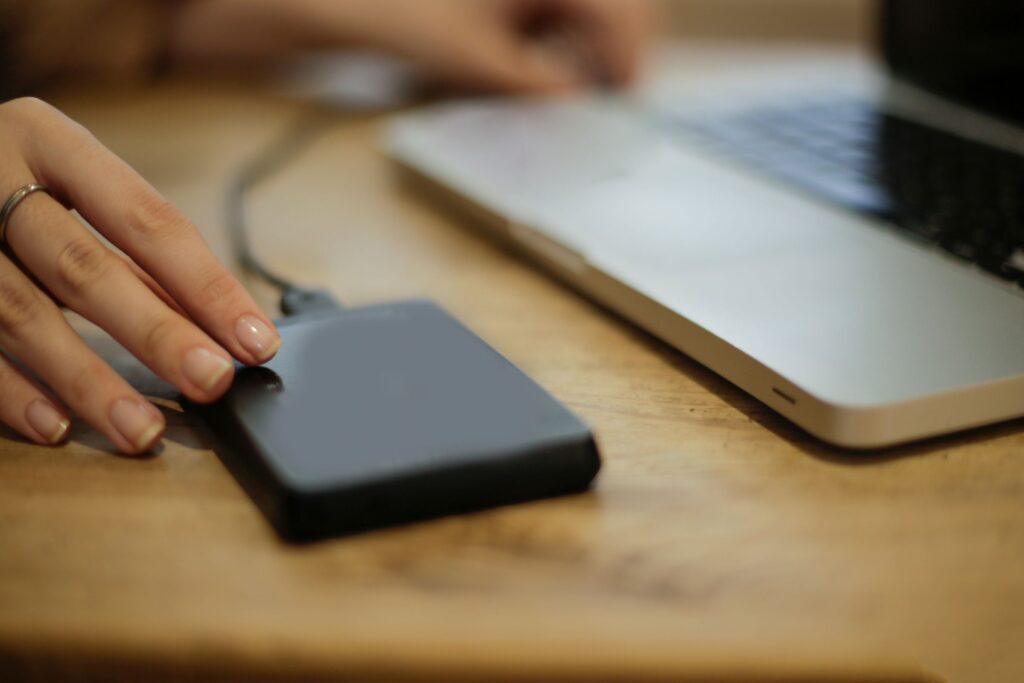
1. Back up files to a second place. Copy documents, photos, and downloads to an external drive or OneDrive. A backup on the same drive does not count as a backup. Open a few copied files to prove the copy really works. Cloud folders may show names while the files still live online only.
2. Save your BitLocker recovery key. Many modern laptops encrypt the drive with BitLocker without telling you. The reset or recovery screens can ask for a 48-digit recovery key. Find it in your Microsoft account under your device name. Print it or write it down before you begin.
3. List your apps and licence keys. Note every paid program and where its key lives. Check your email, your Microsoft Store library, and old boxes. Browsers hold saved passwords that vanish with a full wipe. Export passwords or confirm you can sign in on your phone.
4. Plug in and free up space. Connect the charger and keep it connected the whole time. Check that the system drive has comfortable free space for the reinstall. A nearly full drive slows the reset and raises failure risk. Delete big downloads you already copied to your backup.
5. Sign out of accounts you will not reuse. Remove work or school accounts you no longer need on this PC. Note which Microsoft account the PC should use after setup. Selling the PC means your account must not appear at all. A Remove everything reset handles that when it finishes.
6. Know your other routes before you need them. A reset from Settings needs a working desktop and sign-in. A locked or broken PC needs a different door into the same tool. Our guide at https://www.techwole.com/windows-11-factory-reset-from-boot/ covers reset from the boot screens. Read it now if your PC already struggles to start.
The First Hour After Your Reset: A Routine Other Guides Skip
The first hour after the reset is when how to factory reset windows 11 turns into a usable PC again, with updates, drivers, and your usual apps.
Resisting the urge to restore everything at once is good advice for how to factory reset windows 11, because a clean start is easier to test in stages.
Checking sound, Wi-Fi, and printing early shows whether how to factory reset windows 11 actually solved the problem you started with.
Most guides end the story the moment setup appears on screen. Real life starts there, and the first hour shapes the fresh PC. Follow this order and the clean system stays clean. Each step builds on the one before it. Rushing ahead creates the clutter you just removed.
First, connect to Wi-Fi and let Windows Update run to completion. Restart when it asks, then check for updates one more time. Fresh installs often need two or three update rounds in a row. Do this before installing any of your own programs. Updates also fetch many missing drivers on their own.
Second, open Device Manager and look for yellow warning marks. A warning mark means a driver is missing or broken. Get those drivers from your PC maker’s support page, not random driver sites. Laptops from HP, Lenovo, Dell, and ASUS each keep a model page. Match the full model number printed under your laptop.
Third, confirm Windows shows as activated in Settings. Open Settings, go to System, then Activation, and read the status line. Digital licences reactivate automatically on the same hardware. A failure message after an hour deserves a restart and another check. Only chase activation errors that survive both checks.
Fourth, reinstall your apps in a sensible order. Start with your browser and your antivirus or security choice. Add work tools next, then games and extras at the end. Use the Removed Apps list on the desktop as your checklist. Tick each app off as you finish it.
Fifth, restore your files last, in small batches. Copy documents and photos back after the system proves stable. This order keeps a bad file or folder from confusing early checks. It also leaves you a clean point if anything misbehaves. Your backup stays untouched until the PC earns your trust.
5 Mistakes That Make a Reset Go Wrong
Most failures are not technical, and how to factory reset windows 11 goes wrong most often when a backup, charger, or sign-in is forgotten.
Reading these mistakes first is a shortcut in how to factory reset windows 11, because you learn from rushed resets by other people instead of your own.
If a reset stops, staying calm and checking power and recovery options is still part of how to factory reset windows 11, not a separate problem.
Skipping the backup is the mistake that turns how to factory reset windows 11 from a routine task into a data-loss problem.
Forgetting to sign out of apps is another small oversight that can complicate how to factory reset windows 11 afterwards.
Mistake 1: Trusting Keep my files as a backup. This option guards user folders, not every corner of the drive. Files on the desktop root or in program folders can vanish. People learn this after photos in odd folders disappear. A real backup takes ten minutes and saves real tears.
Mistake 2: Starting on battery power. Laptops ask for the charger, yet people still begin unplugged. A reset that dies mid-write can leave Windows half installed. Keep the charger in until setup fully completes. Borrow one if yours is lost, because this step matters.
Mistake 3: Picking Local reinstall on a damaged system. Local files are the suspects when errors brought you here. Reusing them can reinstall the very corruption you are escaping. Cloud download costs data but brings clean files. Match the method to the health of the PC.
Mistake 4: Skipping the Clean data option before a sale. A quick Remove everything reset leaves traces that recovery tools can find. Strangers should never receive a drive with recoverable personal files. Clean data overwrites the drive and closes that risk. It takes longer, and that time buys real privacy.
Mistake 5: Panicking during long black screens. Resets pause, restart, and sit on dark screens for many minutes. Holding the power button during a write stage invites real damage. Watch for drive light activity and give each stage time. Intervene only when an hour passes with zero change.
If a reset stops with the message that there was a problem, stay calm. That error has known causes and a clear order of fixes. Our guide at https://www.techwole.com/clean-install-vs-reset-windows-11/ helps you decide between another reset attempt and a clean install. Some PCs need the deeper route after repeated failures. Knowing that exit in advance removes the fear from this one.
Frequently Asked Questions
Will a factory reset remove my Windows 11 licence?
No, your licence stays safe during a normal reset. Windows 11 uses a digital licence tied to your hardware. The fresh copy activates itself once the PC goes online. You only need a key if you changed major hardware like the motherboard.
How long does a factory reset take on Windows 11?
Most resets finish within thirty minutes to two hours. Cloud download adds time on slow connections. The Clean data option can stretch the job to several hours. Old hard drives work far slower than modern SSD drives.
Does Keep my files save my installed programs?
No, it saves personal files but removes installed programs. Games, office suites, and tools all need a fresh install. Windows leaves a Removed Apps list on the desktop afterward. Use that list to rebuild your setup in order.
Will a reset fix a slow Windows 11 PC?
A reset often restores speed lost to clutter, bad apps, and damaged settings. It cannot fix failing hardware like a dying drive. Try lighter cleanups first when the PC still behaves well. Reset when simple fixes stop holding for long.
Can I factory reset Windows 11 without a password?
Yes, through the recovery screens reached from the sign-in page. Hold Shift, click Restart, then choose Troubleshoot and Reset this PC. You still may need a BitLocker recovery key on encrypted laptops. Our boot reset guide walks through that route step by step.
Does a factory reset remove viruses?
A Remove everything reset clears most infections with the old system. Choose Cloud download so fresh files replace the infected ones. Deep firmware malware is rare and survives any reset. Most home users will never meet that level of threat.
What is the difference between Cloud download and Local reinstall?
Cloud download pulls a fresh Windows image from Microsoft servers. Local reinstall rebuilds from the component store on your drive. Cloud files are cleaner when the current system is damaged. Local reinstall wins when internet is slow or absent.
Will a reset delete files on my other drives?
The default reset targets only the Windows system drive. An extra setting can include all drives, so read screens carefully. Unplug external drives before you start for full peace of mind. Check the summary screen for the drives it lists.
Can I stop a factory reset halfway through?
No, a started reset cannot be safely cancelled. Interrupting power during the reinstall can corrupt Windows badly. Let the process finish even when it looks stuck. Long pauses and black screens are normal stages.
Does a factory reset remove the apps my PC maker installed?
Local reinstall may restore maker apps on some branded PCs. Cloud download usually installs plain Windows without those extras. Your maker’s support site offers any tool you still need. Most people enjoy the cleaner result without the extras.
Why does my PC ask for a BitLocker recovery key?
BitLocker protects an encrypted drive by locking it during big changes. A reset or recovery boot counts as such a change. The key lives in the Microsoft account used on that PC. Enter the 48 digits carefully and the reset continues.
Is a factory reset the same as a clean install?
They are close cousins rather than twins. A reset uses built-in tools and can keep your files. A clean install boots from USB media and always wipes the target drive. Our comparison guide explains which route suits which problem.
What should I do first if the reset fails with an error?
Note the exact message, then restart the PC once. Try Cloud download on the next attempt if you used Local reinstall. Work through repairs in a safe order before repeating resets blindly. Repeated failures point to damaged recovery files or a failing drive.
In the FAQ answers above, the recurring advice for how to factory reset windows 11 is to back up first, stay plugged in, and confirm each choice.
If you are still unsure, re-reading the steps section will clarify how to factory reset windows 11 for your specific situation, whether you keep files or remove them.
A last check before you start, backup, BitLocker key, and charger, is the simplest summary of how to factory reset windows 11 done safely.
The FAQ section answers the timing and file questions that most people ask about how to factory reset windows 11 before they begin.
Reading those answers in full helps you judge whether how to factory reset windows 11 is the right fix, or whether a lighter cleanup would do.
Final Word
Done well, how to factory reset windows 11 gives you a clean, faster Windows install without the panic of lost files.
Keep this guide handy, because how to factory reset windows 11 is much easier the second time when you already know the screens and choices.
A careful reset, a checked backup, and a calm first hour are the three habits that make how to factory reset windows 11 work every time.
Learning how to factory reset Windows 11 gives you a safe way back from most software trouble. Pick the file option that matches who keeps the PC. Choose Cloud download when the old system cannot be trusted. Work the safety checklist first, and let the first-hour routine protect your fresh start. Done in this order, a reset feels less like a gamble and more like routine maintenance.
For background on the system itself, read about Windows 11 at https://en.wikipedia.org/wiki/Windows_11