

How to Install Windows on Chromebook: 4 Simple Truths to Stop Costly Mistakes
Here is the honest answer to how to install Windows on Chromebook: it is genuinely hard, it is not officially supported by Google or Microsoft, and on many models it does not work well at all. A Chromebook is built for ChromeOS, with firmware that expects ChromeOS to boot, and Windows needs different firmware, different drivers, and a different boot path. Some older models can run Windows after a firmware change, but many newer models cannot, and even the ones that can often lose Wi-Fi, audio, or touchpad drivers. This guide tells you the truth first, and then shows the real path, so you can decide before you risk your machine.
Most guides hide that difficulty behind a cheerful step list, and that is how readers brick a working laptop. They open the machine, remove a screw, flash new firmware, and then learn that the touchpad does not work, or that Windows will not activate, or that the Chromebook will not boot at all. This guide does the opposite. You will learn the 4 truths that decide whether your model can even try, the firmware change that makes it possible, the driver gaps that follow, and the safer options that give you Windows apps without replacing ChromeOS. You will also find links to the related guides in this unit, such as how to turn on developer mode on Chromebook for the checks that come before any firmware change.
Installing Windows on a Chromebook is not officially supported, and it is hard. It needs a firmware change to UEFI, a write-protect screw removal on many models, and Windows drivers that often do not exist for Chromebook hardware. Most readers should use Linux, cloud Windows, or a cheap Windows laptop instead.
ANSWER BOX 1
To install Windows on a Chromebook, you must first check if your exact model supports a UEFI firmware replacement, because most models do not. The path involves turning on developer mode, which wipes the device, removing a write-protect screw, flashing third-party UEFI firmware, and then installing Windows from a USB drive. Drivers for Wi-Fi, audio, and the touchpad are often missing, so the result is rarely a smooth Windows laptop.
ANSWER BOX 2
Windows on a Chromebook is not an official install, so Google and Microsoft will not help you if it fails, and your warranty may be affected. The firmware change can brick the machine if the power fails during the flash, and the install wipes ChromeOS completely. Before you try, back up every file, check your model on a compatibility list, and try Linux or cloud Windows first, because both are safer.
KEY TAKEAWAYS
- How to install Windows on Chromebook is a hard, unofficial project, not a simple official install.
- Most Chromebooks cannot run Windows well, because the firmware and drivers are built for ChromeOS.
- The path needs developer mode, a firmware change to UEFI, and a Windows USB installer.
- Wi-Fi, audio, and touchpad drivers are often missing after the install, even on models that boot.
- Linux, cloud Windows, and a cheap Windows laptop are safer options for most readers.
Contents
- The 4 simple truths about Windows on a Chromebook
- Will your Chromebook run Windows at all?
- The real path, step by step
- What breaks after the install
- The safer options most readers should try first
- 5 mistakes that brick a Chromebook during a Windows install
- FAQ

The 4 Simple Truths About Windows on a Chromebook
These four truths decide everything, so read them before you search for a single step. They are the facts that cheerful guides skip, and they are the reason this article exists. If any truth rules out your model or your goal, stop here and choose a safer option from the later section.
- It is not officially supported. Google does not support Windows on Chromebooks, and Microsoft does not support Windows on Chromebook hardware. No official guide exists, no official driver pack exists, and neither company will help you if the install fails. You are on your own, with community guides and community firmware.
- The firmware must change. A Chromebook boots with Google firmware that expects ChromeOS, and Windows needs UEFI firmware to boot. Changing the firmware means flashing a third-party UEFI build onto the machine, which is the riskiest step in the whole project. A power cut during the flash can leave the machine unable to boot at all.
- The drivers often do not exist. Windows needs a driver for every part of the machine: Wi-Fi, sound, touchpad, touchscreen, and the keyboard. Chromebook makers do not write Windows drivers for their machines, so those drivers often do not exist, and the community drivers that do exist are incomplete. A Chromebook that boots Windows may still have no sound and no Wi-Fi.
- The install wipes ChromeOS. Turning on developer mode, which the firmware change needs, erases the Chromebook through a Powerwash. Google Support states that turning on developer mode erases all local data (Google Support). The Windows install then erases ChromeOS itself, so there is no easy way back without a recovery drive and a firmware restore.
| Truth | What it means | Who it stops | What to do instead |
|---|---|---|---|
| Not officially supported | No help from Google or Microsoft | Everyone who wants a safe install | Use Linux or cloud Windows |
| Firmware must change | Flash third-party UEFI firmware | Anyone afraid of bricking the machine | Keep ChromeOS and use web apps |
| Drivers often missing | Wi-Fi, audio, and touchpad may fail | Anyone who needs a daily laptop | Buy a cheap Windows laptop |
| Install wipes ChromeOS | No easy way back | Anyone with files only on the Chromebook | Back up first, or do not try |
The driver truth deserves extra care, because it is the one that surprises people after a successful boot. A Chromebook that shows the Windows desktop feels like a win, until you open the browser and find no Wi-Fi, or play a video and hear no sound, or move a finger on the touchpad and nothing happens. Those failures are not bugs in your install; they are missing drivers, and no setting fixes a driver that does not exist. That is why the honest test of a Windows install is not “does it boot,” but “does Wi-Fi, sound, and the touchpad all work for a full day.” Most installs fail that test.
Will Your Chromebook Run Windows at All?
Before you touch a screw or a key, check your exact model, because the answer depends on it, not on the brand. A Chromebook model is a code like “Acer Chromebook Spin 713” plus a board name, and two machines that look the same can have different boards and different support. Find your board name in Chrome by opening chrome://system, or by searching your model code plus “board name” on the web. Then check that board name against a community compatibility list for UEFI firmware, such as the MrChromebox list, which tracks which boards support a firmware replacement and which do not.
Newer Chromebooks are the least likely to work, and that surprises many readers. Google tightened write protection on newer models, and some have no removable write-protect screw at all, which makes a firmware change much harder. Older models from the mid-2010s are the ones with the best support, because their hardware is simpler and their firmware is easier to replace. If your Chromebook is a school machine, stop here: school Chromebooks are managed by an admin, and the firmware change will break enrollment and may lock the machine. Ask your admin first, and expect the answer to be no.
Storage and memory are the second check, and they rule out many machines on their own. Windows 11 needs far more storage than ChromeOS, and a Chromebook with 32 GB of storage will run out of room after Windows and a few apps. Microsoft released Windows 11 on October 5, 2021 (Microsoft, 2021), and its storage and memory needs are much higher than the ChromeOS your machine was built for. A Chromebook with 64 GB of storage and 8 GB of memory is the realistic minimum, and even then the machine will feel slow. If your Chromebook has 32 GB of storage and 4 GB of memory, do not try, because the result will disappoint you even if the install works.
The Real Path, Step by Step
This section describes the real path at a high level, so you understand what you are signing up for before you start. It is not a click-by-click guide for your model, because the exact keys and screws differ by board, and a generic step list is how machines get bricked. Use a model-specific community guide for your exact board, and treat this section as the map, not the turn-by-turn directions.
First, back up every file, because the project wipes the machine more than once. Copy everything in Downloads and in local folders to Google Drive or to a USB drive, and confirm the copies in Drive before you proceed. Make a ChromeOS recovery drive too, using the Chromebook Recovery Utility, because it is your only way back to ChromeOS if the Windows install fails. Our guide on how to turn on developer mode on Chromebook explains the 9 checks that come before any wipe, and they all apply here.
Second, turn on developer mode, which wipes the device, and then remove the write-protect screw if your model has one. The screw sits on the motherboard, so you must open the Chromebook case with the right tools, find the screw, remove it, and close the case. Some newer models have no screw and need a different method, which is another reason to check your board first. Do not rush this step, because a slipped screwdriver can damage the board.
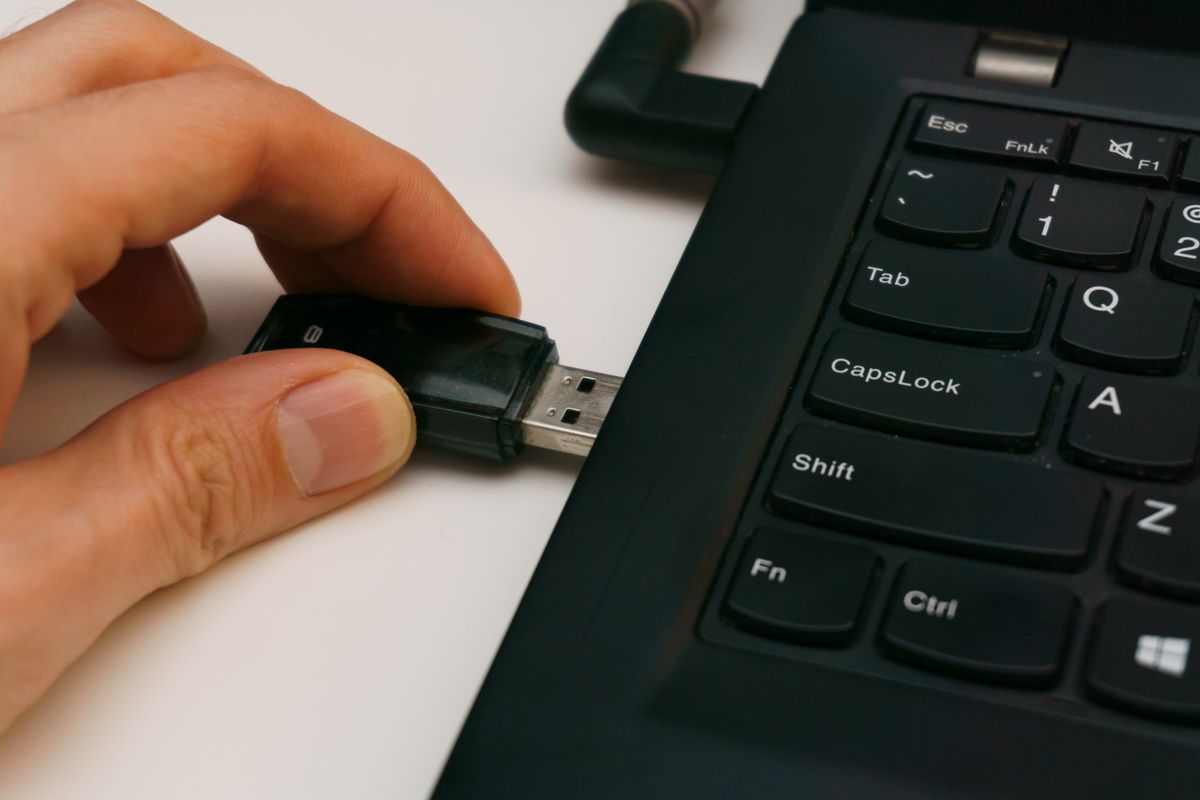
Third, flash the third-party UEFI firmware from a USB drive, using the firmware script for your board, and keep the charger plugged in for the whole flash. A power cut during the flash can brick the machine, so charge the battery above 50 percent and leave the charger in. After the flash, the Chromebook boots like a normal UEFI machine, and you can install Windows from a USB installer made with the Microsoft Media Creation Tool. Then install drivers, test Wi-Fi, audio, and the touchpad, and accept that some of them may never work.
What Breaks After the Install
After the install, the list of broken things is often longer than the list of working things, and you should know the common failures before you commit. Wi-Fi is the most common failure, because Chromebook Wi-Fi chips often have no Windows driver, and without Wi-Fi the machine cannot download anything, including drivers. Audio is next, because Chromebook sound hardware is tied to ChromeOS drivers, and Windows may show no audio device at all. The touchpad is third, because Chromebook touchpads use a ChromeOS driver, and Windows may treat the touchpad as a basic mouse, or ignore it entirely.
The touchscreen, the keyboard backlight, and the special Chromebook keys are also likely to fail. The Search key, the overview key, and the brightness keys are Chromebook keys with no Windows twin, so they may do nothing, or they may do the wrong thing. The battery may drain faster, because Windows power management does not know the Chromebook battery as well as ChromeOS does. The machine may also run hotter, because the fan profile was tuned for ChromeOS. Each of these is a small annoyance on its own, but together they make the machine feel broken, even when Windows boots.
The way back is also hard, and that is the failure people forget. Restoring ChromeOS needs the original firmware, a recovery drive, and sometimes the write-protect screw put back in place. If you threw the screw away, or if the firmware flash failed halfway, the recovery may not work, and the machine may need a repair shop. That is why the recovery drive and the screw matter so much: they are your only way home. If you are not willing to accept that risk, do not start. A working Chromebook that runs ChromeOS is worth more than a half-working Chromebook that runs Windows badly.
The Safer Options Most Readers Should Try First
Here is the section other guides skip, because it tells most readers not to do the thing they searched for. For almost everyone, a safer option gives the Windows apps they want without replacing ChromeOS, and it keeps the Chromebook working. Try these in order, and stop at the first one that solves your problem.
First, try Linux on your Chromebook, because it is the safest way to run desktop apps. Open Settings, then Developers, and turn on Linux (Beta), which gives you a Linux terminal without a wipe and without a warning screen. Our guide on how to install Linux explains the steps, and it covers the apps most people actually want, such as code editors and office tools. Linux on a Chromebook is official, supported, and easy to remove, which makes it the opposite of a Windows install.
Second, try cloud Windows, which runs Windows in a browser tab on a remote computer. Services that stream a Windows desktop let you open Windows apps, including Office and specialist tools, without installing anything on your Chromebook. You need a good internet connection and a subscription, but the Chromebook stays untouched, and the Windows desktop is a real one, with real drivers. For school or work software that only exists on Windows, cloud Windows is often the honest answer.
Third, buy a cheap Windows laptop instead of converting the Chromebook. A used Windows laptop with 8 GB of memory often costs less than the time and risk of a firmware change, and it runs Windows properly, with drivers, updates, and support. Keep the Chromebook for browsing and school work, and use the Windows laptop for the one app that needs Windows. Two machines that both work are better than one machine that half works. While you decide, keep getting more from the Chromebook you already own: how to split screen on Chromebook shows how to work in two windows at once, and how to turn off touchscreen on Chromebook stops stray taps while you type. If copying between them is your worry, our pillar guide on how to copy and paste on Chromebook shows the keys, and a cloud note carries text between the two machines.
5 Mistakes That Brick a Chromebook During a Windows Install
These five mistakes cause most of the bricked Chromebooks in Windows install attempts, and each one is easy to avoid. Read the list before you open the case, and keep it in mind when a step does not match your model.
- Starting without checking your board name. Two Chromebooks that look the same can have different boards, and the wrong firmware for your board can brick the machine. Find the board name first, and use only a guide written for that exact board.
- Skipping the backup and the recovery drive. The install wipes ChromeOS, and without a recovery drive there is no way back. Make the recovery drive before you touch developer mode, and test that it works.
- Flashing firmware on a low battery. A power cut during the flash can leave the machine unable to boot at all. Charge above 50 percent, plug the charger in, and do not touch the power cable until the flash is done.
- Removing the wrong screw. The write-protect screw is one small screw on the motherboard, and removing the wrong one can damage the board or the battery. Follow a photo guide for your exact model, and put the screw somewhere safe.
- Installing Windows on a school or work Chromebook. Managed machines block the firmware change, and forcing it can lock the machine and break enrollment. Ask the admin first, and expect the answer to be no.
How to Install Windows on Chromebook FAQ
Can I install Windows on a Chromebook?
You can install Windows on some older Chromebooks after a firmware change, but it is not officially supported, and many models cannot do it well. The path needs developer mode, a UEFI firmware flash, and Windows drivers that often do not exist. Most readers should use Linux, cloud Windows, or a cheap Windows laptop instead.
Is it legal to install Windows on a Chromebook?
Installing Windows on a Chromebook you own is generally allowed, but it is not supported by Google or Microsoft, and it may affect your warranty. You still need a valid Windows license to activate Windows, and the license is separate from the Chromebook. Check your warranty terms before you start.
What is UEFI firmware on a Chromebook?
UEFI firmware is the boot software that Windows needs to start, and it replaces the Google firmware that expects ChromeOS. A Chromebook ships with Google firmware, so installing Windows needs a third-party UEFI build flashed onto the machine. The flash is the riskiest step, because a power cut during it can brick the machine.
Do I need to remove a screw to install Windows on a Chromebook?
Many older Chromebooks need a write-protect screw removed from the motherboard before the firmware can change, and the screw sits inside the case. Some newer models have no screw and need a different method, or cannot be changed at all. Check a guide for your exact board before you open the case.
Will Wi-Fi work after installing Windows on a Chromebook?
Wi-Fi often does not work after installing Windows on a Chromebook, because Chromebook Wi-Fi chips often have no Windows driver. The same is true for audio and the touchpad on many models. Test Wi-Fi, audio, and the touchpad for a full day before you call the install a success.
Can I go back to ChromeOS after installing Windows?
You can go back to ChromeOS only if you made a recovery drive before the install and you can restore the original firmware. The recovery needs the ChromeOS Recovery Utility drive and, on some models, the write-protect screw put back in place. Without those, the return may not work, and the machine may need a repair shop.
How much storage does Windows need on a Chromebook?
Windows 11 needs far more storage than ChromeOS, and a Chromebook with 32 GB of storage will run out of room after Windows and a few apps. A Chromebook with 64 GB of storage and 8 GB of memory is the realistic minimum, and even then the machine will feel slow. Microsoft released Windows 11 on October 5, 2021 (Microsoft, 2021).
Can I dual boot Windows and ChromeOS on a Chromebook?
Dual booting Windows and ChromeOS on a Chromebook is possible on a few models, but it is harder than a full replacement, and it needs the same firmware change plus a partitioned drive. Most community guides cover a full replacement, not a dual boot, and the driver problems are the same either way. For most readers, Linux or cloud Windows is the safer dual option.
Does installing Windows void the Chromebook warranty?
Installing Windows may affect your warranty, depending on your maker and your warranty terms, so read them before you start. Opening the case to remove a screw can also affect support. If the machine is new and still in its return window, do not try the install.
What is the easiest way to run Windows apps on a Chromebook?
The easiest way to run Windows apps on a Chromebook is cloud Windows, which streams a real Windows desktop in a browser tab, or Linux (Beta) in Settings, which runs Linux apps without a wipe. Both keep ChromeOS untouched, and both are easy to remove. A cheap used Windows laptop is the third option, and it runs Windows properly.
Why does my Chromebook not boot after a firmware flash?
Your Chromebook may not boot after a firmware flash because the flash failed, the wrong firmware was used for your board, or the power cut out during the flash. Try the recovery drive you made before the install, and if the machine shows no signs of life, take it to a repair shop. This is why the backup and the recovery drive matter so much.
Should I install Windows on a school Chromebook?
No, you should not install Windows on a school Chromebook. School Chromebooks are managed by an admin, and the firmware change will break enrollment and may lock the machine. Ask your admin first, and use the school-approved apps instead. Linux (Beta) is also usually blocked on managed machines.
Final Word
Learning how to install Windows on Chromebook starts with the truth: it is hard, it is not officially supported, and on many models it does not work well. The firmware must change, the drivers often do not exist, and the install wipes ChromeOS. Check your exact board, back up every file, and make a recovery drive before you touch anything.
For most readers, the honest answer is to skip the install. Try Linux, try cloud Windows, or buy a cheap Windows laptop, and keep the Chromebook doing what it does best. A working Chromebook is worth more than a half-working Windows machine, and the safer options give you the apps you need without risking the laptop you already own.
Read more about Microsoft Windows on Wikipedia: https://en.wikipedia.org/wiki/Microsoft_Windows