
Printing is a common activity in offices, schools, and homes, yet many users do not fully understand the settings that affect how documents are produced. One of the most frequently misunderstood options is “collate.” People often encounter this term in printer menus and software dialogs and ask, what does collate mean when printing? Although the word may sound technical, the concept behind it is simple and extremely important for document organization.
This section explains the collate printing meaning in detail, starting from the basic collate definition, then moving into why collation exists, how it differs from non-collated printing, and why understanding it is essential for producing reliable, professional documents.
Collate Definition in the Context of Printing
The collate definition in printing refers to the process of arranging printed pages into complete, sequential sets. When a printer is set to collate, it prints all the pages of a document in the correct order for one copy before starting the next copy.
For example, imagine printing a 6-page report and selecting three copies:
- With collated printing enabled, the printer produces pages 1 through 6 as the first set
- Then pages 1 through 6 again as the second set
- Then pages 1 through 6 as the third set
Each copy is complete, ordered, and ready to use. This is what people mean when they ask what does collated mean when printing.
Collate Printing Meaning in Plain Language
In simple terms, collating means:
Printing one full document at a time, in the correct page order.
Without collation, the printer does not group pages by document. Instead, it groups them by page number, which often creates stacks that must be sorted manually. Collation exists to remove that extra step and reduce the chance of mistakes.
Why Collation Exists in Printing Systems
Collation did not originate with modern printers. Long before digital printing, printers and publishers had to manually arrange pages before binding books or assembling reports. This manual collation was time-consuming and error-prone, especially when dealing with large volumes.
As printing technology advanced, automatic collation became necessary because:
- Businesses needed to print multi-page documents efficiently
- Manual sorting wasted time and labor
- Errors in page order caused confusion and rework
Modern printers include collation as a standard feature because it supports accuracy, speed, and consistency—three essential qualities in professional document production.
Collated vs Non-Collated Printing Explained Clearly
Understanding the difference between collated and non-collated printing is crucial.
Collated printing
- Produces complete document sets
- Maintains the correct page order automatically
- Is ideal for reading, reviewing, or distributing documents
Non-collated printing
- Prints all copies of page 1, then all copies of page 2, and so on
- May be useful for binding, inserting covers, or specialized workflows
- Requires manual sorting afterward
Example with a 4-page document and 2 copies:
- Collated output: 1–2–3–4, 1–2–3–4
- Non-collated output: 1–1, 2–2, 3–3, 4–4
For most everyday tasks, collated printing is the preferred option because it produces documents that are immediately usable.
Common Situations Where Collation Matters
Collation is especially important when:
- Documents are shared with others
- Page order affects understanding
- Accuracy is critical
Examples include:
- Business reports and proposals
- Legal contracts and agreements
- Educational materials such as exams or lesson packets
- Instruction manuals and training guides
In these situations, incorrect page order can cause confusion, reduce credibility, or even lead to serious errors.
Misunderstandings About Collate Printing
Many users misunderstand what collate printing does. Some common misconceptions include:
- Thinking collate changes formatting or layout
- Believing collate affects margins, fonts, or spacing
- Assuming collate is only for expensive or commercial printers
In reality, collation only controls page sequence, not how the page looks. Even basic home printers usually support collated printing through software.
Who Should Understand Collate Printing?
Understanding collate printing meaning is useful for a wide range of people, including:
- Office workers preparing documents for meetings
- Students printing assignments or projects
- Teachers distributing classroom materials
- Small business owners creating invoices or proposals
- Anyone printing more than one page at a time
Knowing when and how to use collated printing helps prevent wasted paper, time, and effort.
How Collate Printing Works: Technical Process, Software vs Hardware, and Real-World Applications
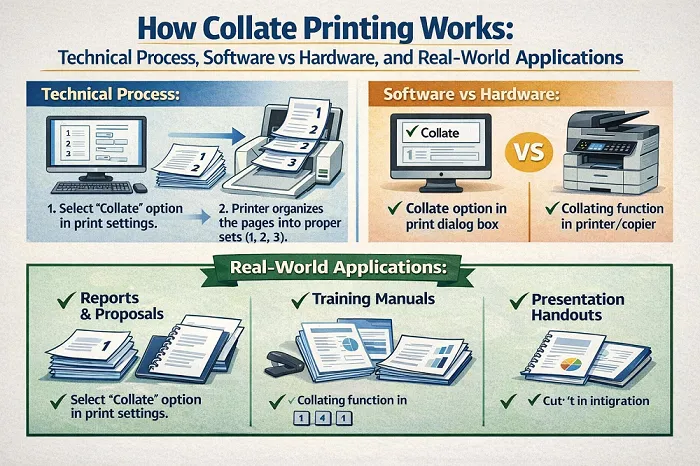
After understanding the collate printing meaning and why it exists, the next logical question is how does collate printing actually work? While users usually interact with collate printing through a simple checkbox in a print menu, a complex process happens behind the scenes. This section explains how collated printing functions at both the software and hardware levels, and how it is applied in real workplaces.
Understanding this process helps users troubleshoot issues, choose the right settings, and print more efficiently.
The Basic Printing Workflow
When you send a document to a printer, it does not print immediately. Instead, the document follows a workflow:
- The application (such as Word or a PDF reader) prepares the document
- The print driver translates the file into printer-readable instructions
- The printer processes the data and produces the output
Collation affects how the instructions are organized, not the content of the document itself.
How Collate Printing Works Step by Step
When collated printing is enabled, the process generally follows these steps:
- The printer receives the full document data
- It stores or buffers page information temporarily
- Pages are printed in sequential order for the first copy
- The same sequence is repeated for each additional copy
This is why collated printing requires more memory and processing than non-collated printing. The printer must keep track of the entire document instead of printing one page repeatedly.
Software-Based Collation
Most home and small office printers rely on software-based collation. In this case:
- The computer handles page sequencing
- The printer receives pages in the correct order
- Collation depends heavily on the printer driver
This method works well for typical documents, but performance can slow down with large files or high copy counts. Software collation is common because it does not require advanced printer hardware.
Hardware-Based Collation
Larger office and commercial printers often use hardware-based collation. These printers:
- Have internal memory and processors
- Handle page sequencing internally
- Print faster and more reliably for large jobs
Hardware collation is essential in professional environments where hundreds or thousands of pages must be printed accurately and quickly.
Printer Memory and Collation
Printer memory plays a key role in collated printing. When printing long documents:
- Low-memory printers may slow down
- Some printers revert to non-collated printing automatically
- Errors may occur if memory is insufficient
This is why older or entry-level printers sometimes struggle with large collated print jobs. In professional settings, printers are selected with sufficient memory to handle collation smoothly.
Collate Printing in Popular Software
Microsoft Word
Microsoft Word handles collate printing at the software level. When the “Collate” option is selected:
- Word sends full document sets to the printer
- Page order is preserved
- This is ideal for reports, proposals, and assignments
Word’s collate option is reliable for most office tasks.
Adobe Acrobat Reader
PDF documents are often long and complex. In Adobe Acrobat Reader:
- Collated printing ensures correct page order
- This is critical for contracts, manuals, and legal files
- Users should always verify the collate checkbox before printing
Because PDFs are widely shared, correct collation is especially important.
Google Docs
Google Docs uses browser-based printing:
- Collation is controlled through the print dialog
- Cloud printing workflows support collated output
- This is useful for remote work and shared documents
While effective, users should double-check settings since browser print menus vary.
Real-World Workplace Examples
Office Environment
In offices, collated printing is used daily for:
- Meeting agendas
- Financial reports
- Client presentations
Employees expect documents to arrive ready to distribute. Non-collated printing wastes time and creates unnecessary frustration.
Educational Settings
Teachers and administrators rely on collated printing for:
- Exams and quizzes
- Student handouts
- Training materials
Correct collation ensures fairness and clarity, especially during exams where page order matters.
Legal and Administrative Work
Legal professionals depend heavily on collated printing:
- Contracts must remain in strict order
- Missing or misplaced pages can cause serious problems
- Collated printing reduces risk and liability
In these settings, collation is not optional—it is essential.
Commercial Printing and Collation
Commercial print shops use advanced collation systems:
- Automated finishing machines
- Integrated stapling and binding
- High-volume accuracy checks
In commercial printing, collation is part of quality control. Clients expect perfectly ordered documents every time.
When Non-Collated Printing Is Intentional
Despite its advantages, non-collated printing has valid uses, such as:
- Printing covers separately
- Preparing documents for binding
- Mass printing single-page flyers
Understanding both options allows users to choose the most efficient workflow for their needs.
Common Technical Issues with Collate Printing
Some common problems include:
- Printer ignoring collate settings
- Pages printing out of order
- Slow printing speed
These issues often stem from outdated drivers, insufficient memory, or conflicting software settings. Knowing how collation works makes troubleshooting easier.
Why Process Knowledge Matters
Understanding how collate printing works demonstrates expertise and reliability. Professionals who understand their tools:
- Reduce errors
- Improve efficiency
- Produce consistent results
This technical knowledge supports better decision-making and builds trust in document handling processes.
Benefits of Collate Printing: Efficiency, Accuracy, Cost Control, and Professional Value
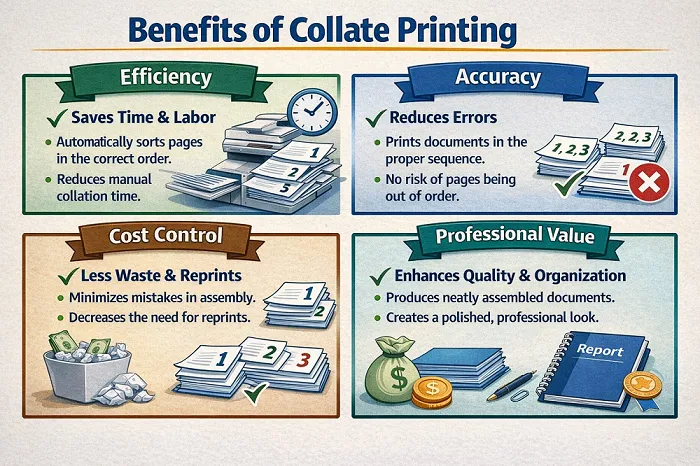
Understanding what does collate mean when printing is only part of the picture. The real value comes from knowing why collated printing matters and how it improves everyday workflows. In professional, educational, and personal environments, collated printing directly affects efficiency, accuracy, cost management, and trust in printed materials.
This section explores the practical benefits of collated printing, explains its business and organizational value, and clarifies when it is the right—or wrong—choice.
Time Efficiency and Productivity Gains
One of the most significant benefits of collated printing is time savings. Without collation, users must manually sort printed pages into complete sets. While this may seem manageable for small jobs, it becomes inefficient very quickly.
For example:
- Printing a 20-page report for 10 people creates 200 pages
- Without collation, those pages must be manually sorted into 10 sets
- This process takes time and increases the chance of errors
Collated printing eliminates this step entirely. Each document emerges already organized, allowing users to move directly to distribution or review. In offices where printing is frequent, these time savings add up quickly and improve overall productivity.
Reduced Human Error and Increased Accuracy
Manual sorting introduces human error. Pages can be:
- Missed
- Duplicated
- Placed in the wrong order
Collated printing reduces these risks by automating page sequencing. This is particularly important for documents where accuracy is critical, such as:
- Legal contracts
- Financial statements
- Policy manuals
- Academic materials
When documents are collated correctly, readers can trust that the information is complete and presented as intended.
Professional Appearance and Readability
Document presentation matters. Collated documents:
- Are easier to read
- Follow a logical flow
- Appear polished and professional
In business settings, presentation reflects organizational standards. A well-collated report signals attention to detail, while disorganized pages can damage credibility. This is why collated printing is standard practice for meetings, presentations, and client-facing materials.
Business Value and Operational Efficiency
From a business perspective, collated printing supports smoother operations. Employees spend less time fixing mistakes and more time on meaningful work. Managers receive documents that are ready to use, reducing delays in decision-making.
In high-volume environments, such as administrative offices or service organizations, collated printing:
- Streamlines document handling
- Supports consistent workflows
- Reduces internal friction
These improvements contribute directly to operational efficiency.
Cost Savings and Waste Reduction
Collated printing also has financial benefits. Errors caused by non-collated printing often lead to:
- Reprints
- Additional paper usage
- Extra ink or toner consumption
By reducing mistakes, collated printing lowers material waste. Over time, this translates into measurable cost savings, especially for organizations that print frequently.
From an environmental standpoint, reduced waste aligns with sustainable printing practices and responsible resource management.
Collated Printing in Educational Environments
In schools and universities, collated printing is essential. Teachers rely on it to distribute:
- Exams and quizzes
- Worksheets
- Course packets
Correct collation ensures that every student receives the same material in the correct order. This supports fairness, clarity, and effective instruction. Non-collated printing in educational settings can cause confusion and disrupt learning.
Legal, Financial, and Compliance Use Cases
Certain industries require strict document accuracy. In legal and financial environments:
- Page order can affect interpretation
- Missing pages can create legal risk
- Disorganized documents reduce trust
Collated printing supports compliance by ensuring documents remain complete and correctly structured. This reliability is critical in regulated industries where documentation standards are enforced.
Brand Trust and Client Confidence
From an EEAT perspective, consistency and accuracy build trust. Clients expect documents to be reliable and easy to follow. Collated printing helps organizations meet these expectations.
When clients receive well-organized documents:
- They perceive the organization as competent
- They trust the information being presented
- They experience fewer frustrations
This contributes to long-term client confidence and brand reputation.
When Collated Printing Is the Best Choice
Collated printing is ideal when:
- Documents are multi-page
- Multiple copies are distributed individually
- Documents are meant to be read sequentially
Examples include:
- Reports
- Training manuals
- Contracts
- Instructional materials
In these situations, collated printing should be the default option.
When Collated Printing May Not Be Ideal
Despite its benefits, collated printing is not always the best choice. Non-collated printing may be preferable when:
- Pages are being bound or assembled later
- Covers are printed separately
- Single-page flyers are produced in bulk
Understanding these exceptions allows users to choose the most efficient workflow instead of relying on one setting for every task.
Scalability for Growing Organizations
As organizations grow, document volume increases. Processes that work for small teams may become inefficient at scale. Collated printing supports growth by:
- Handling larger print jobs reliably
- Reducing administrative workload
- Supporting consistent output quality
This scalability makes collated printing a long-term solution rather than a temporary convenience.
Why Benefits Matter
Experience shows that small workflow improvements create meaningful impact over time. Expertise lies in knowing which tools to use and when. Authoritativeness comes from consistent results. Trustworthiness comes from accuracy and reliability.
How to Use, Optimize, and Troubleshoot Collated Printing (Best Practices and Practical Guidance)
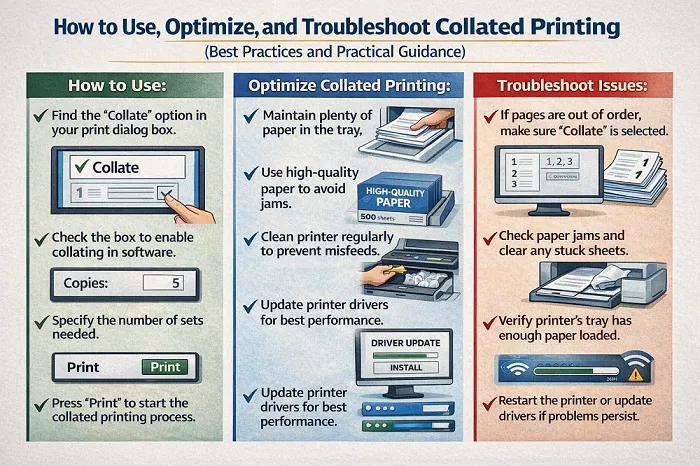
After understanding the collate printing meaning, how it works, and why it matters, the final step is knowing how to use collated printing correctly in real situations. Many printing problems occur not because users misunderstand what collate means, but because they are unsure how to apply it, optimize settings, or fix issues when something goes wrong.
This section provides step-by-step guidance, best practices, troubleshooting advice, and forward-looking insights so users can confidently manage collated printing in any environment.
How to Enable Collated Printing (Step by Step)
Although interfaces vary slightly between devices and software, the process for enabling collated printing is generally consistent.
- Open the document you want to print
Ensure the document is final, correctly formatted, and properly numbered.
- Access the print menu
This is usually found under “File” → “Print” or by using a keyboard shortcut.
- Locate the collate option
Look for a checkbox or toggle labeled “Collate.” It may be represented by an icon showing stacked pages in order.
- Select the number of copies
Enter how many complete document sets you need.
- Confirm settings and print
Review the print preview to verify page order before starting the job.
Following these steps ensures that documents are printed in complete, organized sets.
Best Practices for Reliable Collated Printing
Experienced users and print professionals follow several best practices to avoid mistakes and improve results.
Always use print preview
Print preview helps confirm that page order, orientation, and layout are correct before printing large jobs.
Test with one copy first
For long or important documents, printing a single collated copy first can prevent costly errors.
Keep printer drivers updated
Outdated drivers are a common cause of collation issues. Regular updates ensure compatibility and reliability.
Match printer capacity to document size
Large documents require sufficient printer memory. If performance slows, consider breaking the job into smaller batches.
Advanced Collation Settings and Considerations
Some printers and software offer advanced features related to collation, such as:
- Automatic stapling or binding
- Offset stacking (separating document sets)
- Duplex (double-sided) collated printing
These features are often found in office or commercial printers and help streamline document finishing. Understanding how collation interacts with these options ensures smooth output and prevents misalignment or sequencing errors.
Duplex Printing and Collation
Double-sided (duplex) printing combined with collation requires extra attention. When enabled correctly:
- Pages are printed on both sides
- Each document remains in correct order
- Paper usage is reduced
Users should always confirm duplex settings during preview, as incorrect configuration can reverse page order or disrupt collation.
also read about: playing card dimentions
Common Collate Printing Problems and Solutions
Even with modern printers, issues can occur. Understanding the cause makes troubleshooting easier.
Printer ignores collate setting
- Check if collation is enabled in both software and printer settings
- Update printer drivers
- Restart the printer and computer
Pages print out of order
- Verify document page numbering
- Ensure no conflicting print presets are active
- Disable advanced features temporarily to isolate the issue
Slow printing or printer freezing
- Reduce the number of copies per job
- Print in smaller batches
- Confirm printer memory is sufficient
Paper jams during collated printing
- Use the correct paper type and size
- Avoid overloading the paper tray
- Perform routine printer maintenance
Manual Collation as a Backup Option
In rare cases, a printer may not support collation or may struggle with large documents. Manual collation can be used as a fallback:
- Print pages in non-collated mode
- Sort pages carefully into sets
- Use checklists to avoid missing pages
While manual collation is less efficient, understanding page order principles helps reduce mistakes when automation is unavailable.
Using Collated Printing in Shared Environments
In offices and schools where multiple users share printers:
- Previous print settings may carry over
- Collation may be accidentally disabled or enabled
- Users should always verify settings before printing
Establishing standard print guidelines reduces errors and improves efficiency in shared environments.
Future of Collated Printing
As printing technology evolves, collation continues to improve. Modern trends include:
- Smarter print drivers with automatic optimization
- Cloud-based printing with consistent settings
- Integrated finishing systems for faster output
Despite these advances, the core concept remains the same: delivering complete, ordered documents reliably.
Why Proper Use Matters
From an Experience standpoint, users who understand collated printing avoid frustration and wasted effort. Expertise is demonstrated by knowing how to configure settings and troubleshoot issues. Authoritativeness comes from consistent, professional output. Trustworthiness is built when documents are accurate and complete every time.
Final Conclusion
Understanding what does collate mean when printing transforms a simple printer setting into a powerful productivity tool. From definition and mechanics to benefits and best practices, collated printing supports accuracy, professionalism, and trust across personal, educational, and professional environments.
By applying the knowledge from all four parts of this guide, users can confidently manage printing tasks, reduce errors, save time, and produce documents that meet the highest standards of organization and reliability.