
How to Take a Screenshot on Windows Fast
To take a screenshot on Windows, press Windows plus Shift plus S. Your screen will dim, and a small toolbar will appear at the top. Pick Rectangle, Window, Full screen, or Freeform from that toolbar. Drag to select the area you want to capture. Your snip copies to the clipboard at once. Click the notification to open it in Snipping Tool. There you can mark it up and save it with Ctrl plus S. For a full screen file saved at once, press Windows plus Print Screen instead. That method saves a PNG file in Pictures, then Screenshots. This guide covers all six easy methods in full.
ANSWER BOX 1: Press Windows plus Shift plus S for a quick snip of any area, window, or full screen. For the full screen to the clipboard, press Print Screen. To save a full screen file at once, press Windows plus Print Screen. For only the active window, press Alt plus Print Screen. Finally, use Snipping Tool to edit and save.
The best method depends on what you need next. Use Windows plus Shift plus S when you need only part of the screen. For the whole screen to paste fast, use Print Screen. When you need a saved file with no pasting, use Windows plus Print Screen. For one window only, use Alt plus Print Screen. For games and full screen apps, use Game Bar. Finally, use Snipping Tool when you need to edit, delay, or record. Most people need only two methods each day. Start with Windows plus Shift plus S first. Then learn Windows plus Print Screen second. Those two cover most daily needs. The rest of this guide shows each method step by step. It also shows where files save and how to fix common faults.
Method 1: Snipping Tool With Windows Shift S
This is the best method for most users on Windows 10 and 11. Press Windows plus Shift plus S at the same time. Your screen dims, and the Snipping Tool toolbar appears at the top. To drag a box around any area, choose Rectangle. To capture one app window with a click, choose Window. For all screens at once, choose Full screen. Finally, draw any shape by hand with Freeform.
After you select an area, the snip copies to your clipboard. A small notification appears near the bottom right. Click it to open Snipping Tool. There you can use a pen, highlighter, crop, or eraser. Press Ctrl plus S to save the snip as PNG, JPG, or GIF. On current Windows 11 builds, Snipping Tool can also save snips at once. Check its settings for the auto-save option. This method needs no extra app install. It works on both Windows 10 and Windows 11.
Method 2: Print Screen for the Full Screen
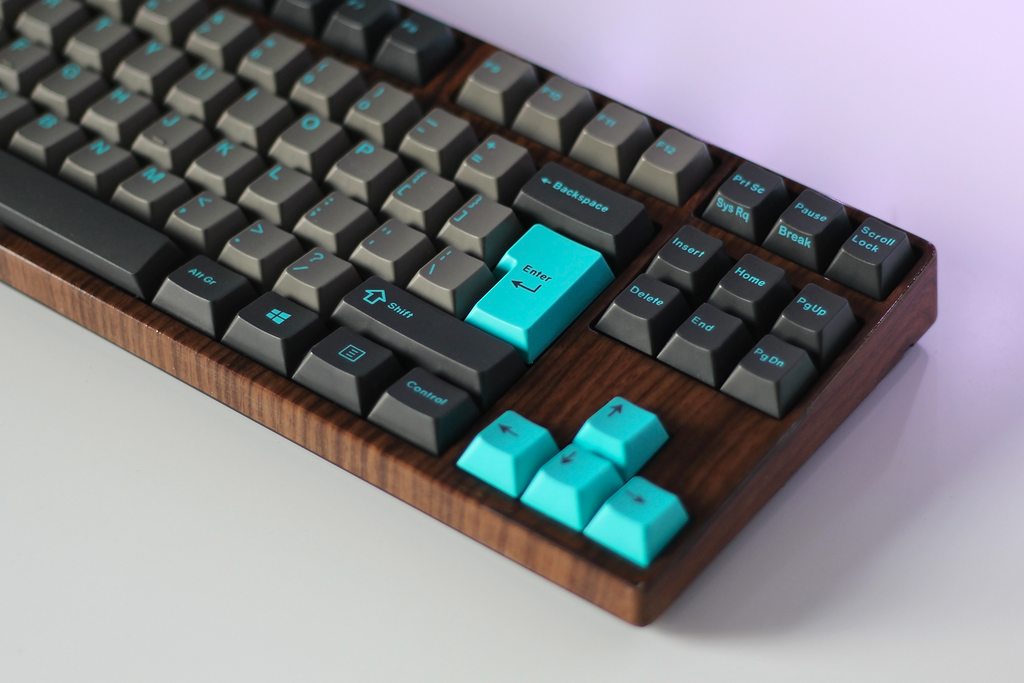
The Print Screen key is the oldest screenshot method on Windows. It is often labeled PrtScn, PrtScr, or Print Screen. On many laptops, you must press Fn plus Print Screen. Pressing it copies the full screen to your clipboard. It does not save a file by itself. Paste it with Ctrl plus V into Paint, Word, email, or chat. On current Windows 11, this key may open Snipping Tool instead. That is the new default setting on many PCs. You can change it in Settings, then Accessibility, then Keyboard. Turn off the option to use Print Screen for screen capture. Then the key returns to its classic clipboard role. If you want the classic role, change that setting once. It will stay set until you change it again. This method suits fast pasting into chats and docs.
Method 3: Windows Print Screen to Save at Once
Press Windows plus Print Screen to save a full screen shot at once. Your screen will dim briefly to confirm the capture. Windows saves a PNG file in Pictures, then Screenshots. The files get numbered in order, such as Screenshot (1). You do not need to paste or save by hand. This method is best when you need many shots in a row. It is also best for proof, receipts, and bug reports. If you use OneDrive backup for Pictures, check OneDrive first. Your shots may save under OneDrive, then Pictures, then Screenshots. On a laptop, you may need Fn plus Windows plus Print Screen. Try that combo if the first one fails. After capture, open the Screenshots folder to check the file. This method saves time when pasting would slow you down.
Method 4: Alt Print Screen for One Window Only
Alt plus Print Screen captures only the active window. It ignores the rest of your desktop and taskbar. This method is best for clean shots of one app. Press Alt plus Print Screen while the app is in front. The window image copies to your clipboard. Paste it with Ctrl plus V into Paint, Word, or chat. It does not save a file by itself. To save it, paste into Paint and press Ctrl plus S. Choose PNG for crisp text and sharp lines. For smaller files when quality matters less, choose JPG. This method keeps private windows out of your shot. It also cuts the need to crop after capture. Use it for support tickets, tutorials, and work chats. It is one of the most useful shortcuts on Windows.

Method 5: Game Bar for Games and Full Screen Apps
Some games and full screen apps block normal screenshot keys. Game Bar solves that problem on Windows 10 and 11. Press Windows plus G to open the Game Bar overlay. Click the camera icon in the Capture widget to take a shot. For a one-key shot, press Windows plus Alt plus Print Screen. Game Bar shots save as PNG files in Videos, then Captures. They do not save in Pictures, then Screenshots. Check that folder if you cannot find a game shot. To record a clip, press Windows plus Alt plus R. Stop with the same keys when you are done. Make sure Game Bar is turned on first. Go to Settings, then Gaming, then Xbox Game Bar. Turn it on if it is off. This method suits gamers, streamers, and full screen app users.
Method 6: Snipping Tool App, Delay, and Screen Recording
Open Snipping Tool from Start when you need more control. Click New, then pick a snip mode from the toolbar. Use the delay clock icon for menus that vanish fast. Pick a delay of 3, 5, or 10 seconds. Click New, then open the menu before the timer ends. Snipping Tool will capture the menu after the delay.
On Windows 11, Snipping Tool can also record video. Press Windows plus Shift plus R to open the video overlay. Drag a box around the area to record. Press Start, then Stop when you are done. Save the clip from the editor that appears. On Windows 10, video recording is not built in this way. Use Game Bar for video clips on Windows 10 instead. In the Snipping Tool editor, you can also copy text from an image. Use Text actions to copy all text from a snip. That trick helps with error messages and tables.
Where Screenshots Save on Windows
Where a shot saves depends on the method you used. Clipboard shots save nowhere until you paste them. Windows plus Print Screen shots save in Pictures, then Screenshots. Game Bar shots save in Videos, then Captures. Snipping Tool shots save where you choose with Ctrl plus S. OneDrive can change the Pictures path if backup is on. If a file seems missing, check both Pictures paths. Open File Explorer and search for Screenshot in Pictures. Sort by date to find the newest file first. Rename files at once so you can find them later. Use clear names with dates, such as error-2026-10-26. A clear name beats Screenshot (47) every time. Move old shots to an archive folder each month.
The Screenshot Filing System: A Section Competitors Skip
Most guides show shortcuts, then stop. They never help you find shots later. This filing system fixes that gap. Create one main folder named Screenshots in Pictures. Inside it, create three folders: Work, Personal, and Bugs. Sort work shots in Work by project name. Sort personal shots in Personal by month. For error shots, use Bugs, with the app name first. Rename each file when you save it, not later. Use this pattern: date, app, short note. For example: 2026-10-26-teams-login-error. Delete shots you no longer need each Friday. Move keepers to the right project folder at once. This system takes seconds per shot. It saves minutes of searching later. It also keeps private shots out of work folders. Try it for two weeks, and searching will feel far easier.
| Method | What it captures | Where it goes |
|---|---|---|
| Windows Shift S | Area, window, or full screen | Clipboard, then Snipping Tool |
| Print Screen | Full screen | Clipboard |
| Windows Print Screen | Full screen | Pictures, then Screenshots |
| Alt Print Screen | Active window only | Clipboard |
| Game Bar | Game or app | Videos, then Captures |
| Snipping Tool app | Any mode, plus delay | Where you save it |
Why Windows 11 Changed Screenshot Keys
Windows 11 made Snipping Tool the default for Print Screen on many PCs. That change confused many long-time users. It also made sense for most new users. Snipping Tool lets you pick an area before you save. The old method forced a full screen paste each time. StatCounter data for October 2026 shows how far Windows 11 has spread.
In that data, Windows 11 held 74.45 percent of Windows desktop use in that month. By contrast, Windows 10 held 24.96 percent in the same data. The newer system first reached the public on October 5, 2021. Mainstream support for Windows 10 ended on October 14, 2025. That shift pushed many users to Windows 11. On Windows 11, learn the new defaults first. On Windows 10, the classic keys still work as before. Either way, the shortcuts in this guide work on both systems. Check your Settings if a key acts in a new way.
ANSWER BOX 2: On Windows 11, Print Screen often opens Snipping Tool by default, so use Windows plus Shift plus S for snips. On Windows 10, Print Screen copies the full screen to the clipboard. Change the Print Screen setting under Accessibility and Keyboard if you want the classic role back. Save files with clear names to find them fast.
Fix Common Screenshot Problems Fast
If Windows plus Shift plus S does nothing, restart your PC first. A stuck Snipping Tool process often clears with a restart. Check that Snipping Tool is installed and up to date. Open Microsoft Store and check for updates if needed. If Print Screen pastes a black image, the app may block capture. Try Game Bar or Snipping Tool for that app instead. If shots save in the wrong folder, check OneDrive settings. Turn off OneDrive backup for Pictures to use the local folder.
If the Screenshots folder is missing, take one Windows plus Print Screen shot. Windows will create the folder at once on that first save. If a laptop key needs Fn, try Fn plus the shortcut. Some laptops swap function key roles in BIOS settings. If text looks blurry, save as PNG, not JPG. PNG keeps text sharp and lines clean. Most faults clear with one of these simple fixes.
Frequently Asked Questions About Screenshot on Windows
How do I screenshot on Windows 11?
Press Windows plus Shift plus S, then pick an area, window, or full screen. Click the notification to edit it in Snipping Tool. Press Ctrl plus S to save it as PNG, JPG, or GIF. For a saved full screen file, press Windows plus Print Screen.
How do I screenshot on Windows 10?
Use the same shortcuts as Windows 11 in most cases. For a snip, press Windows plus Shift plus S. For the full screen to the clipboard, press Print Screen. To save a file in Pictures, then Screenshots, press Windows plus Print Screen.
Where are screenshots saved on Windows?
Windows plus Print Screen shots save in Pictures, then Screenshots. Game Bar shots save in Videos, then Captures. Clipboard shots save nowhere until you paste them. Snipping Tool shots save where you choose with Ctrl plus S.
Why is Print Screen opening Snipping Tool?
On current Windows 11, that is the default setting on many PCs. It lets you pick an area before you save. You can change it in Settings, then Accessibility, then Keyboard. Turn off the Print Screen capture option for classic clipboard use.
How do I screenshot only one window?
Press Alt plus Print Screen while that window is active. The window image copies to your clipboard. Paste it with Ctrl plus V into Paint, Word, or chat. You can also use Windows plus Shift plus S and pick Window mode.
How do I screenshot part of the screen?
Press Windows plus Shift plus S, then choose Rectangle or Freeform. Drag around the area you want to capture. The snip copies to your clipboard at once. Open it from the notification to edit and save it.
How do I take a delayed screenshot on Windows?
Open Snipping Tool, click the delay clock icon, and pick 3, 5, or 10 seconds. Click New, then open the menu you want to capture. Snipping Tool will capture it after the delay ends. This helps with menus that vanish fast.
Can I record my screen on Windows 11?
Yes, Snipping Tool on Windows 11 can record video. Press Windows plus Shift plus R, drag a box, then press Start. Press Stop when you are done, then save the clip. On Windows 10, use Game Bar video capture instead.
How do I screenshot on a laptop without Print Screen?
Use Windows plus Shift plus S, which needs no Print Screen key. Or open Snipping Tool from Start and click New. On a tablet PC, press the Windows logo button plus Volume Down. That saves a full screen shot at once.
Why is my screenshot black or blank?
Some apps block screen capture for security or video rights. Try Game Bar or Snipping Tool for that app instead. A black paste can also come from a stuck graphics driver. Restart your PC and try the capture again.
What file type should I use for screenshots?
Use PNG for text, menus, and error messages, since it stays sharp. For photos and large images when file size matters, use JPG. Snipping Tool lets you pick PNG, JPG, or GIF when you save. PNG is the safest default choice.
How do I copy text from a screenshot?
Open the snip in Snipping Tool on Windows 11. Use Text actions, then Copy all text, to copy the text. Paste it into a document and check it for errors. This trick works best with clear, sharp text in the image.
How do I screenshot a scrolling page on Windows?
Windows has no built-in scrolling capture in Snipping Tool. Capture the page in parts, then join them in an editor. Or use your browser print to PDF for a full page record. Third-party tools add scrolling capture if you need it often.
Sources for statistics in this article: StatCounter Windows version data for October 2026 via Wikipedia usage share template (Windows 11 at 74.45 percent, Windows 10 at 24.96 percent of Windows desktop use); Microsoft Windows 11 release date October 5, 2021; Microsoft Windows 10 mainstream support end date October 14, 2025, as reported in October 2026 market share coverage.
Learn more about this topic on Wikipedia: https://en.wikipedia.org/wiki/Screenshot