
To screenshot on Linux, press the Print Screen key for a full screen capture, Shift plus Print Screen for a selected area, or Alt plus Print Screen for the active window. On Ubuntu and other GNOME desktops, these shortcuts save a PNG file to your Pictures folder, in a subfolder called Screenshots. On KDE Plasma, the same keys open Spectacle, the built in capture tool. If you need notes, arrows, or blur on your capture, install Flameshot and draw on the shot before you save it. This guide covers seven easy ways, so you can pick the one that fits your desktop and your task.
Quick answer: The fastest way to screenshot on Linux is the Print Screen key. Press it once for the full screen, Shift plus Print Screen for an area, or Alt plus Print Screen for one window. On GNOME, the shot saves to Pictures, then Screenshots. On KDE Plasma, Spectacle opens first so you can check the shot before you save it.
Which tool should you pick? Pick your tool by your desktop. GNOME users should start with the built in shortcuts, since nothing needs installing. KDE Plasma users should use Spectacle, which already handles areas, windows, and delays. Anyone who annotates shots daily should install Flameshot for arrows, text, and blur. Terminal users can script captures with simple commands.
How to Screenshot on Linux With the Print Screen Key
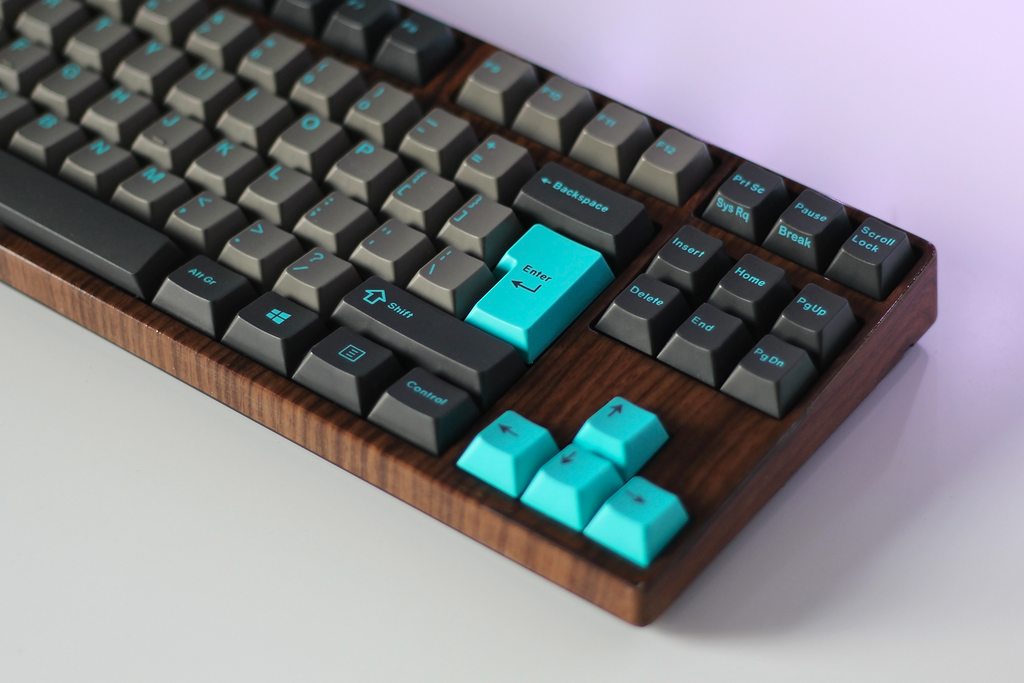
The Print Screen key is the simplest starting point on almost every Linux desktop. On GNOME, which powers Ubuntu by default, pressing Print Screen opens an interactive capture bar at the bottom of the screen. You can then choose full screen, one window, or a selected area before you confirm the shot. The file saves as a PNG, which keeps text sharp and avoids the blur that compressed formats can add. Pressing Shift plus Print Screen skips the bar and lets you drag a box around the exact area you need. Pressing Alt plus Print Screen captures only the window you are using, so private tabs and chats stay out of the shot. If your keyboard has no Print Screen key, open Settings, then Keyboard, then View and Customise Shortcuts, and bind the screenshot actions to keys you do have. Many laptops hide Print Screen behind a Function key, so check whether Fn plus the marked key works before you change anything else.
Way 1: Capture the Full Screen on GNOME and Ubuntu
A full screen capture is the right choice when you need the whole desktop, such as for a bug report or a setup guide. Press Print Screen, choose the full screen option, and confirm with Enter or the capture button. GNOME saves the PNG to Pictures, then Screenshots, with a name that includes the date and time. That naming helps a lot when you take many shots in one session, because you can sort by time later. If you press Ctrl plus Print Screen instead, GNOME copies the shot to the clipboard rather than saving a file. You can then paste it straight into a chat, an email, or a document with Ctrl plus V. This clipboard trick is handy when you only need the shot once and do not want extra files. Remember that clipboard shots vanish when you copy something else, so save the file version when the shot matters.
Way 2: Capture Just One Area With Shift Plus Print Screen
An area capture is the best choice for most daily work, because it cuts out clutter before you share anything. Press Shift plus Print Screen, then drag a box around the part of the screen you want to keep. Release the mouse button, and GNOME saves only that box as your shot. This method beats cropping later, since you never save the parts you planned to remove. It also keeps file sizes small, which helps when you send shots over chat or email. If your first drag misses the edge of a button or a line of text, press Escape and try again rather than fixing a bad shot later. A clean area shot reads better in guides, because the reader sees only the control or message you mean. Area capture also protects privacy, since it leaves your other windows, bookmarks, and notifications out of the frame by design.
Way 3: Capture One Window With Alt Plus Print Screen
A window capture is the tidy middle ground between a full screen and a small area. Press Alt plus Print Screen while the window you want is active, and Linux captures that window alone. Menus from other apps, desktop icons, and the taskbar stay out of the shot. This method suits software guides well, because the reader sees one app in full, with its title bar and controls intact. It also suits error reports, since support staff can see the exact app state without guessing which window you meant. Make sure you click inside the window first, so it is truly active before you press the keys. If the wrong window appears in the shot, you probably had another window focused, so click the right one and repeat. Window captures keep a clean look, and they need no cropping in most cases.
Way 4: How to Screenshot on Linux in KDE Plasma With Spectacle
KDE Plasma ships with Spectacle, a strong built in tool that many users prefer over plain shortcuts. Press Print Screen on KDE, and Spectacle opens with options for full screen, window, area, and the window under your mouse pointer. You can also set a delay, include or hide the mouse pointer, and choose where the file saves. Spectacle shows a preview after each capture, so you can save, copy, or discard the shot at once. That preview step prevents a folder full of failed shots, which is a common problem with blind shortcuts. On newer Plasma releases, Spectacle can even read text from a shot, which helps when you need to copy an error message. To install it on a system that lacks it, run the package command for your distro, such as sudo apt install kde-spectacle on Ubuntu based systems. Spectacle is free, open source software, and it works well on both X11 and Wayland sessions.
Way 5: Annotate Shots Fast With Flameshot
Flameshot is the best free tool when you need arrows, boxes, text, or blur on your shot. Install it with sudo apt install flameshot on Ubuntu based systems, or sudo dnf install flameshot on Fedora, then launch it with flameshot gui. Drag a box around your area, and a toolbar appears with drawing tools, so you can mark the exact button or error at once. You can blur a name, an email address, or a password before you save, which is far safer than sharing a raw shot and hoping no one notices. Flameshot also lets you copy the marked shot to the clipboard, so you can paste it into a chat without saving a file. To make it your default, bind the Print Screen key to flameshot gui in your desktop keyboard settings. That one change turns every Print Screen press into an annotated capture session. Flameshot works on GNOME, KDE, and Xfce, so it is a safe pick when you switch desktops often.
Way 6: Take Screenshots From the Terminal
Terminal captures suit scripts, servers with a display, and repeat tasks that need the same shot each day. On GNOME, the gnome-screenshot command still works in many setups, and gnome-screenshot -a -f shot.png captures an area to a file. On older X11 desktops, scrot is a light classic, and scrot shot.png saves the full screen at once. On Wayland compositors such as Sway, grim is the standard tool, and grim shot.png captures the screen from the command line. Terminal tools shine for automation, since you can pair a capture with a timestamped name in one script line. They also help on remote desktops, where keyboard shortcuts may not reach the Linux session at all. If a command fails, check whether you run X11 or Wayland first, because each display system needs its own tool. Mixing them is the most common cause of a blank or failed terminal capture.
Way 7: Capture Menus and Popups With a Delay Timer
Menus, tooltips, and popups vanish the moment you press a key, so a delay timer solves this classic problem. In GNOME, open the screenshot tool, set a delay of three to five seconds, then open the menu you want to show. In Spectacle, choose the delay option before you start the capture, then open the menu while the timer runs. Flameshot also offers a delay through its settings, and you can combine it with annotation for a polished guide shot. A five second delay suits most menus, while a ten second delay suits multi step popups that need two clicks. Practice the timing once with a harmless menu, so you learn the rhythm before you capture a real error. Delayed capture is the most overlooked of the seven ways, yet it fixes the largest share of failed guide shots. Add it to your toolkit, and your menu shots will stop coming out empty.
Where Your Screenshots Go and How to Change the Folder
Most Linux desktops save shots to Pictures, then Screenshots, as PNG files with date based names. If you cannot find a shot, check that folder first, then check your clipboard, since Ctrl variants copy rather than save. In Spectacle and Flameshot, you can set a custom save folder, such as a project folder or a synced cloud folder. A synced folder is smart when you write guides on two machines, because shots appear on both at once. Rename important shots right away, since date names tell you when, but not what, each shot shows. A name like ubuntu-wifi-error.png beats a date stamp when you search a month later. Empty the Screenshots folder each week, and move keepers into project folders, so the folder stays useful. A small naming habit saves more time than any fancy tool ever will.
Comparison Table: Which Linux Screenshot Method Fits You
| Method | Best for | Needs install | Annotation |
|---|---|---|---|
| GNOME shortcuts | Fast daily shots | No | No |
| KDE Spectacle | Preview and delays | No on KDE | Basic |
| Flameshot | Marked up guides | Yes | Yes, full |
| Terminal tools | Scripts and automation | Often yes | No |
| Xfce Screenshooter | Light desktops | No on Xfce | Basic |
Use GNOME shortcuts when speed matters most and the shot needs no marks. Use Spectacle when you want a preview, a delay, or a clean window shot on KDE. Use Flameshot when the shot must teach, since arrows and blur carry meaning that raw pixels cannot. Use terminal tools when the same shot must repeat on a schedule or inside a script. Keep two methods ready, one fast and one full featured, so no task forces a bad compromise.
Mistakes to Avoid When You Screenshot on Linux
The first mistake is sharing a full screen shot that shows private tabs, emails, or chat names in the background. Use a window or area capture instead, and blur anything sensitive before you share. The second mistake is saving shots as JPEG when the shot holds small text, since JPEG blur can make error codes unreadable. Stick with PNG for guides, errors, and code, and use JPEG only for photos. The third mistake is using the wrong tool for your display system, such as scrot on Wayland, which can fail or return a blank image. Check whether you run X11 or Wayland in Settings, then pick a tool that supports it. The fourth mistake is never renaming shots, which turns the Screenshots folder into a pile of dates you cannot search. The fifth mistake is forgetting the clipboard, since a Ctrl capture that you never paste is lost when you copy new text. Save the file version for anything you may need twice.
Build a Screenshot Folder System That Survives a Reinstall
Most guides stop at the capture, but your shots still need a home that lasts beyond one machine. Create one folder per project inside Pictures, such as Guides, Bugs, and Receipts, and move each shot there on the day you take it. Back that folder up with a free cloud tool, so a reinstall or a failed drive does not erase your guide images. Our guide to best free cloud storage compares free plans that can hold a shot library without cost: https://www.techwole.com/best-free-cloud-storage/ Name files with the topic first and the date last, so alphabetical sorting groups related shots together. Keep raw shots and marked shots in separate subfolders, so you can redo a mark without recapturing the screen. This small system is the section most competitor guides skip, yet it is the part that saves hours when a project runs for months. A capture habit plus a folder habit beats a capture tool alone, every time.
Facts Worth Knowing Before You Pick a Tool
Linux now holds a real, if small, share of desktop use, so its screenshot tools get steady care from their makers. StatCounter data reported for July 2026 put Linux at 7.53 percent of worldwide desktop sessions, up from about 1.7 percent in early 2020. That same StatCounter data counts page views, not devices, and PCWorld noted in August 2026 that bot traffic may inflate recent Linux readings. Even with that caveat, the trend is clearly upward, and Ubuntu, Fedora, and KDE Plasma all ship polished capture tools today. Linux also runs all 500 systems on the TOP500 supercomputer list, a long standing fact that shows how far the same kernel reaches. For daily desktop work, though, the tool matters more than the market share. Pick the method that fits your desktop, learn its delay option, and your shots will look professional at once.
Frequently Asked Questions
How do I screenshot on Linux without installing anything?
Use the built in shortcuts on your desktop. On GNOME, press Print Screen for the full screen, Shift plus Print Screen for an area, or Alt plus Print Screen for a window. On KDE, the same keys open Spectacle. On Xfce, the Screenshooter tool handles the same jobs. Nothing needs installing for basic captures on any major desktop.
Where do Linux screenshots save by default?
Most desktops save shots to Pictures, then Screenshots, as PNG files with date based names. GNOME and KDE both follow this pattern unless you change the folder in the tool settings. If you used a Ctrl shortcut, the shot went to the clipboard instead, so paste it with Ctrl plus V. Check the folder first when a shot seems missing.
Why is my Print Screen key not working on Linux?
First check whether your laptop needs the Fn key with Print Screen, since many laptops hide it that way. Next check Settings, then Keyboard shortcuts, to confirm the screenshot actions still hold their keys. Some apps grab Print Screen for their own use, so close tools like Flameshot or Ksnip and test again. A remap in settings fixes most cases in under a minute.
How do I screenshot only part of the screen on Linux?
Press Shift plus Print Screen on GNOME or KDE, then drag a box around the part you want. The tool saves only that box, so clutter and private windows stay out. Flameshot gives the same area choice plus annotation tools on any desktop. Area capture is the best default for guides, chats, and support tickets.
Can I screenshot a menu that disappears when I press a key?
Yes, use a delay timer of three to ten seconds in GNOME, Spectacle, or Flameshot. Start the timer, then open the menu while it counts down, and the tool captures it when time runs out. Practice once with a harmless menu to learn the timing. Delay capture is the fix for almost every vanishing menu problem.
How do I take a screenshot on Linux from the terminal?
On GNOME, run gnome-screenshot -a -f shot.png for an area capture to a file. On X11 desktops, scrot shot.png saves the full screen at once. On Wayland compositors like Sway, grim shot.png is the standard choice. Match the tool to your display system, or the command may fail.
What is the best screenshot tool for Ubuntu?
For most Ubuntu users, the built in GNOME shortcuts are enough for fast shots. Flameshot is the best add on when you need arrows, text, or blur, since it annotates before saving. Spectacle suits KDE users, while Ksnip suits those who want a light editor. Start built in, then add Flameshot only if you mark shots daily.
How do I screenshot on Linux Mint or Xfce?
Linux Mint with Cinnamon uses GNOME style shortcuts, while Xfce uses its Screenshooter tool. Press Print Screen to open the capture dialog, then pick full screen, window, or area. Xfce Screenshooter also offers a delay and a save dialog. Flameshot works on both desktops if you want annotation as well.
Why are my Linux screenshots blank or black?
A blank shot usually means the tool does not support your display system, such as an X11 tool on Wayland. It can also mean a secure app blocked capture, which some banking apps and video players do. Try the desktop built in tool first, since it uses the proper portal on Wayland. Update your tool if the problem repeats on normal apps.
Can I copy a screenshot to the clipboard instead of saving it?
Yes, hold Ctrl with your capture shortcut on GNOME, such as Ctrl plus Print Screen for the full screen. Spectacle and Flameshot both offer a copy button after capture as well. Then paste with Ctrl plus V into chat, email, or a document. Save the file version too when you may need the shot again.
How do I blur private details in a Linux screenshot?
Flameshot has a blur tool in its toolbar, so you can hide names, addresses, or passwords before saving. Ksnip offers a similar pixelate tool for the same job. Blur before you share, not after, since a posted shot cannot be recalled. Check the blurred area at full zoom to confirm nothing leaks through.
Do Linux screenshots work on Wayland?
Yes, but you must use tools that support the Wayland screenshot portal. GNOME shortcuts, Spectacle, Flameshot, and grim all support Wayland on current releases. Old X11 tools like scrot do not, and they may fail or return blank images. If a tool fails on Wayland, switch to your desktop built in tool first.
Final Word
Learning how to screenshot on Linux takes five minutes, but the right method saves hours across a year of guides, tickets, and chats. Start with the built in shortcuts for speed, add Spectacle or Flameshot when a shot must teach, and use a delay for menus. Keep PNG format for text, rename shots by topic, and back up your folder. With these seven ways in hand, you will never fumble for a capture method again.
Related guides: how to take a screenshot on Windows: https://www.techwole.com/screenshot-on-windows/ ; how to screenshot on Mac: https://www.techwole.com/how-to-screenshot-on-mac/ ; how to take a screenshot on a Chromebook: https://www.techwole.com/how-to-take-a-screenshot-on-a-chromebook/ ; how to screenshot on Android: https://www.techwole.com/how-to-screenshot-on-android/
Learn more on Wikipedia: https://en.wikipedia.org/wiki/Linux