
How to Split Screen on Two Monitors Windows 10 in 5 Steps
Learning how to split screen on two monitors windows 10 is simple once you know the right steps. First, connect the second monitor with an HDMI or DisplayPort cable. Then open Settings, go to System, and click Display. Choose Extend these displays under Multiple displays. Your desktop now stretches across both screens.
Drag windows to the screen you want. Or press Win + Shift + Left or Right to move them fast. This guide covers all five steps in detail. It also covers the common mistakes to avoid.
This guide shows you how to split screen on two monitors windows 10 from start to finish. Two screens give you more room to work and study. You can keep your main task on one screen. Your notes can stay open on the other screen. Many people feel the difference on the first day.
Jon Peddie Research surveyed more than 1,000 information workers, designers and engineers. It found a 42% average expected productivity increase from using multiple displays (reported by PRISM+, 4 August 2026). The full setup takes about ten minutes. Windows 10 then remembers your settings each time you start the computer. Your other computer may run the newer system. Our guide to split screen on Windows 11 covers the same steps there.
Answer Box 1 To learn how to split screen on two monitors windows 10, connect the second monitor first. Then open Settings, System, and Display. Select Extend these displays under Multiple displays. Click Apply to confirm the change. Your desktop now stretches across both screens. Drag windows between monitors. Or press Win + Shift + Left and Right to move them fast.
Answer Box 2 If the second monitor shows nothing, check the cable first. Then press Win + P and choose Extend. Update your display driver in Device Manager if the screen stays blank. Set the main display in Settings so apps open where you expect. Restart the computer if the monitor is still not found.
What You Need Before You Learn How to Split Screen on Two Monitors Windows 10
You need a second monitor, a cable, and a free port. Most monitors from Dell, HP, and Lenovo use HDMI or DisplayPort. Most laptops and desktops have at least one of these ports. Check the back of your computer first. Then check the back of the monitor.
If the ports do not match, buy a simple adapter. A USB-C to HDMI adapter works for most new laptops. You need no extra software at all. Microsoft built all the display tools into Windows 10.
Place both monitors at the same height before you plug anything in. Put your main monitor right in front of you. Put the second monitor to its side at a slight angle. Sit about an arm’s length from both screens.
Keep the cables behind the desk so they do not pull on the ports. A tidy desk also makes the monitor buttons easy to reach. If your desk is small, a monitor arm can lift both screens. Good placement now saves you from neck pain later.
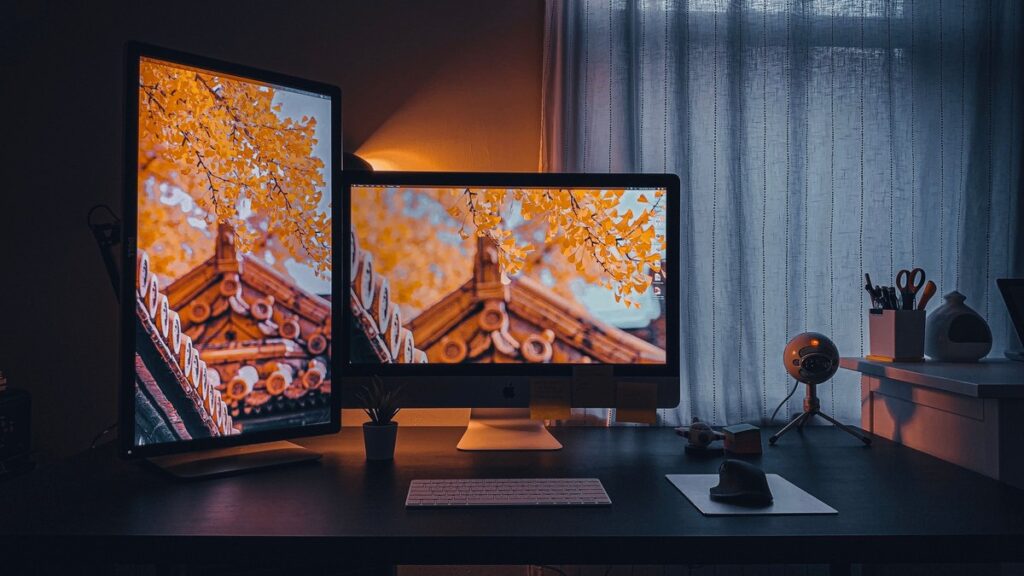
How to Split Screen on Two Monitors Windows 10: The 5 Best Steps
Step 1: Connect the Second Monitor and Check the Cable and Port
Turn off the second monitor before you plug in the cable. Plug one end into the monitor and the other end into your computer. Use HDMI if both devices have an HDMI port, since it is the most common choice. Use DisplayPort if both devices support it, since it handles high refresh rates well. Push the cable in firmly until it sits flat, because a loose cable causes most blank screens. Turn the monitor on, press its input button, and select the port you used.
Step 2: Set Extend in Settings, System, Display (or Press Win + P)
Press Win + P on your keyboard to open the Project menu fast. Select Extend so your desktop stretches across both monitors. You can also open Settings, click System, and then click Display. Scroll to Multiple displays and choose Extend these displays from the list. Click Apply, then click Keep changes when Windows 10 asks you to confirm. Your mouse should now move freely from one screen to the other.
Step 3: Set the Main Display and Arrange the Screens
Open Settings, go to System, and click Display to see two numbered boxes. Click Identify to see a large number on each real screen. Drag the boxes left or right until they match your desk layout. Click the box for the monitor you use most. Scroll down and tick Make this my main display. Click Apply to save the layout and test the mouse across the edge.
Step 4: Split Windows Across Both Monitors With Shortcuts
Open your first app, such as Microsoft Edge or Google Chrome. Press Win + Left to snap it to the left half of the screen. Open a second app and press Win + Right to snap it right. To move a window to the other monitor, press Win + Shift + Left or Right. The window keeps its size, so snap it again if you want it to fill half the screen. You can also split Windows 10 into three parts for email, browser, and notes at once.
Step 5: Fix Common Problems Like Wrong Resolution, Taskbar, and Scaling
If the picture looks blurry, set the resolution to the Recommended value for each monitor. If text looks too small on one screen, change the Scale setting for that monitor only. If the taskbar shows on the wrong screen, use Taskbar settings to show it on all displays. If the second monitor stays dark, check the cable, press Win + P, and choose Extend again. Update the display driver in Device Manager if the screen still stays blank. Press Win + Shift + S to take a screenshot on Windows and save your layout.
Extend vs Duplicate vs Second Screen Only
Windows 10 offers three display modes, and each one suits a different job. Extend gives you two separate workspaces, so it suits daily work best. Duplicate shows the same picture on both screens, which suits a presentation. Second screen only turns off your main display and suits a film on a big TV. Use this table to pick the right mode for your task.
| Display Mode | What It Does | When to Use It |
|---|---|---|
| Extend | Each monitor shows different windows and your desktop stretches across both screens | Daily work, study, coding, writing, research, and any task with two apps open |
| Duplicate | Both monitors show the exact same picture at the same time | Presentations, teaching, training sessions, and showing your screen to a group |
| Second screen only | The main display turns off and only the second monitor shows your desktop | Watching a film on a big TV, using a large external monitor with a closed laptop |
Mistakes to Avoid When You Learn How to Split Screen on Two Monitors Windows 10
The first mistake is buying the wrong cable, so check the ports on both devices first. A cable that does not fit the port will not work at all. The second mistake is leaving the display on Duplicate mode. Press Win + P and choose Extend, because Duplicate is not a split screen. The third mistake is skipping the screen arrangement step. Drag the display boxes in Settings until they match your real desk layout.
The fourth mistake is setting the wrong monitor as the main display. Apps then keep opening on the screen you use least. Click the monitor you sit in front of most and tick Make this my main display. The fifth mistake is ignoring the resolution warning on one screen. Always choose the Recommended resolution for each monitor, even if the sizes differ. The sixth mistake is placing the screens at different heights, which strains your neck all day.
In a 2015 Wichita State University study commissioned by Dell, dual-monitor users were more efficient. They were 18% more efficient on tasks that used more than one source of information. And 91% said they were more satisfied with two monitors. Those gains fade fast when the setup hurts your body. So fix the height and distance before you blame the screens.
Two-Monitor Ergonomics: Where to Put Each App So Your Neck Stops Hurting
Put your main app on the monitor right in front of you. That is where your eyes rest most of the time. Put your second app, such as email or notes, on the side monitor. Keep the
top of each screen at or just below eye level. Sit about an arm’s length from the screens to protect your eyes. A University of Utah study from 2003 tested one monitor against two.
In that study, people with two monitors finished tasks up to 44% faster than people with one monitor. And 98% of them said they preferred two screens. Speed means little if your neck hurts by lunch, so comfort comes first. Use books or a monitor stand to lift a low screen. Keep video calls on the screen with the webcam, so you face the camera. Take a short break every thirty minutes, stand up, and stretch your neck.
Quick Setup Checklist

Run through this list each time you set up two monitors on a new desk.
- ☐ Second monitor, power cable, and HDMI or DisplayPort cable ready on the desk
- ☐ Both monitors at the same height, main screen directly in front of you
- ☐ Cable pushed in firmly at both ends, correct input selected on the monitor
- ☐ Win + P pressed and Extend chosen, or Extend these displays set in Settings
- ☐ Identify clicked, display boxes dragged to match the real desk layout
- ☐ Main display set with Make this my main display, then Apply clicked
- ☐ Resolution set to Recommended on each monitor, scaling adjusted if needed
- ☐ Taskbar set to show on all displays, or on the main display only
- ☐ Windows snapped and moved with Win + Left, Win + Right, and Win + Shift + Left or Right
- ☐ Test done: mouse moves smoothly between screens, apps open on the right monitor
Frequently Asked Questions
1. How do I split screen on two monitors in Windows 10? Connect the second monitor, press Win + P, and choose Extend to stretch your desktop across both screens. Then drag windows between monitors or press Win + Shift + Left or Right to move them. Set the main display in Settings, System, and Display so apps open where you expect.
2. How do I extend my display to a second monitor on Windows 10? Open Settings, click System, and then click Display to find the Multiple displays menu. Choose Extend these displays from the list and click Apply to confirm. Your desktop will now span both monitors, and each screen can show different windows.
3. Why is my second monitor not detected in Windows 10? Check the cable first, because a loose HDMI or DisplayPort cable is the most common cause. Press Win + P and choose Extend, then click Detect in Display settings. Update the display driver in Device Manager if the screen still stays blank.
4. How do I make one monitor my main display in Windows 10? Open Settings, go to System, and click Display to see the numbered boxes. Click the box for the monitor you want, scroll down, and tick Make this my main display. Click Apply, and the taskbar and new apps will now open on that screen.
5. Can I split one screen into two windows on Windows 10? Yes, you can snap two windows side by side on a single monitor. Open the first app, press Win + Left, then open the second app and press Win + Right. This snap feature works on each monitor, so two monitors give you four snapped windows at once. Our guide to split screen on Windows 10 explains the snap layouts in more detail.
6. How do I move a window to the other monitor quickly? Click the window once to select it, then press Win + Shift + Left or Right. The window keeps its size when it moves to the other screen. You can also drag it by the title bar across the edge between screens.
7. What is the difference between Extend and Duplicate in Windows 10? Extend gives each monitor its own workspace, so you can show different windows on each screen. Duplicate shows the same picture on both monitors, which suits presentations and teaching. Choose Extend for daily work and Duplicate only when a group must see your screen.
8. How do I set different wallpapers on two monitors in Windows 10? Right-click the desktop and choose Personalize, then click Background to open the wallpaper settings. Right-click any picture and choose Set for monitor 1 or Set for monitor 2. Each screen then gets its own image, which makes the two screens easy to tell apart.
9. Why does my mouse jump when I move it between monitors? The display boxes in Settings do not match the real order of the screens on your desk. Open Settings, go to System, and click Display, then drag the boxes to match the layout. The mouse will then cross the edge at the same height on both screens.
10. How do I fix blurry text on my second monitor in Windows 10? Set the resolution to the Recommended value for that monitor in Display settings. Adjust the Scale setting for that monitor only, then sign out and back in if asked. If the text stays blurry, update the display driver and restart the computer.
11. Do I need a special graphics card for two monitors on Windows 10? Most modern laptops and desktops support two monitors with their built-in graphics. Check that your computer has two video ports, such as HDMI and DisplayPort. Very old computers may need a cheap graphics card with two outputs.
12. Can I use a laptop screen and a monitor as two screens? Yes, a laptop screen and an external monitor work as two screens in Windows 10. Connect the monitor with HDMI or DisplayPort, press Win + P, and choose Extend. You can set either screen as the main display to suit your desk.
Now you know how to split screen on two monitors windows 10 without stress or guesswork. Pair your new setup with our productivity tips to plan deep work blocks. Your desk should now feel calm, roomy, and easy to use. If a screen ever goes blank, check the cable first and press Win + P again.
For more on how Windows handles multiple screens, read the background on multi-monitor setups on Wikipedia: https://en.wikipedia.org/wiki/Multi-monitor