
Yes, you can split Windows 10 into three windows on one screen in a few simple steps. To use windows 10 split screen into 3 windows, snap one app left and stack two apps right. Snap Assist helps you place each window in a corner or a side zone with clear guides. You can also use keyboard shortcuts, drag windows with your mouse, or try FancyZones for more control. This guide shows five simple ways, common mistakes, and a smart layout that keeps your work clear.
Windows 10 launched on 29 July 2015 with Snap Assist built in by Microsoft for easy multitasking. Windows 10 support ended on 14 October 2025, so many users now plan an upgrade while they work. StatCounter estimates Windows 11 runs on 71.5% of Windows PCs worldwide, while Windows 10 is on 27.77%. The Register reported these figures on 5 October 2026, and they show Windows 10 is still widely used.
A three window layout works best when each app has a clear job on your screen. Your main app takes the large left side, while notes and chat stay small on the right side. For the basic two window method, read our guide to how to split screen on Windows 11 first. This article focuses on three windows, so you can follow each method from start to finish.
Answer Box 1 To use windows 10 split screen into 3 windows, drag one window to the left edge. Choose a corner size, then drag a second window to the top right corner. Drag a third window to the bottom right corner, and Snap Assist will show your open windows. Pick each window in turn to fill the three zones.
Answer Box 2 Keyboard shortcuts give you the fastest three window layout once you learn the keys. Press Win plus Left to snap the first window to the left side. Then press Win plus Up or Down to place it in a corner. Then use Win plus Up and Win plus Down to place the last two windows.
How to Use Windows 10 Split Screen Into 3 With Snap Assist
Open the three apps you want to use, and keep them ready in the taskbar for quick access. Click the first app, press Win plus Left, and it will fill the left half of your screen. Press Win plus Up to move it to the top left corner. Snap Assist will show your other open apps in the free space on the right side.
Choose the second app from the Snap Assist list to fill the top right corner. Choose the third app next, and it will fill the bottom right corner in the same way. If Snap Assist does not appear, open Settings, go to System, and turn on Snap windows first. Read our guide to split screen on Windows 10 for the basic steps first. This method is best for quick work, because it needs no extra app or setup time at all.
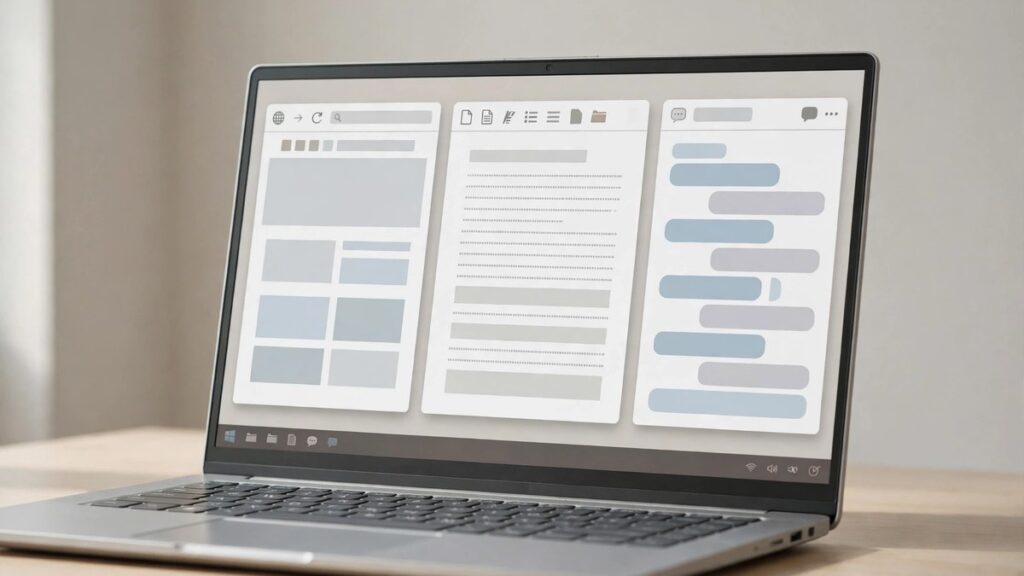
Windows 10 Split Screen Into 3 With Keyboard Shortcuts Only
Keyboard shortcuts work well when you want speed and you do not want to drag windows. Open your three apps first, then click the app you want to place on the left side. Press Win plus Left to snap it left, then press Win plus Up to move it up. Click the next app, press Win plus Right, and then press Win plus Up. Click the last app, press Win plus Right, and then press Win plus Down.
This method feels fast after a little practice, and it keeps your hands on the keyboard all day. If a window moves to the wrong place, press the same keys again to fix it. Use Alt plus Tab to switch between open apps when you need to pick the next window fast. Microsoft Edge and Google Chrome both work well with these keys for browser tabs.
Drag Windows Into Corners for a Quick Three Window Layout
Dragging works well if you like your mouse and want a visual way to place windows. For windows 10 split screen into 3, drag the first window to the left edge first. Hold it until you see a clear outline, then let go and the window will snap into place. Drag the second window to the top right corner until the outline shows a small square zone. Drag the third window to the bottom right corner in the same way to finish the layout.
Dragging can feel slow on a small laptop screen, so use a mouse if you have one nearby. If the outline does not appear, move the window slowly and hold it at the edge. For a second screen, read our guide to split screen on two monitors. This simple method suits beginners, because you can see each zone before you drop the window.
Use Microsoft PowerToys FancyZones for a Custom Three Zone Layout
PowerToys is a free tool from Microsoft, and FancyZones is one of its best features for window control. Download PowerToys from the Microsoft Store, open it, and turn on FancyZones in the left menu. Open the layout editor, pick a three zone layout, and adjust each zone to fit your apps well. For windows 10 split screen into 3, FancyZones lets you build a custom layout with three exact zones. Hold Shift while you drag a window, and it will drop into the zone you choose at once.
FancyZones helps when Snap Assist zones feel too small, because you can set exact widths for each app. Save one layout for research, one for calls, and one for writing, then switch fast. This method needs a little setup time, but it pays off if you use three windows every day. Keep PowerToys updated, and check that FancyZones stays on after each Windows update on your PC.
Adjust Widths and Save Your Layout With Snap Groups and Task View
A good three window layout is not just about place, because width also shapes how you read text. Drag the border between two windows left or right until each app shows its full text clearly. Make the main app wider when you write or code, and keep notes narrow on the right side. Snap Groups in Task View can help you return to the same group after you open another app.
Open the same three apps in the same order each day, so your hands learn the layout fast. Close apps you do not need, because extra windows can break the group and waste your time. Take a screenshot of your best layout, so you can copy the same widths again next time. Read our guide to how to screenshot on Windows if you want to save that layout photo.
The 3-Window Rule: Which App Goes Where (and Which One Always Fails)
Use windows 10 split screen into 3 with your main app on the large left side. Put your source in the top right zone, so you can glance at it fast. Put chat or notes in the bottom right zone for short checks during work. This rule keeps your eyes calm, and it stops you from hunting for the right window each time.
Video calls often fail in a small zone, because faces and controls need more space. Wide spreadsheets also fail in narrow zones, because columns shrink and numbers become hard to read. Photo editors and design apps need space too, so give them the large zone or use them alone. For more work habits, read our productivity tips guide and build a calm daily routine.
Mistakes to Avoid When You Split Your Screen Into Three Windows

One common mistake is to open too many apps, because extra windows crowd the screen. Use windows 10 split screen into 3 only for the three apps you need for one clear task. Another mistake is to put the main app in a small corner, which makes text tiny. Give the main app the large zone, and keep small zones for notes, chat, or a quick reference. Do not ignore Snap Assist settings, because a turned off setting can stop the whole layout from working.
Many users forget to save their layout, so they rebuild the same windows each morning. Use Snap Groups, FancyZones, or a simple note that lists your three apps in order for each task. Avoid tiny fonts in small zones, because they strain your eyes and slow your reading during long work. Increase the zoom in your browser or app when the right zones feel too narrow for clear text.
Compare the 5 Methods and Use This Quick Checklist
Use windows 10 split screen into 3 with the method that fits your task best. Snap Assist is the fastest free choice, while FancyZones gives you the most control over exact zones. Keyboard shortcuts suit fast typists, dragging suits visual users, and Snap Groups suit daily routines. The table below shows each method, its best use, and its level of ease in one clear view.
| Method | Best For | Difficulty |
|---|---|---|
| Snap Assist | Quick daily work | Easy |
| Keyboard shortcuts | Fast typists | Easy |
| Drag into corners | Beginners and visual users | Easy |
| PowerToys FancyZones | Custom fixed layouts | Medium |
| Snap Groups and Task View | Daily routines | Medium |
Quick Checklist
- ☐ Open only the three apps you need for one task.
- ☐ Put the main app on the large left side.
- ☐ Put the source on the top right and chat on the bottom right.
- ☐ Adjust the borders until all text is easy to read.
- ☐ Save the layout with Snap Groups or FancyZones.
- ☐ Close extra tabs and apps before you start work.
Frequently Asked Questions About Splitting Windows 10 Into Three Windows
Use windows 10 split screen into 3 with confidence after you read these common questions and clear answers. Each answer gives a short fix, so you can solve a small problem without starting your layout again. If your question is not here, try the method that fits your apps best today. Most split screen problems come from settings, small zones, or too many open apps at once.
Can I split Windows 10 into 3 windows for free?
Yes, Snap Assist is built into Windows 10 at no extra cost. Open three apps, snap one left, and stack two on the right.
Why does Snap Assist not show my open apps?
Snap Assist may be off in Settings, or the app may not support snapping. Open Settings, go to System, then Multitasking, and turn on Snap windows. Restart the app and try the layout again.
How do I split my screen into 3 equal parts in Windows 10?
Windows 10 Snap Assist does not give three equal parts by default. Use one large left zone and two small right zones for the best fit.
Can I use keyboard shortcuts to split the screen into 3?
Yes, use Win plus Left, Win plus Up, and Win plus Down to place windows in corners. Repeat the keys for each app until all three zones are full. Practice the keys a few times to build speed.
What is FancyZones and is it safe to use?
FancyZones is part of Microsoft PowerToys, a free tool from Microsoft for Windows users. It lets you build custom zones and save layouts for daily work.
Why does my window not snap to a corner?
You may be dragging too fast, or Snap Assist may be off in your settings. Move the window slowly to the corner and wait for the outline. Turn on Snap windows in Settings if the outline never appears.
Can I split the screen into 3 on a laptop?
Yes, the same methods work on a laptop with one screen. Use keyboard shortcuts for speed, because dragging can feel slow on a small trackpad.
How do I change the size of each window after I split the screen?
Drag the border between two windows left, right, up, or down to change the size. Snap Assist will adjust the other windows to fit the new space. Test the new widths for a few minutes before you start work.
Can I split the screen into 3 on two monitors?
Yes, you can split each monitor into zones and use more than three windows in total. Snap Assist works on each screen, so place apps where they help you most.
Why do some apps look small in a split screen?
Some apps need a wide window to show menus, tools, and text in full. Give those apps the large left zone and keep narrow apps on the right. Increase the zoom if the text still feels too small to read.
How do I exit split screen in Windows 10?
Click the maximise button on one window to fill the screen again. You can also drag a window away from the edge to free it from the snap zone.
Can I save my three window layout for tomorrow?
Yes, use Snap Groups in Task View to return to the same group of apps. FancyZones also lets you save a custom layout for a set task. Open the same three apps in the same order to rebuild the layout fast.
A three window layout can make study and work feel calm when each app has a clear place. Start with Snap Assist today, then try FancyZones when you want a fixed layout for a project. Keep the main app large, keep notes close, and change widths until text feels easy. You can learn more about the system in the Windows 10 guide on Wikipedia.