
To change passcode on iPhone, open Settings first. Tap Face ID and Passcode, then tap Change Passcode. Enter your old passcode, then type your new passcode twice. The whole change takes less than a minute. This guide shows how to change passcode on iPhone with 7 best ways. Each way fits a real model and a real situation.
Answer Box 1 To change passcode on iPhone, open Settings first. Tap Face ID and Passcode on a Face ID model. Tap Touch ID and Passcode on a Home button model. Tap Change Passcode, then enter your current code. Enter the new code twice to finish. Tap Passcode Options first for a 4-digit code, a custom numeric code, or a custom alphanumeric code.
Contents
- How to Change Passcode on iPhone in 7 Best Ways
- What Happens When You Enter the Wrong Passcode
- How to Pick a Strong Passcode You Can Still Remember
- Mistakes to Avoid When You Change Passcode on iPhone
- The Monthly Passcode Check Most Guides Miss
- Frequently Asked Questions
How to Change Passcode on iPhone in 7 Best Ways
The seven ways below cover every iPhone model. The first five ways change a code you still know. The last two ways cover the tricky cases. Start with the way that matches your phone. Apple Support confirms the path for each method below.
1. Change the Passcode on a Face ID iPhone
Open Settings on your iPhone. Scroll down to Face ID and Passcode. Tap it, then enter your current passcode. Tap Change Passcode near the top of the screen. Type your old passcode again if the phone asks. Type your new passcode once. Type it a second time to confirm it.
The change is done at once. Face ID keeps working with the new code. Your face data stays untouched. A passcode change never deletes biometric data. Test the new code right away. Lock the phone and unlock it again.
2. Change the Passcode on a Touch ID iPhone
iPhones with a Home button use Touch ID. The steps are nearly the same as Face ID models. Open Settings and tap Touch ID and Passcode. Enter your current passcode when asked. Tap Change Passcode and enter your old code again.
Type your new passcode, then type it once more. Your saved fingerprints stay safe. Changing the passcode does not delete Touch ID data. Lock the phone and unlock it with the new code. If Touch ID feels slow, restart the phone once.
3. Switch to a Simple 4-Digit Code
Some people prefer a short code that is fast to type. Apple still allows a 4-digit passcode. Open Settings and tap Face ID and Passcode. On a Home button model, tap Touch ID and Passcode. Tap Change Passcode and enter your old passcode. Tap Passcode Options just above the number keypad.
Choose 4-Digit Numeric Code from the list. Type your new four digits, then type them again. A 4-digit code has only 10,000 possible mixes. It is the weakest option Apple offers. Use it only with Face ID or Touch ID on.
4. Switch to a Custom Numeric Code
A custom numeric code lets you use more digits. More digits make guessing far harder for a thief. Open Settings and tap Face ID and Passcode. Tap Change Passcode and enter your old passcode. Tap Passcode Options above the keypad. Choose Custom Numeric Code from the list.
Type a longer number that you can still recall. A code of eight or ten digits is much stronger. Type the new code again to confirm it. Lock the phone and test the code once. Never use a birth year or a phone number.
5. Switch to a Custom Alphanumeric Code
A custom alphanumeric code mixes letters and numbers. Apple calls it the most secure option. Open Settings and tap Face ID and Passcode. Tap Change Passcode and enter your old passcode. Tap Passcode Options above the keypad. Choose Custom Alphanumeric Code from the list. A full keyboard will appear on the screen.
Type a code that mixes letters, numbers and symbols. A short phrase with a number inside works well. Type the code again to confirm it. Test it by locking and unlocking the phone. This code takes longer to type. Face ID or Touch ID becomes even more useful.
6. Use Your Old Passcode Within 72 Hours of a Change
Apple gives you a 72-hour safety net after a change. Many people never learn about this feature. If you forget the new code within three days, the old code can help. This feature is called Passcode Reset. It works on iOS 17 and later. It needs Find My turned on and a network connection.
Enter the wrong code until Forgot Passcode appears. Tap it and choose Enter Previous Passcode. Type your old code, then set a new code. The old code stops working after 72 hours. Use this window fast. Our guide on forgot iPhone passcode explains this rescue in full detail.
7. Change the Passcode After an Erase When You Forgot It
If you forgot your passcode, you must erase the phone. This applies when the 72-hour window has passed. Apple offers no way to read a forgotten passcode. The code lives only on your device. Erase the phone from the lock screen with Forgot Passcode. This works on iOS 17 or later.
You can also use a computer in recovery mode. Use Finder on a Mac or iTunes on Windows. After the erase, set up the phone again. Choose a brand new passcode during setup. Then restore your photos, messages and apps from a backup.
What Happens When You Enter the Wrong Passcode
A passcode protects one of the most used devices on earth. Apple guards it with a strict lockout ladder. Apple said its active device base passed 2.2 billion in February 2024. That figure comes from Apple press release dated 1 February 2024. By January 2025, the figure had grown past 2.35 billion. That figure comes from Cult of Mac coverage dated 30 January 2025. Every one of those devices relies on a passcode.
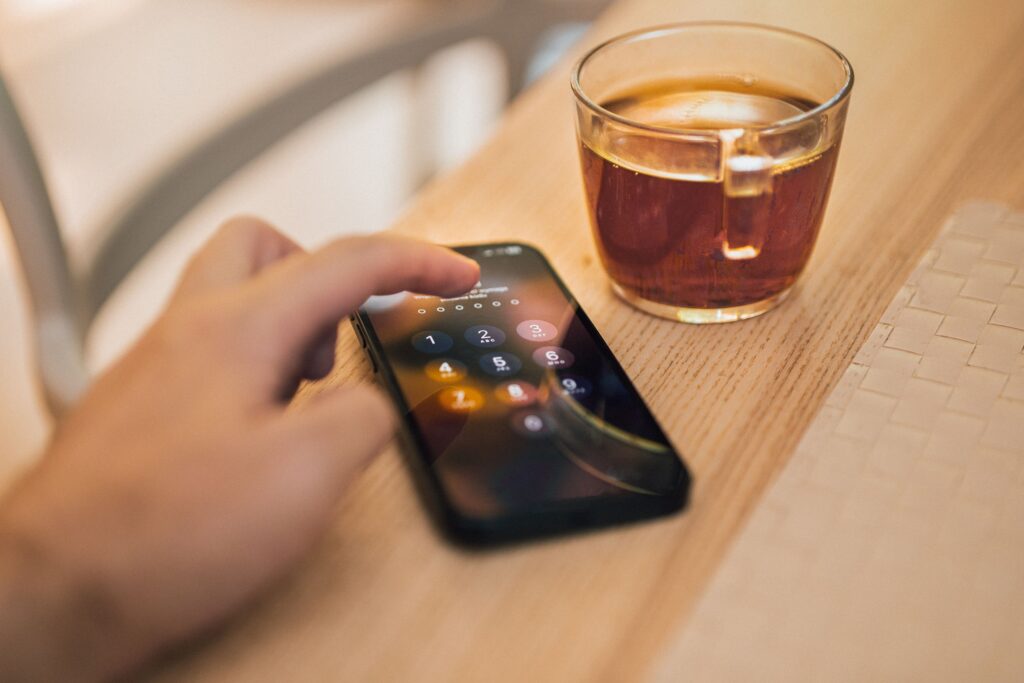
The lockout ladder works in stages. The wait grows longer with each wrong guess. After six wrong tries, the phone locks for one minute. After seven wrong tries, the wait grows to five minutes. After eight wrong tries, the wait grows to fifteen minutes. After nine wrong tries, the wait grows to one hour.
After ten wrong tries, the phone locks for good. It shows iPhone Unavailable or Security Lockout. The exact counts can vary a little by iOS version. The ten-try limit stays the same. At that point, only an erase can bring the phone back. If your passcode is right but the phone rejects it, read our guide on iPhone passcode not working.
| Wrong attempts in a row | What your iPhone shows | Wait before next try |
|---|---|---|
| 1 to 5 | No lockout yet, try again | None |
| 6 | iPhone Unavailable, try again in 1 minute | 1 minute |
| 7 | iPhone Unavailable, try again in 5 minutes | 5 minutes |
| 8 | iPhone Unavailable, try again in 15 minutes | 15 minutes |
| 9 | iPhone Unavailable, try again in 1 hour | 1 hour |
| 10 | iPhone Unavailable or Security Lockout | Locked, erase to recover |
One more setting can change the ending of this ladder. Inside Face ID and Passcode sits a switch called Erase Data. It is off by default on every iPhone. When you turn it on, the phone erases itself after ten failed tries. That protects your data if the phone is stolen.
It also means random taps by a child can wipe the phone. Leave the switch off unless you truly need it. If you turn it on, back up every night. A fresh backup means an erase never costs your photos.
Your iPhone also asks for the passcode at set times. Face ID and Touch ID cannot help at those times. The phone asks for the code after every restart. Biometrics stay off until the first unlock. It asks again after five failed biometric tries.
It can also ask after the phone stays locked for days. These checks are normal and they keep you safe. A strong face or fingerprint never replaces the code. Never treat the code as a backup you can forget.
How to Pick a Strong Passcode You Can Still Remember
The best passcode is one a stranger cannot guess. It is also one you cannot forget. Those two goals can live together. Start by ruling out the codes thieves try first. Avoid 123456, 000000, 111111 and any birth year. Never use your house number or car plate.
Never use the last digits of your phone number. A code tied to public facts is easy to guess. Those facts often sit on your social profiles. A code tied to a private memory is far safer. Only you know the story behind it.
Use the table below to compare the four code types. Pick the strongest one you will still type with ease. A six-digit code is the default on new iPhones. It gives one million possible mixes. A four-digit code gives only 10,000 mixes. It is the weakest choice on the list.
A custom numeric code with eight digits beats both. Each extra digit multiplies the guesses a thief must try. A custom alphanumeric code is the strongest of all. It mixes letters, numbers and symbols. Pick the longest code you can type without looking. Test it for a week before you trust it.
| Code type | Possible mixes | Strength | Best for |
|---|---|---|---|
| 4-digit numeric | 10,000 | Weakest | Fast typing with Face ID on |
| 6-digit numeric | 1,000,000 | Good | Most people, the Apple default |
| Custom numeric, 8 digits or more | 100 million or more | Strong | People who want extra safety |
| Custom alphanumeric | Letters plus numbers | Strongest | Work mail, banking and private data |
Build the code from a short phrase only you would pick. Turn that phrase into letters and numbers. Take the first letters of a sentence you know well. Add a number that means something private to you. Say the code out loud a few times. Type it ten times in a row on the same day.
Muscle memory forms fast. After a day, the code will feel natural. If you still struggle after a week, the code is too hard. Change it to a simpler one. A code you cannot recall is worse than a weaker one. A forgotten code can lock you out of your own phone.
Mistakes to Avoid When You Change Passcode on iPhone
Changing the code without writing it down A new code feels easy to recall in the moment. It can slip away by the next morning. Save the code in a password manager first. Never save it in plain text in your photo gallery.
Picking a birthday or 123456 as the new code These are the first codes any thief will try. They are the most common codes in leaked lists. A code that looks clever may be the most guessed code. Choose digits with no public link to your life.
Turning the passcode off just to skip typing it A phone with no passcode gives anyone full access. Mail, photos and banking apps all open at once. Face ID and Touch ID make typing rare. A code costs you almost no time each day. Read our guide on how to turn off passcode on iPhone first.
Ignoring the Erase Data switch Some people turn this switch on without knowing it. It can wipe the phone after ten wrong taps. Check the switch in Face ID and Passcode first. Keep it off unless you back up every night.
Forgetting to check your backup before a change A passcode change is safe on its own. Life is still full of surprises. Make sure your last iCloud backup is fresh. Apple gives every Apple Account only 5 GB of free iCloud storage. That free limit has stayed the same for years. If your backup is old or full, fix that first.
Sharing the new code with the wrong person A passcode is a key, not a favour. Share it only with someone you fully trust. A shared code can unlock banking apps and mail. It can also open your private chats. If you shared an old code widely, change it now. Keep the new one private.
The Monthly Passcode Check Most Guides Miss
Most guides stop once the new code works. A passcode still needs a small monthly check. Put a reminder in your calendar for the first Sunday. Run the same five checks each month.
The routine takes about five minutes. It stops small problems from turning into a lockout. This habit is the part most guides skip. It is why their readers end up locked out later.
First, lock your phone and unlock it with the passcode alone. Do not use Face ID or Touch ID for this test. If you hesitate or mistype, the code is fading. Practise it for a day until it feels firm. Second, open Settings and tap Face ID and Passcode.
Check that the Erase Data switch is set right. Third, check that Find My is on. It powers the Forgot Passcode rescue on the lock screen. Fourth, open Settings, tap your name, then tap iCloud Backup. Check the date of the last backup.
If it is older than a week, back up now. Fifth, open your password manager and confirm the code is saved. A forgotten code is then never a crisis. A saved code turns a lockout into a small fix.
Change the code again if you shared it with anyone. Change it if a stranger saw you type it. Change it if the phone was out of your sight. A monthly check turns passcode safety into a routine. It keeps your iPhone safe all year.
Answer Box 2 The best way to change passcode on iPhone starts in Settings. Tap Face ID and Passcode, then tap Change Passcode. Enter the new code twice to finish the change. Use a six-digit code or a custom alphanumeric code. Save the new code in a password manager. Test it at once, and check your backup each month.
Frequently Asked Questions
How do I change my iPhone passcode if I know the old one?
Open Settings, tap Face ID and Passcode on a Face ID model. On a Home button model, tap Touch ID and Passcode. Tap Change Passcode, enter your old code, then type the new code twice. The change takes less than a minute. Your Face ID or Touch ID keeps working as before.
Can I change my iPhone passcode without the old passcode?
No, you cannot change it in Settings without the old code. Apple never stores your passcode anywhere. If you changed it within the last 72 hours, the old code may still unlock the phone. After that window, you must erase the phone and set a new code.
What is the best passcode for an iPhone?
A six-digit code is the best choice for most people. It gives one million possible mixes. A custom alphanumeric code is stronger still. It mixes letters, numbers and symbols. Avoid four-digit codes and birth years. Those are the first codes a thief will try.
How do I change my iPhone passcode to 4 digits?
Open Settings, tap Face ID and Passcode or Touch ID and Passcode. Tap Change Passcode and enter your old passcode. Tap Passcode Options just above the number keypad. Choose 4-Digit Numeric Code, then type the new four digits twice. Use this option only with Face ID or Touch ID on.
Does changing my passcode delete my data?
No, changing your passcode never deletes photos or apps. It never deletes messages or settings either. It only changes the code that unlocks the screen. Your Face ID and Touch ID data stay safe too. Only a full erase deletes data, and a passcode change is not an erase.
Does changing my passcode affect Face ID or Touch ID?
No, your saved face and fingerprints keep working after a change. The passcode and the biometric data live side by side. One does not delete the other. You will still need the new passcode after a restart. Face ID and Touch ID stay off until the first unlock.
How many times can I enter the wrong passcode?
You get ten wrong tries in a row before the phone locks for good. The wait grows with each wrong guess. It starts at one minute after six tries. It grows to one hour after nine tries. After the tenth wrong try, the phone shows iPhone Unavailable or Security Lockout.
What happens if I forget my new passcode right after changing it?
Apple gives you a 72-hour Passcode Reset window after a change. It works on iOS 17 and later. Your old passcode can still unlock the phone during those three days. Enter the wrong code until Forgot Passcode appears. Tap Enter Previous Passcode, then set a new code.
Can I change my iPhone passcode from iCloud?
No, you cannot change the passcode from iCloud. The code lives only on the phone itself. iCloud can erase a lost phone through Find Devices. You can then set a new passcode during setup. To change a code you still know, use Settings on the phone.
How often should I change my iPhone passcode?
You do not need to change it on a fixed schedule. A strong code that stays private is safe for years. Change it at once if you shared it with anyone. Change it if someone saw you type it. Change it if the phone was lost or stolen.
Why does my iPhone ask for a passcode after a restart?
Apple requires the passcode after every restart. Face ID and Touch ID stay off until the first unlock. The phone also asks after five failed biometric tries. These checks are normal and they keep you safe. They are the reason you should know your code by heart.
Can I use the same passcode on two iPhones?
Yes, each iPhone stores its own passcode. The same code can work on two phones. It is safer to use a different code on each phone. One leaked code then cannot unlock both. If you share a code across phones, change both codes at once.
Learn more about the iPhone on Wikipedia: iPhone