
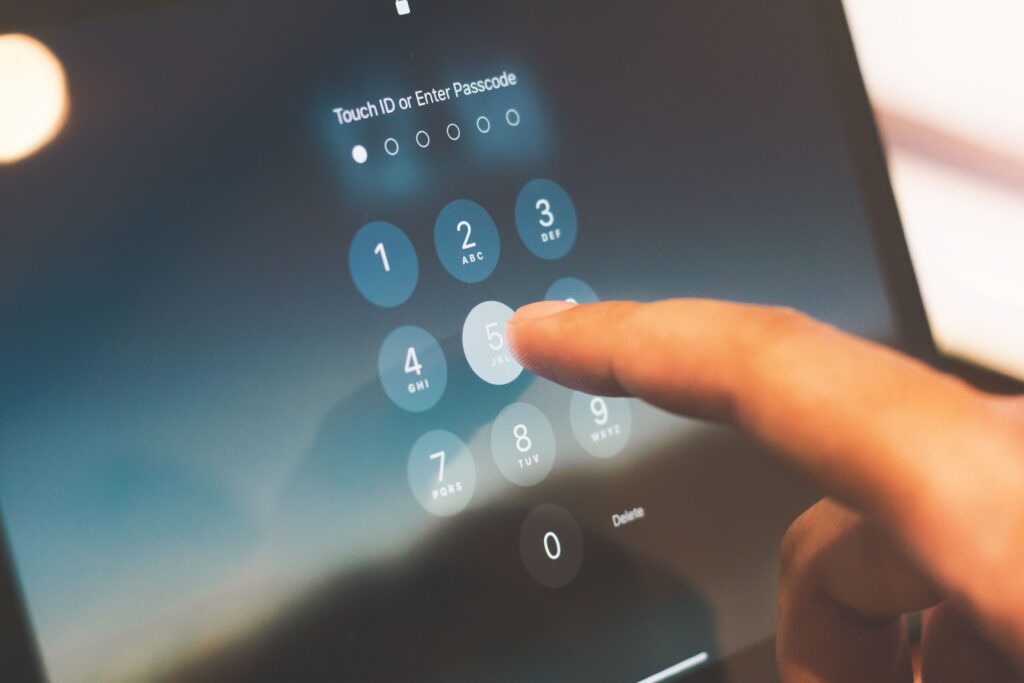
If your iPhone passcode is not working, stop and take a breath before you try again. Most passcode problems come from a wrong code, a recent change, or a Face ID glitch. This guide shows why it fails and 7 best fixes that really work.
Answer Box 1 If your iPhone passcode is not working, type it slowly. Check each digit as you type. If you changed the code in the last 72 hours, try the old code. It works for 72 hours on iOS 17 and later. Restart the phone and clean the Face ID camera. After five wrong tries it shows iPhone Unavailable, so never keep guessing.
Contents
- Why Your iPhone Passcode Is Not Working
- What Happens After Too Many Wrong Passcode Attempts
- iPhone Passcode Not Working: 7 Best Fixes
- iPhone Passcode Not Working After an Update: What Changed
- Mistakes to Avoid When Your iPhone Passcode Is Not Working
- The Passcode Memory System Most Guides Miss
- Frequently Asked Questions
Why Your iPhone Passcode Is Not Working
Your iPhone passcode is not working for one of a few common reasons. The most common reason is a typing slip, such as a wrong digit or a forgotten code. Face ID and Touch ID hide the code for months, so its memory fades fast. A software glitch or a dirty TrueDepth camera can also block it.
The scale of the problem is large, because so many people rely on an iPhone each day. Apple reported more than 2.5 billion active devices in use around the world in January 2026. MacObserver reported the figure on 30 January 2026. Asymco estimated about 1.5 billion active iPhones at the end of 2025. Apple says a random person has less than a 1 in 1,000,000 chance with Face ID. With Touch ID, the chance is less than 1 in 50,000, per Apple Support.
Your passcode is the master key for the whole phone. Face ID and Touch ID only open the door when the passcode allows it. After a restart, the iPhone asks for the passcode itself. It also asks after 48 hours without a full unlock, or after five failed Face ID tries. That rule comes from Apple Support.
What Happens After Too Many Wrong Passcode Attempts
Apple locks the phone step by step when the code is wrong. The waits get longer each time. After five wrong passcode attempts, the lock screen changes to iPhone Unavailable. That fact comes from Apple Support, published 13 August 2026. The phone then makes you wait. Each extra wrong guess can stretch the wait.
The tenth wrong attempt is the hard stop, and what happens next depends on one setting. If Erase Data is turned on, the iPhone erases itself after ten failed attempts. You can find the setting in Face ID and Passcode settings. If Erase Data is off, the phone keeps its data but stays locked. You still need a reset. Without a backup, the data is gone for good.
There is one kind exception to the lockout. It helps only if you changed the code very recently. On iOS 17 and later, Apple gives you a 72 hour Passcode Reset window after a code change. During those 72 hours, your old passcode still works and sets a new code without erasing anything. The window closes for good after 72 hours.
iPhone Passcode Not Working: 7 Best Fixes
The seven fixes below work best in order, because the early steps are fast and safe. Start at fix 1 and move down only if the step before it fails.
1. Slow Down and Type the Code Again Carefully
A wrong digit is the most common cause of this problem. Type the code slowly and watch each number. Check that you did not swap two digits by mistake. One slow try beats five fast guesses, because fast guesses trigger the lockout timer.
2. Try Your Old Passcode Within 72 Hours of a Change
If you changed the passcode in the last three days, your old code may still open the phone. Apple calls this Passcode Reset, and it works on iOS 17 and later for 72 hours. Enter wrong codes until the iPhone Unavailable screen appears. Then tap Forgot Passcode, tap Enter Previous Passcode, and type your old code.
3. Restart Your iPhone and Try Once More
A restart clears short term glitches that can block the lock screen. Press and hold the side button and a volume button until the power off slider appears. Drag the slider to turn the phone off and wait 30 seconds. Then press and hold the side button again. When the lock screen returns, type the passcode once, slowly.
4. Clean the Face ID Camera and Remove the Case
Face ID fails when the TrueDepth camera cannot see your face clearly. A dirty lens, a thick case, or a screen protector edge can all block it. Wipe the front camera area gently with a soft dry cloth. Then take the case off and try again. Hold the phone 25 to 50 centimetres from your face and look straight at the screen. Our guide on how to change passcode on iPhone shows how to set a fresh code. Read it once you are back inside.
5. Check for an iOS Update From a Computer
A software bug can break the lock screen, and an iOS update can fix it. You cannot update from Settings while locked out, so you need a computer. Connect the iPhone to a Mac or a Windows PC. Then open Finder on a Mac, or the Apple Devices app on Windows. If the computer offers an update, install it and wait for the phone to restart.
6. Wait Out the Lockout Timer and Try Only Once
When the phone shows iPhone Unavailable with a timer, the only move is to wait. Put the phone down and do not touch the keypad until the wait ends. Each wrong guess during a wait can extend the lockout. A single careful try is the smart move. Before that one try, think hard and write your best guess on paper first.
7. Reset the iPhone With Recovery Mode as a Last Resort
If no fix above works, Apple says you must reset the device. The reset erases the data on the phone. First try the on device erase if the button shows, because it needs no computer at all. On iOS 17 or later, tap Forgot Passcode on the iPhone Unavailable screen, then tap Start iPhone Reset. Enter your Apple Account password, then tap Erase iPhone to confirm.
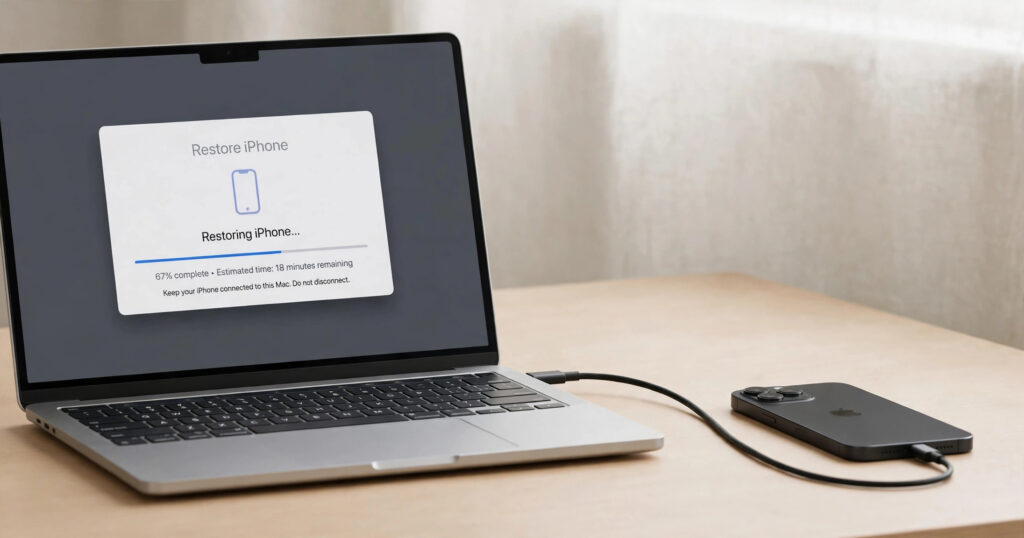
If the Forgot Passcode button never shows, use a computer and recovery mode instead. You need a Mac or a Windows PC, a cable, and an internet link. Allow up to 60 minutes, per Apple Support. Turn the iPhone off and connect the cable to the computer. Then connect it to the iPhone while you press and hold the side button. Keep holding until the recovery mode screen appears. Then choose Restore and set the phone up again from your backup. Our guide on forgot iPhone passcode walks through these reset routes in full detail.
iPhone Passcode Not Working After an Update: What Changed
An iOS update can make a working passcode seem broken. The update restarts the phone, and a restart always asks for the passcode first. Many owners have not typed the code for months, so the restart exposes a forgotten code. The code never changed, so think back to the one you set long ago.
A failed or cut update can cause a deeper fault. If the phone loops on the Apple logo, the update may not have finished cleanly. Connect the phone to a computer and check for an update in Finder or the Apple Devices app. Install any update it offers and let the phone finish without touching the cable.
| Fix | Time needed | Data kept? | When to use it |
|---|---|---|---|
| Type the code slowly | 1 minute | Yes | First try, always |
| Old passcode, 72 hour window | 5 minutes | Yes | Code changed in last 3 days |
| Restart the iPhone | 3 minutes | Yes | Screen glitch suspected |
| Clean Face ID camera | 2 minutes | Yes | Face ID fails, code is known |
| Update iOS from a computer | 30 to 60 minutes | Yes | Bug after an update |
| Wait out the lockout timer | Up to 1 hour | Yes | iPhone Unavailable screen |
| Recovery mode restore | Up to 60 minutes | No, unless backed up | Nothing else works |
Mistakes to Avoid When Your iPhone Passcode Is Not Working
Guessing the code again and again. Each wrong guess moves you closer to a lockout or a full erase. Five wrong tries bring iPhone Unavailable, and ten can erase the phone if Erase Data is on.
Trying a code from a different device. A code from an iPad or an old iPhone can feel right and still be wrong. The passcode belongs to this one iPhone only, so write your best guess down first.
Trusting a random unlock tool from the web. Many sites claim to unlock any iPhone without a reset, but Apple states clearly that no such bypass exists. These tools can steal your data or charge you for a fake fix.
Forgetting that Erase Data may be turned on. Erase Data sits in Face ID and Passcode settings, and it erases the phone after ten failed tries. Check it once you are back in, and decide if you want it on or off.
Skipping the backup after you get back in. A backup is the only thing that saves your photos and chats after a reset. Turn on iCloud Backup, or back up to a computer with a cable.
Turning the passcode off in anger after a lockout. A lockout feels unfair, and some owners switch the passcode off to avoid it next time. That leaves the phone open to anyone who picks it up. It also turns off Face ID, Touch ID, and Apple Pay cards. Read our guide on how to turn off passcode on iPhone before you choose. It shows what you lose.
The Passcode Memory System Most Guides Miss
Most guides fix the lockout and stop there. They never fix the reason it happened, which is a forgotten code. The fix is a small passcode memory system that takes five minutes. Start by writing the current passcode on paper. Keep it in a safe place at home, such as a locked drawer. Never store the code in a photo or a note on the phone.
Next, type your passcode by hand at least once a week, even when Face ID works fine. Open Settings, tap Face ID and Passcode, enter the code, and close the screen again. This short habit keeps the code fresh in your memory. It stops the slow fade that causes most lockouts. Change the code only when you must, and write the new code on the paper the same day. Pair this with a monthly backup check, so a future reset costs an hour, not your photos.
Answer Box 2 The best fix when your iPhone passcode is not working is to stop guessing. Work in order instead. Try the old code within 72 hours of a change. Restart the phone and clean the Face ID camera. Wait out any lockout timer, then try once with care. If nothing works, reset the phone and restore from a backup.
Frequently Asked Questions
Why is my iPhone passcode not working all of a sudden?
A restart, an update, or five failed Face ID tries can force the phone to ask for it. Face ID hides the code for months, so you forget it.
How many wrong passcode attempts before iPhone locks?
After five wrong attempts, the lock screen shows iPhone Unavailable, per Apple Support. After ten, the phone may erase itself if Erase Data is on.
What does iPhone Unavailable mean?
iPhone Unavailable means too many wrong tries locked the phone for a set time. Wait until the timer ends before you try again.
Can I unlock my iPhone if I forgot the passcode?
No bypass keeps the data, so you cannot unlock it without a reset. Try the old code first if you changed it within 72 hours.
How do I use the old passcode within 72 hours?
Enter wrong codes until the iPhone Unavailable screen appears, then tap Forgot Passcode. Tap Enter Previous Passcode and type the old code.
Why does Face ID keep failing and asking for my passcode?
Face ID fails when the TrueDepth camera is dirty, covered, or blocked by a case. After five failed tries, the phone asks for the passcode.
Does restarting my iPhone reset the passcode attempts?
No, a restart does not clear the lockout counter or shorten the timer. It only helps if a short term glitch caused the problem.
What happens after 10 failed passcode attempts?
After ten failed attempts, the phone erases itself if Erase Data is on. If it is off, the phone stays locked but keeps its data.
Can I reset my iPhone passcode without a computer?
Yes, on iOS 15.2 and later you can erase the phone from the lock screen. You need a network link, Find My on, and your Apple Account password.
How long does recovery mode take to restore an iPhone?
Apple says to allow up to 60 minutes for a recovery mode restore. The restore erases the phone and installs a fresh copy of iOS.
Will I lose my photos if I reset my iPhone passcode?
Yes, a reset erases the data on the phone, including photos, chats, and apps. Only an iCloud backup or a computer backup can bring them back.
Should I turn off my passcode so this never happens again?
No, turning the passcode off leaves your phone open to anyone who picks it up. It also turns off Face ID and Touch ID and removes your Apple Pay cards.
 Learn more about the iPhone on Wikipedia: iPhone