
If you forgot iPhone passcode, do not panic. Apple gives you several real ways back in. Try your old passcode first if you changed it lately. If that fails, erase the phone and set a new passcode. This guide shows 7 best ways to recover a forgotten iPhone passcode. The fastest method comes first. You will also learn what to check before you erase.
Answer Box 1 If you forgot iPhone passcode, try your old code. It still works within 72 hours of a change. This is Passcode Reset on iOS 17 or later. If that fails, tap Forgot Passcode to erase the phone. You can also restore it with a computer in recovery mode. Then set a new passcode and restore your data from a backup.
Contents
- Forgot iPhone Passcode: 7 Best Ways to Get Back In
- What Happens After Too Many Wrong Passcodes
- What You Need Before You Erase Your iPhone
- Mistakes to Avoid When You Forgot Your iPhone Passcode
- The Backup Habit That Saves You Next Time
- Frequently Asked Questions
Forgot iPhone Passcode: 7 Best Ways to Get Back In
The seven ways below run from fastest to slowest. Try them in order and stop at the first one that works. The first way keeps all your data. The other ways erase the phone.
Apple Support confirms every method below. A passcode guards a huge number of phones. Apple said its active device base passed 2.2 billion in February 2024. That figure comes from Apple press release dated 1 February 2024.
1. Try Your Old Passcode Within 72 Hours
If you changed the passcode in the last three days, your old code may help. Apple calls this Passcode Reset. It works on iOS 17 and later. The old code stays valid for 72 hours after a change. It needs Find My turned on and a network connection.
Enter the wrong code until Forgot Passcode appears. Tap it and choose Enter Previous Passcode. Type your old code, then set a new code. The old code stops working after 72 hours.
2. Erase from the Lock Screen on iOS 17 or Later
On iOS 17 and later, the lock screen can erase the phone. Enter the wrong passcode until iPhone Unavailable appears. Tap Forgot Passcode when it shows on the screen. Tap Start iPhone Reset to confirm the reset.
Enter your Apple Account password to sign out. Tap Erase iPhone to delete all data and settings. When the phone restarts, follow the setup steps. Set a new passcode and restore from a backup.
3. Erase from the Lock Screen on iOS 15.2 and iOS 16
On iOS 15.2 and iOS 16, the same rescue has another name. Enter the wrong passcode until iPhone Unavailable appears. Tap Erase iPhone at the bottom of the screen. Enter your Apple Account password to sign out.
Tap Erase iPhone again to confirm the erase. The phone will delete all of its data and settings. When the phone restarts, follow the setup steps. Choose a new passcode and restore from your backup.
4. Erase with iCloud.com Find Devices
If the phone is far away, iCloud can erase it. Open iCloud.com on another phone or computer. Sign in with the same Apple Account. Open Find Devices and pick your iPhone. Choose Erase This Device and confirm the erase. Enter your Apple Account password if asked. The phone will erase itself when it connects again.
5. Restore with a Mac in Finder
A Mac can restore a locked iPhone with a cable. Connect the iPhone to the Mac first. Then put the phone into recovery mode. Open Finder on the Mac and pick your iPhone. Finder will offer Restore or Update.
Choose Restore for a forgotten passcode. The Mac will download the latest iOS. It will then erase the phone. When the phone restarts, follow the setup steps. Set a new passcode and restore from a backup.
6. Restore with a Windows PC
A Windows PC works just like a Mac here. Connect the iPhone to the PC with a cable. Then put the phone into recovery mode. Open the free Apple Devices app on Windows. Pick your iPhone when it appears on screen. Choose Restore when the app offers it.
The PC will download the latest iOS. It will then erase the phone. Keep the cable plugged in until the restore ends. When the phone restarts, follow the setup steps. Set a new passcode and restore from a backup.
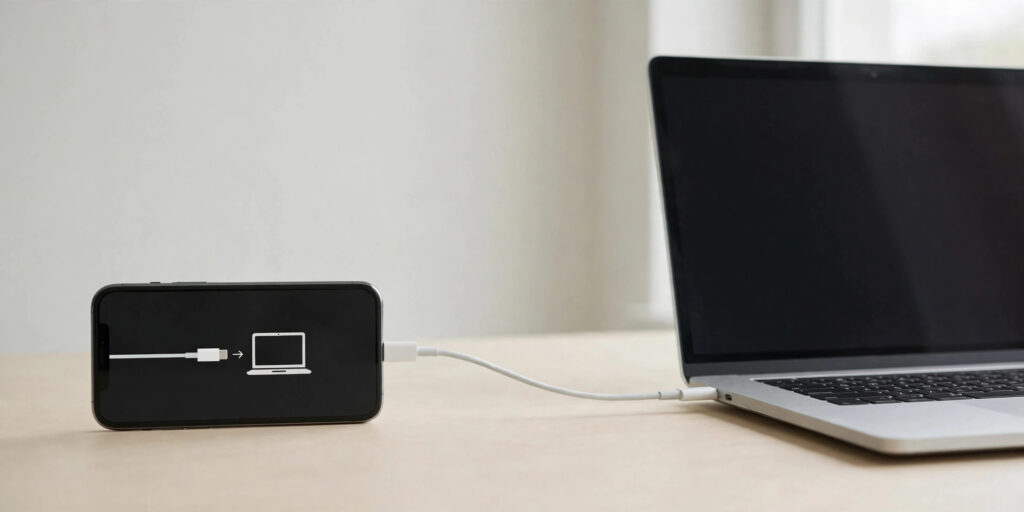
7. Restore Your Backup and Set a New Passcode
The erase is only half the job. Your data still needs to come back. When the phone reaches the Hello screen, follow setup. The phone will ask about your data. Choose Restore from iCloud Backup for iCloud data. Choose Restore from Mac or PC for a computer backup.
Sign in with your Apple Account. Pick the newest backup and let it run on Wi-Fi. Set a new passcode during setup. Save the new code in a password manager at once. Our pillar guide on how to change passcode on iPhone shows how to pick a strong code.
What Happens After Too Many Wrong Passcodes
Your iPhone does not lock you out after one wrong guess. The phone gives you ten wrong tries in a row. After six wrong tries, the phone locks for one minute. After seven wrong tries, the wait grows to five minutes.
After eight wrong tries, the wait grows to fifteen minutes. After nine wrong tries, the wait grows to one hour. After ten wrong tries, the phone locks for good. It shows iPhone Unavailable or Security Lockout.
| Wrong attempts in a row | What your iPhone shows | Wait before next try |
|---|---|---|
| 1 to 5 | No lockout yet, try again | None |
| 6 | iPhone Unavailable, try again in 1 minute | 1 minute |
| 7 | iPhone Unavailable, try again in 5 minutes | 5 minutes |
| 8 | iPhone Unavailable, try again in 15 minutes | 15 minutes |
| 9 | iPhone Unavailable, try again in 1 hour | 1 hour |
| 10 | iPhone Unavailable or Security Lockout | Locked, erase to recover |
The exact counts can vary a little by iOS version. The ten-try limit stays the same. If the Erase Data switch is on, the phone erases itself. A phone that says iPhone Unavailable is not broken. It needs an erase and a fresh setup. If your passcode is right but the phone rejects it, read our guide on iPhone passcode not working. The cause may be a stuck key or a software fault.
What You Need Before You Erase Your iPhone
An erase deletes everything on the phone. A short check first can save your photos. Use the table below as a checklist. The most vital item is your Apple Account password. Every erase way needs it to sign out.
If you forgot that password too, start account recovery first. Go to iforgot.apple.com on another device. The second vital item is a backup. An erase without a backup means your data is gone. Apple gives every Apple Account only 5 GB free.
| Check | Why it matters | Where to find it |
|---|---|---|
| Apple Account password | Needed to erase and to sign in again | Your password manager or iforgot.apple.com |
| iCloud backup date | Shows what data can come back | Another device, iCloud.com settings |
| Computer backup | The fallback when iCloud has no backup | Finder on Mac, Apple Devices app on PC |
| Find My status | Powers the lock screen erase option | iCloud.com Find Devices |
| eSIM or SIM details | A deleted eSIM needs a carrier QR code | Your carrier app or store |
| Wi-Fi or mobile data | Needed for the lock screen erase | The lock screen shows the signal |
If you use an eSIM on iOS 16 or earlier, call your carrier first. Ask for a QR code to set up the eSIM again. On iOS 17 or later, you can keep the eSIM. Charge the phone to at least half before you start. An erase and restore can take up to an hour. Keep the cable close if you plan the computer way. Read our guide on how to turn off passcode on iPhone to learn the risks.
Mistakes to Avoid When You Forgot Your iPhone Passcode
Guessing again and again until the phone locks Each wrong guess eats one of your ten tries. The waits grow longer each time. Stop after three wrong tries. Try codes you used in the past.
Paying a random shop or app to unlock the phone Apple offers no way to read a forgotten passcode. Any tool that claims to do so is a scam. You can erase the phone yourself for free. Never hand your phone to a stranger.
Erasing the phone before you check for a backup An erase deletes photos that exist only on the phone. Check iCloud.com first to see what synced. Photos that already synced to iCloud will come back. Look for a computer backup before you tap Erase.
Forgetting your Apple Account password too The erase asks for your Apple Account password. Setup asks for it again if Find My was on. Start account recovery at iforgot.apple.com first. Do not erase the phone before that step.
Restoring the wrong backup after the erase Pick the newest backup with the latest date. Do not pick the first one on the list. An old backup can lose months of new photos. Check the backup date before you confirm the restore.
Setting the same easy code again after the erase A code like 123456 caused the trouble first. Do not repeat that mistake after the erase. Pick a six-digit code or a custom code. Save it in a password manager at once.
The Backup Habit That Saves You Next Time
Most guides end once the phone is unlocked. The real fix is a backup habit. An erase is only a disaster with no backup. Build the habit now while the lesson is fresh. Put a reminder in your calendar for the first Sunday. Run the same four checks each month.
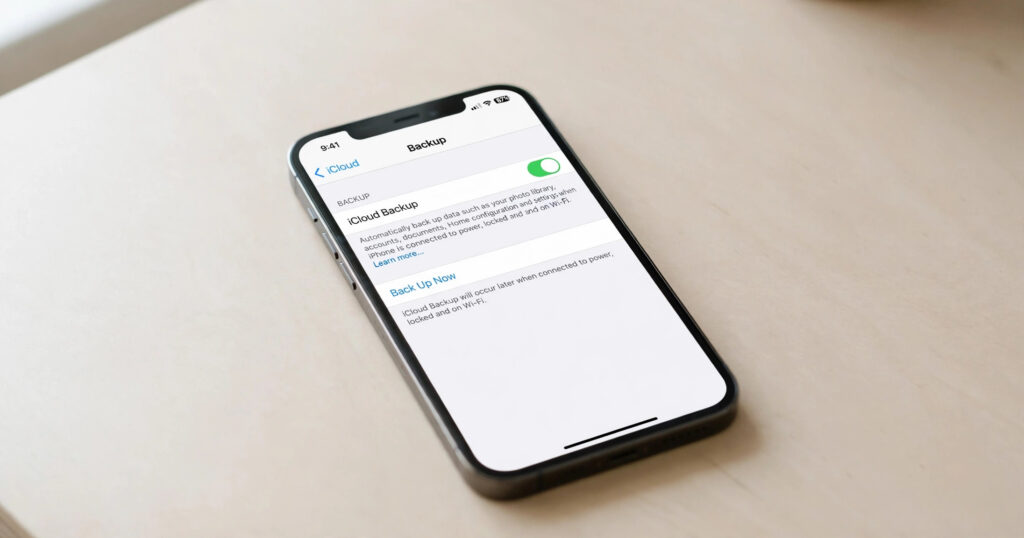
First, open Settings, tap your name, then tap iCloud Backup. Check the date of the last backup. If it is older than a week, tap Back Up Now. Second, check that iCloud Photos is on. Third, plug the phone into your computer each month. Make a second backup in Finder or the Apple Devices app. Fourth, open your password manager and confirm both passwords are saved.
Keep a note of your last backup date each month. If the free 5 GB keeps filling up, clean old backups. You can also move to a paid plan. A monthly habit keeps your photos safe. The next forgotten passcode will cost an hour, not your memories.
Answer Box 2 The fastest way back is the old code within 72 hours of a change. This is Passcode Reset on iOS 17 or later. If that window has passed, erase the phone. Then set a new passcode during setup. Restore from your newest backup. Save the new code in a password manager.
Frequently Asked Questions
Can Apple unlock my iPhone if I forgot the passcode?
No, Apple cannot unlock your iPhone or read a forgotten passcode. The code lives only on your device. Apple Support can only guide you to erase the phone. Your data can come back from a backup.
Will I lose my photos if I erase my iPhone?
Yes, you will lose photos that exist only on the phone. Photos that synced to iCloud Photos will come back. Photos in a backup will also come back during the restore.
How do I erase my iPhone without a computer?
Enter the wrong passcode until iPhone Unavailable appears. Then tap Forgot Passcode on iOS 17 or later. Tap Start iPhone Reset, then enter your Apple Account password. Tap Erase iPhone to finish.
What is the 72-hour Passcode Reset?
Passcode Reset is an Apple feature on iOS 17 and later. It keeps your old passcode valid for 72 hours after a change. If you forget the new code within three days, the old code can unlock the phone.
Can I unlock my iPhone with my Apple Account password?
No, your Apple Account password cannot unlock the lock screen. The passcode and the account password are two different things. The account password is needed to erase the phone.
How long does recovery mode take?
A recovery mode restore can take up to an hour. The computer must download the latest iOS first. The erase itself takes only a few minutes. Keep the cable plugged in until the Hello screen appears.
What if Find My was turned off on my iPhone?
Recovery mode still works when Find My was off. Connect the phone to a Mac or PC. Enter recovery mode, then choose Restore. You still lose all data without a backup.
What if I forgot my Apple Account password too?
Start account recovery at iforgot.apple.com on another device. Apple will verify your identity first. That check can take some time. Do not erase the phone first.
Can I use iCloud.com to erase my iPhone?
Yes, open iCloud.com on any browser and sign in. Use the same Apple Account as the phone. Open Find Devices and pick your iPhone. Choose Erase This Device and confirm.
Does erasing remove Activation Lock?
No, erasing the phone does not remove Activation Lock. It stays on when Find My was on. After the erase, setup still asks for the Apple Account password.
Will my eSIM be deleted when I erase my iPhone?
On iOS 17 or later, the erase screen gives you a choice. You can keep your eSIM or delete it with your data. On iOS 16 or earlier, the eSIM is deleted with the erase.
How do I avoid forgetting my passcode again?
Save the passcode in a password manager the same day. Test it by locking and unlocking the phone. Pick a code tied to a private memory. Avoid birthdays and 123456.
Learn more about the iPhone on Wikipedia: iPhone