
To turn off the passcode on iPhone, open Settings and tap Face ID and Passcode. Enter your current passcode first, then tap Turn Passcode Off and confirm. This guide shows how to turn off passcode on iPhone in 5 best steps. It also shows what you lose when you switch it off.
Answer Box 1 To turn off the passcode on iPhone, open Settings and tap Face ID and Passcode. Then enter your current passcode. Tap Turn Passcode Off and confirm the choice. Turning it off also turns off Face ID and Touch ID. It removes your cards from Apple Pay too. Anyone who picks up the phone can open it, so back up first.
Contents
- Why People Turn Off the Passcode on iPhone
- What Happens When You Turn Off Passcode on iPhone
- How to Turn Off Passcode on iPhone in 5 Best Steps
- How to Turn Off Passcode on iPhone on Older Models
- Mistakes to Avoid When You Turn Off Passcode on iPhone
- The Safer Middle Ground Most Guides Miss
- Frequently Asked Questions
Why People Turn Off the Passcode on iPhone
People turn the passcode off for simple daily reasons. Typing a code fifty times a day feels slow. Face ID can fail when your hands are wet or your face is half covered. Parents hand the phone to kids, and a code gets in the way of a quick game.
The habit often starts after a bad lockout. A forgotten code can lock you out for an hour. That scare makes the passcode feel like a risk. Our guide on iPhone passcode not working shows 7 best fixes for that exact problem.
But the trade is real, and most owners learn it too late. A phone without a passcode is open to anyone who picks it up. Photos, chats, mail, and banking apps all sit one swipe away, with no lock at all. Apple built the passcode as the master key for the whole phone.
The scale of the choice is huge, because so many people use an iPhone each day. Apple reported more than 2.5 billion active devices in use around the world in January 2026. MacObserver reported the figure on 30 January 2026. Asymco estimated about 1.5 billion active iPhones at the end of 2025. Apple says a random person has less than a 1 in 1,000,000 chance with Face ID.
What Happens When You Turn Off Passcode on iPhone
Turning the passcode off removes the lock from your phone in one tap. The lock screen still shows, but a single swipe opens the phone with no code at all. Anyone who holds the phone can read your messages, open your mail, and look at your photos. That is the first and biggest change, and it is worth a pause before you confirm.
Face ID and Touch ID turn off with the passcode, because they need a passcode behind them. Your face or fingerprint no longer unlocks the phone. They no longer approve App Store buys or sign you in to apps. Apple Pay stops too, and your cards leave the Wallet at once.
Some parts of the phone ask for a passcode even after you turn it off. Apple Pay needs one to add a card back. Some work profiles or school accounts may refuse to run without a lock. If you turn the passcode back on later, you must set a new code. Re-add your cards by hand too.
Your data is also less safe if the phone is lost or stolen. A thief with your phone can open it, read your mail, and reset passwords for your accounts. Find My can still track the phone, but the lock screen no longer guards the data inside it. Weigh that risk before you tap confirm.
How to Turn Off Passcode on iPhone in 5 Best Steps
The five steps below take less than a minute, and they work on any modern iPhone. Follow them in order, and do not skip the backup in step 1. Each step below is a real action you can follow right now.
1. Back Up Your iPhone Before You Change Anything
Back up the phone first, because a backup protects you if anything goes wrong. Open Settings, tap your name at the top, then tap iCloud and turn on iCloud Backup. Tap Back Up Now and wait for the backup to finish before you move on. You can also back up to a computer with a cable. A fresh backup takes a few minutes. It saves your photos and chats if the phone ever needs a reset.
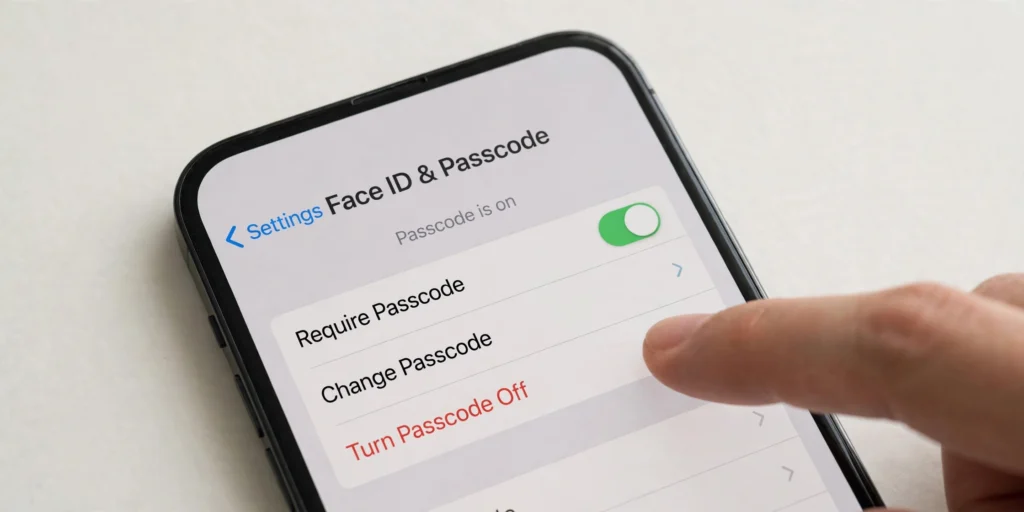
2. Open Settings and Tap Face ID and Passcode
Open the Settings app from your home screen, then scroll down to Face ID and Passcode. On an iPhone with a Home button, the same item reads Touch ID and Passcode instead. Tap it once to open the passcode settings screen, where you can see the current lock options. Check if Erase Data is on or off before you change anything.
3. Enter Your Current Passcode to Get In
The phone asks for your current passcode before it opens the settings. Type the code slowly and check each digit as you tap it. This check proves you own the phone. If you cannot recall the code, stop here and do not guess again and again. Read our guide on forgot iPhone passcode first, since you must know the code to turn it off.
4. Tap Turn Passcode Off and Confirm the Choice
Scroll down on the passcode settings screen until you see Turn Passcode Off. Tap it once, and the phone asks you to confirm the choice with a warning. Read the warning first, since Face ID, Touch ID, and Apple Pay will stop. Tap Turn Off to confirm, and the phone removes the passcode at once. The lock screen now opens with a swipe, and no code is asked at the lock screen anymore.
5. Check What Changed and Test the Lock Screen
Lock the phone with the side button, then wake it up and swipe to open it. The phone should open with no code, which proves the passcode is off. Open the Wallet app and check that your cards are gone from Apple Pay. Open Settings again and check that it now shows Turn Passcode On. If anything looks wrong, turn the passcode back on at once from the same screen. Our guide on how to change passcode on iPhone shows how to set a fresh code. Read it if you change your mind.
How to Turn Off Passcode on iPhone on Older Models
Older iPhones with a Home button use Touch ID, but the steps match the Face ID models. Open Settings and tap Touch ID and Passcode instead of Face ID and Passcode. Enter your current passcode, then tap Turn Passcode Off and confirm the choice. The same effects apply, since Touch ID turns off and Apple Pay cards leave the Wallet.
Very old models may show the option in a slightly different spot. The path stays the same at its core. If the Turn Passcode Off button is greyed out, a work profile may block the change. A parental control can block it too. Open Settings and tap General. Then tap VPN and Device Management and check for a passcode profile. Ask the admin about that profile before you try again.
| Before you switch it off | Check it now | Why it matters |
|---|---|---|
| Back up the phone | iCloud or computer backup done | Saves photos and chats if a reset is needed |
| Know your current passcode | Type it once to test it | You cannot turn it off without the code |
| Note your Apple Pay cards | List the cards in Wallet | They leave the Wallet when the code goes off |
| Check Erase Data | On or off in passcode settings | Affects what ten failed tries would do |
| Tell family who shares the phone | Agree on the change | A shared phone affects everyone who uses it |
| Test the lock screen after | Swipe to open with no code | Proves the change worked |
Mistakes to Avoid When You Turn Off Passcode on iPhone
Turning it off without a backup. A backup is the only thing that saves your photos and chats after a reset. Make one first, so a later fault costs you an hour, not your data.
Forgetting that Apple Pay cards will vanish. Your cards leave the Wallet the moment the passcode goes off. Note your main cards, so you can add them back fast later.
Turning it off because Face ID failed once. A dirty camera or a thick case can block Face ID, and a clean cloth fixes it. Fix the camera first, and only turn the code off if you truly want no lock at all.
Turning it off on a shared or work phone. A work or school phone may need a passcode by rule. Turning it off can break mail, block apps, or flag the device with your work admin.
Forgetting to test the lock screen after. Some owners tap Turn Passcode Off and never check the result. Lock the phone, wake it, and swipe to prove the code is off.
Leaving the phone unlocked in busy places. A phone with no passcode is open to anyone who picks it up. Keep it in a pocket or a bag in crowds. Turn the code back on when you travel.
The Safer Middle Ground Most Guides Miss
Most guides give you two choices, which are a strong code or no code at all. The middle ground is better, and it keeps most of the ease with most of the safety. Use a short 4 digit code that you can type fast. Let Face ID do the daily work. A short code you recall beats a long code you forget, and it beats no code at all.
You can also make the phone friendlier without removing the lock. Set Auto-Lock to 5 minutes instead of 30 seconds, so the phone stays open while you use it. Turn off Raise to Wake if the screen wakes too often in your pocket. Set up an Alternate Appearance in Face ID if glasses or a mask cause fails.
The last part of the middle ground is a passcode you can recall with ease. Pick a code tied to a date or a number you know well. Write it on paper at home. Type it by hand once a week, even when Face ID works fine, so the memory stays fresh. Change it only when you must, and write the new code on the paper the same day.
Answer Box 2 The best way to turn off the passcode on iPhone is to back up first. Then open Settings, tap Face ID and Passcode, and enter your current passcode. Tap Turn Passcode Off and confirm the choice. Check that Apple Pay cards are gone and test the lock screen. Think twice, since a phone with no passcode is open to anyone.
Frequently Asked Questions
How do I turn off the passcode on my iPhone?
Open Settings, tap Face ID and Passcode, and enter your current passcode. Tap Turn Passcode Off and confirm the choice.
Why is the Turn Passcode Off button greyed out?
A work profile, a school profile, or a parental control may force a passcode on the phone. Open Settings, tap General, then tap VPN and Device Management to check for such a profile.
What happens to Apple Pay when I turn off my passcode?
Your cards leave the Wallet at once, because Apple Pay needs a passcode to work. You cannot pay with a tap until you turn the passcode back on.
Does turning off the passcode turn off Face ID?
Yes, Face ID turns off with the passcode, because it needs a passcode behind it. Your face no longer unlocks the phone or approves buys.
Can I turn off the passcode without knowing the current one?
No, the phone asks for the current passcode before it opens the settings. If you forgot the code, use the on-device erase or recovery mode reset instead.
Is it safe to turn off the passcode on iPhone?
No, it is not safe in most cases, since anyone who picks up the phone can open it. Photos, chats, mail, and apps sit one swipe away with no lock.
How do I turn the passcode back on after turning it off?
Open Settings, tap Face ID and Passcode, then tap Turn Passcode On. Type a new code twice to set it, then set up Face ID again.
Will turning off the passcode delete my photos?
No, turning the passcode off does not delete photos, apps, or chats. It only removes the lock, but your data is open to anyone who holds the phone.
Does turning off the passcode affect iCloud or Find My?
No, iCloud and Find My keep working with no passcode on the phone. Find My can still track a lost phone, but it no longer guards the data inside it.
Can I use a 4 digit passcode instead of turning it off?
Yes, a 4 digit code is a good middle ground. It is fast to type and still locks the phone. Open Settings, tap Face ID and Passcode, then tap Change Passcode and pick Passcode Options.
Why does my iPhone ask for a passcode after I turned it off?
Some tasks still need a passcode, such as adding a card to Apple Pay. A work or school profile can also ask for one. Turn the code back on if prompts keep coming.
Should I turn off the passcode on a child’s iPhone?
No, keep a passcode on a child’s phone and use parental controls instead. A code stops strangers from opening the phone if it is lost.
 Learn more about the iPhone on Wikipedia: iPhone