
AirDrop Not Working on iPhone? 7 Best Smart Fixes, Never Miss a File Again
AirDrop not working on iPhone is a common problem, and the fix is usually a small setting, not a broken phone. Check the receiving setting first, turn Wi-Fi and Bluetooth off and on, move the devices closer together, and turn off Personal Hotspot. Most failed transfers clear with those four moves in under a minute. If they do not, restart both devices, update iOS, and reset network settings as a last step. This guide lists all seven fixes in order, from fastest to strongest, so you stop as soon as one works.
If AirDrop is not working on iPhone, set receiving to Contacts Only or Everyone, turn Wi-Fi and Bluetooth off and on, and move the devices within about 30 feet. Turn off Personal Hotspot, restart both devices, and update iOS. Reset network settings only as a last step.
ANSWER BOX 1
AirDrop stops working on iPhone most often because the receiving setting is off, Wi-Fi or Bluetooth is off, the devices are too far apart, or Personal Hotspot is on. Check those four things first, because they fix most failures in under a minute. Then restart both devices and try a small photo to test the link. In short, AirDrop not working on iPhone is almost always a setting, not a broken phone.
ANSWER BOX 2
If no device appears on your AirDrop list, the receiver may have AirDrop set to Receiving Off, or the sender may not be in their contacts. Ask the receiver to set Contacts Only or Everyone for 10 Minutes, and check that the sender is saved in contacts with the right Apple ID email. A restart clears a stuck sharing service on either side.
KEY TAKEAWAYS
- Check the receiving setting first, because it causes most failures.
- Wi-Fi and Bluetooth must both be on, and Personal Hotspot must be off.
- Keep the devices within about 30 feet, in the same room.
- Restart both devices before you try a stronger fix.
- Reset network settings only as the last step.
Contents
- Why does AirDrop stop working?
- Find your symptom first
- 7 best smart fixes in order
- The Personal Hotspot clash
- The contact-card rule
- Test the fix with a small file
- When to reset network settings
- FAQ
- Final Word
Why Does AirDrop Stop Working?
AirDrop stops working when one link in its small chain breaks, and the chain has only a few links. The two devices must find each other over Bluetooth, and then they must build a direct Wi-Fi link to move the file. The receiving setting must allow the sender, and both screens must stay unlocked. If any one link fails, the transfer never starts, or it stalls halfway with no clear error on the screen. Once you know the chain, AirDrop not working on iPhone becomes a problem you can fix in order.
Find Your Symptom First
Every AirDrop failure shows one of a few clear signs, and each sign points to a different fix. The table below maps the symptom to the fix, so you can jump straight to the right one. Read the table first, and then use the ordered fix list for the steps. This symptom map is the part most guides skip, and it saves you from trying every fix in turn.
| Symptom | Likely cause | Fix to try first |
|---|---|---|
| No device appears on the list | Receiving is Off, or sender not in contacts | Fix 1, then Fix 5 |
| Transfer starts, then stalls | Devices too far apart, or weak link | Fix 3, then Fix 2 |
| AirDrop button does nothing | Wi-Fi or Bluetooth off, or stuck service | Fix 2, then Fix 4 |
| File sends but never arrives | Wrong setting on the receiver side | Fix 1, then Fix 6 |
| Works with one person, not another | Contact-card rule, or Contacts Only | Fix 5, then Fix 1 |
7 Best Smart Fixes in Order
These seven fixes run from fastest to strongest, and you should stop as soon as one works. Test with a small photo after each fix, and move to the next one only when the test fails. Most people stop by fix three, and almost nobody needs fix seven. Follow them in order, and AirDrop not working on iPhone will clear at the earliest fix that fits your symptom.
- Check the receiving setting. Open Settings, tap General, tap AirDrop, and set it to Contacts Only or Everyone for 10 Minutes. If it is set to Receiving Off, no file can arrive, and this one change fixes the problem at once. Ask the sender to look for your device again after you change it. That one change is the most common fix for AirDrop not working on iPhone.
- Turn Wi-Fi and Bluetooth off and on. Swipe down to open Control Center, turn both off, wait 10 seconds, and turn both on again. AirDrop needs both radios, and a quick toggle clears a stuck link. Wait a few seconds after the toggle, because discovery can take a moment to restart.
- Move the devices closer together. Keep the two devices in the same room and within about 30 feet of each other, because Apple Support says AirDrop works inside that range. Walls and other signals shrink the range, so put the phones on the same table. Unlock both screens, and keep them unlocked until the transfer ends.
- Restart both devices. Hold the side button and a volume button on each iPhone, slide to power off, wait 30 seconds, and turn them back on. A restart clears a stuck sharing service, and it is the strongest simple fix. Try the transfer again with a small photo after both phones are back on. A restart clears the stuck service behind AirDrop not working on iPhone.
- Check the contact-card rule. Contacts Only works only when the sender is saved in your contacts with the Apple ID email or phone number they use. Open Contacts, find the sender’s card, and add their Apple ID email if it is missing. If you do not want to edit the card, switch to Everyone for 10 Minutes for that one transfer.
- Update iOS. Open Settings, tap General, tap Software Update, and install any update that is waiting. Apple fixes sharing bugs in updates, and an old version may miss a fix. Plug the phone in while it updates, and try AirDrop again after the update finishes.
- Reset network settings. Open Settings, tap General, tap Transfer or Reset iPhone, tap Reset, and tap Reset Network Settings. This step clears saved Wi-Fi networks and Bluetooth pairings, so you must set up Wi-Fi again after it. Use it only when the first six fixes fail, because it is the strongest fix and it erases saved network data.
The Personal Hotspot Clash
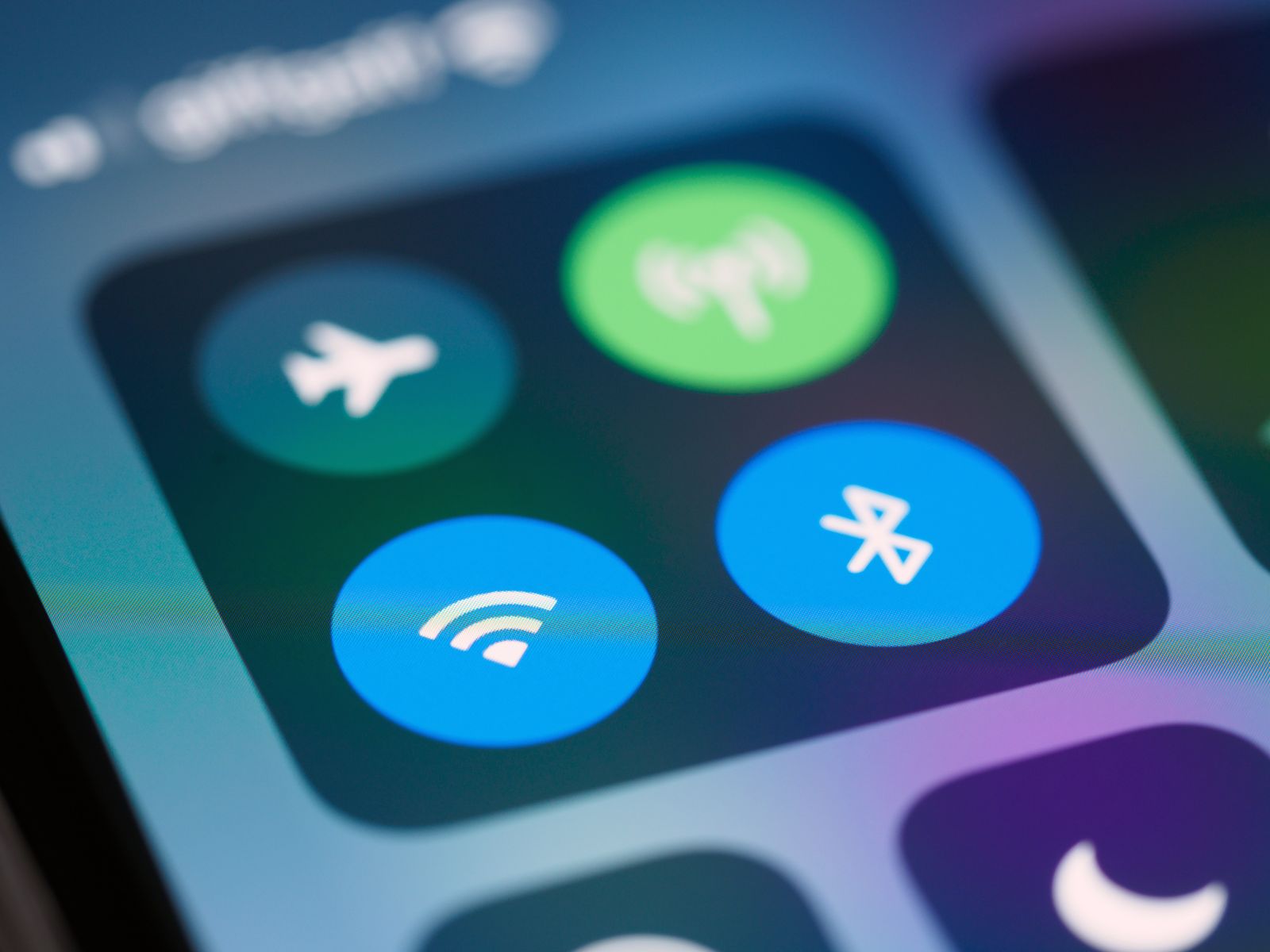
Personal Hotspot and AirDrop do not work together, and this clash causes many failed transfers. When Personal Hotspot is on, the iPhone uses its Wi-Fi radio to share internet, and AirDrop cannot build its own direct link at the same time. The result is a transfer that never starts, or a device that never appears on the list. The phone gives no clear warning, so people try every other fix first and miss this one.
The fix takes seconds, and it is easy to check. Open Settings, tap Personal Hotspot, and turn it off. Wait a few seconds, and then try the AirDrop transfer again. The device should appear on the list at once, and the transfer should start. Turn the hotspot back on after the transfer ends, if you still need it for internet sharing. That one toggle is the fastest fix for AirDrop not working on iPhone.
The Contact-Card Rule
Contacts Only is the safest daily setting, but it has a rule that confuses many people. It works only when the sender is saved in your contacts, and your contact card must hold the Apple ID email or phone number they use for AirDrop. If the card is missing that detail, your iPhone cannot match the sender to a contact, and the transfer never starts. The sender sees no device to tap, and both people think AirDrop is broken.
The fix is to edit the contact card, and it takes about a minute. Open the Contacts app, find the sender’s card, and ask them which email they use for their Apple ID. Add that email to the card, save it, and try the transfer again. The sender’s iPhone should now see your device on the list. If the card already holds the right email, check that the sender is signed in with that same Apple ID on their device. That edit is the fix most people miss when AirDrop not working on iPhone affects only one friend.
If you do not want to edit a contact card, switch to Everyone for 10 Minutes for that one transfer. The open setting skips the contact check, and the file moves at once. Switch back to Contacts Only when the transfer ends, or let the 10-minute timer do it for you. This rule explains why AirDrop works with one friend and not another, and it is the first thing to check when only one person cannot find you.
Test the Fix With a Small File
After each fix, test AirDrop with a small photo before you send the real file. A small photo moves in seconds, and it proves the link works without a long wait. If the photo arrives, the fix worked, and you can send the big video or the full batch next. If the photo fails, move to the next fix in the list, and test again. That small test tells you at once whether AirDrop not working on iPhone is fixed.
When to Reset Network Settings
Resetting network settings is the strongest fix in this guide, and you should use it only when the first six fixes fail. It clears all saved Wi-Fi networks, Bluetooth pairings, and VPN settings, so you must set up Wi-Fi again after it. It also clears the AirDrop sharing state, and that is why it works when nothing else does. But the cost is real, so do not jump to it first. A reset is the last resort for AirDrop not working on iPhone after every other fix fails.
AirDrop FAQ
Why is AirDrop not working on my iPhone?
The most common causes are a wrong receiving setting, Wi-Fi or Bluetooth off, devices too far apart, and Personal Hotspot turned on. Check those four things first, then restart both devices and try a small photo. Our seven fixes above cover each cause of AirDrop not working on iPhone in order.
Why is AirDrop not showing anyone?
Nobody appears when the receiver has AirDrop set to Receiving Off, or when the sender is not in their contacts. Ask the receiver to set Contacts Only or Everyone for 10 Minutes, and check that the sender is saved in contacts. Move the devices closer, and wait a few seconds for discovery.
Why does AirDrop keep failing?
A transfer fails when the link is weak, the devices are too far apart, or a setting blocks it. Keep the devices within about 30 feet, turn off Personal Hotspot, and check that Wi-Fi and Bluetooth are on. Send a small photo first to test the link before you send a large video.
How do I fix AirDrop on iPhone?
Set receiving to Contacts Only, turn Wi-Fi and Bluetooth off and on, move the devices closer, and turn off Personal Hotspot. Restart both devices, update iOS, and reset network settings only as a last step. Test with a small photo after each fix.
Does AirDrop need Wi-Fi?
Yes, AirDrop needs Wi-Fi turned on, but it does not need a Wi-Fi network or an internet connection. AirDrop builds a direct Wi-Fi link between the two devices, and Bluetooth finds the other device first. Turn on both Wi-Fi and Bluetooth before you share.
Why is AirDrop not working after an iOS update?
An update can reset a setting or leave a sharing service stuck. Check the receiving setting first, then restart both devices and try a small photo. If the problem started right after the update, install the next iOS update, because Apple often ships a fix soon after.
Can Screen Time block AirDrop?
Yes, Screen Time can block AirDrop on a phone with restrictions. Open Settings, tap Screen Time, tap Content and Privacy Restrictions, and check that AirDrop is allowed there, and turn off the restriction if it blocks the feature.
Why does AirDrop work with one person and not another?
The contact-card rule is the usual cause, because Contacts Only needs the sender saved in your contacts with the right Apple ID email. If one friend is saved and another is not, only the saved friend can find you. Add the missing friend to contacts, or switch to Everyone for 10 Minutes.
Should I reset network settings to fix AirDrop?
Reset network settings only as a last step, after the first six fixes fail. It clears saved Wi-Fi networks and Bluetooth pairings, so you must set up Wi-Fi again after it. Try a restart and an iOS update first, because those fix most cases without erasing saved data.
Why does my AirDrop transfer stall halfway?
A transfer stalls when the link is weak or the devices move apart. Keep the phones close together until the progress ring ends, and do not lock either screen during the transfer. Send a small photo first to test the link, and send large files in smaller batches.
Can a VPN break AirDrop?
A VPN can block the local link that AirDrop needs, and some VPN apps block nearby sharing. Turn the VPN off on both devices, try the transfer again, and turn the VPN back on after it ends. If the transfer works with the VPN off, the VPN is the cause.
When should I contact Apple Support?
Contact Apple Support when AirDrop still fails after a network reset, an iOS update, and a restart, and no device appears at all. A hardware fault in Wi-Fi or Bluetooth can stop discovery, and only a repair can fix it. Check for a device management profile first, because a school or work profile can block AirDrop.
Final Word
AirDrop not working on iPhone is a common problem, and the fix is usually a small setting, not a broken phone. Check the receiving setting first, turn Wi-Fi and Bluetooth off and on, move closer, and turn off Personal Hotspot. Work through the seven fixes in order, test with a small photo after each one, and stop as soon as one works. That ordered method is the fastest way through AirDrop not working on iPhone.
If you share with a Mac, read our guide on how to AirDrop from iPhone to Mac (https://www.techwole.com/how-to-airdrop-from-iphone-to-mac/) for the Mac settings. If a friend sends you a file, read our guide on how to receive AirDrop on iPhone (https://www.techwole.com/how-to-receive-airdrop-on-iphone/) for the Accept screen. Once the link works again, read our guide on how to use AirDrop on iPhone (https://www.techwole.com/how-to-use-airdrop-on-iphone/) for the full sharing flow, and check our guide on how to turn on AirDrop on iPhone (https://www.techwole.com/how-to-turn-on-airdrop-on-iphone/) if the setting ever slips back to Off.
If shared photos fill your storage, our guide on how to free up iCloud storage on iPhone (https://www.techwole.com/how-to-free-up-icloud-storage-on-iphone/) shows how to clear room. Try the first fix now, and your next share should go through.
Read more about AirDrop on Wikipedia: https://en.wikipedia.org/wiki/AirDrop