
How Much RAM Does Your PC Need? 4 Best Smart Picks to Avoid Costly Mistakes
RAM is the short-term memory your PC uses to hold the apps and files you are working on right now. When RAM runs out, Windows moves work to the much slower drive, and everything feels late. This guide answers how much RAM does your PC need with four best smart picks for study, work, and gaming, so you can buy the right amount and avoid costly mistakes.
This guide covers the full picture in one place. You will learn what RAM does, how to check your own use in one minute, the four picks by use case, and the buying mistakes to avoid. If you share the PC, our guide on how to password protect files and folders keeps private files safe, and our guide on how to see wifi password on windows 11 helps when a guest asks for the network password. You will also find links to the related Windows 11 guides in this unit, such as our pillar on how to speed up windows 11 and our guide on how to update drivers on windows 11. Read the quick answer first, then find the pick that matches your work.
[SNIPPET TARGET] Most PCs need 8 GB of RAM for smooth daily use, and 16 GB suits work with many tabs, large files, and light editing. Gamers and creators should pick 16 GB or 32 GB, while 4 GB is only the Windows 11 minimum and feels slow during normal multitasking. Check Task Manager first to see your own use.
ANSWER BOX 1
How much RAM does your PC need? For most people, 8 GB is the practical floor for smooth daily use on Windows 11, and 16 GB suits heavier work with many tabs and large files. Gamers should pick 16 GB, and creators working with video or large projects should pick 32 GB. The 4 GB figure Microsoft lists is only the minimum to run the system, not a comfort level (Microsoft Learn).
ANSWER BOX 2
Check your own RAM use before you buy, because your habits decide the amount. Open Task Manager, click Performance, then Memory, and watch the use during your normal work. If it stays above 85 percent, you need more RAM. If it stays below 60 percent, your RAM is fine, and a slow PC has a different cause, such as a full drive or old drivers.
KEY TAKEAWAYS
- Microsoft lists 4 GB as the Windows 11 minimum, but that is a floor, not a comfort level.
- 8 GB suits most daily use, 16 GB suits heavier work and gaming, and 32 GB suits creators.
- Check your own RAM use in Task Manager before you buy, because your habits decide the amount.
- RAM only helps if memory is the real limit, so check the disk too before you spend.
- Buy the right type and speed for your exact PC model, or the new RAM may not fit or work.
Contents
- What does RAM do in your PC?
- How to check how much RAM you use today
- 4 best smart picks for how much RAM your PC needs
- When an SSD matters more than more RAM
- How to check if your PC can take more RAM
- The RAM check most owners skip before buying
- 4 mistakes to avoid when you buy RAM
- FAQ
What Does RAM Do in Your PC?
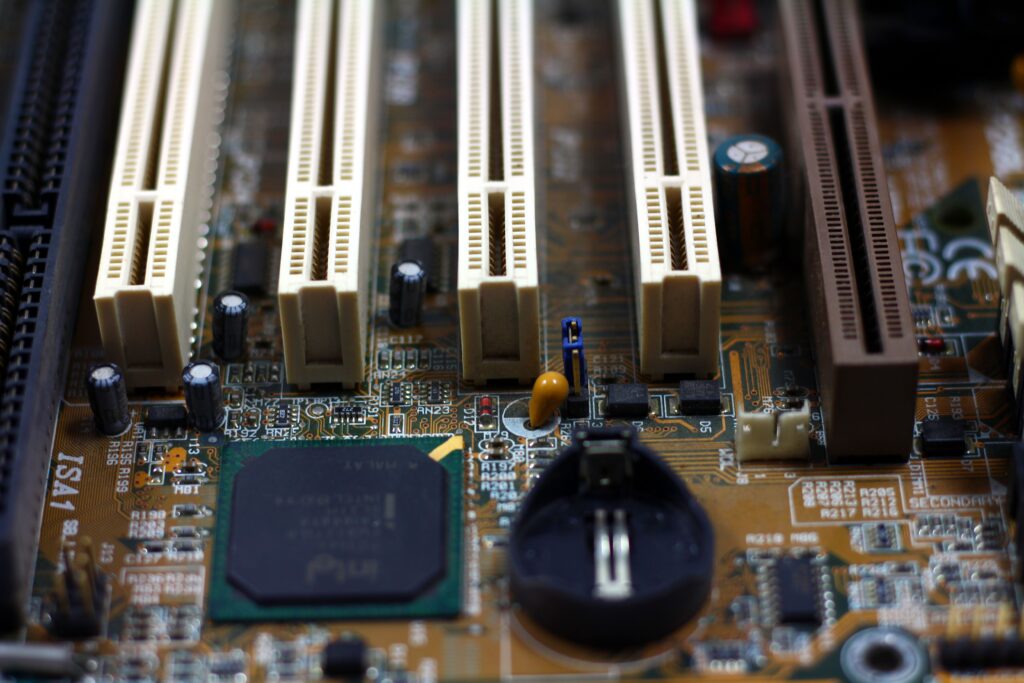
RAM holds the work you are doing right now, and it is far faster than the drive. When you open a browser tab, a document, or a game, Windows loads it into RAM so the processor can reach it at once. The more RAM you have, the more apps and tabs can stay open at once without slowing down. That is the whole job, and it is why RAM matters most during multitasking.
When RAM runs out, Windows moves the extra work to the drive, in a space called the page file. A drive is far slower than RAM, even a fast SSD, so the PC stutters, tabs reload, and apps take seconds to answer. This is the lag many people blame on the processor, when the real cause is a full memory. Microsoft released Windows 11 on October 5, 2021 (Microsoft, 2021), and the system itself uses more memory than Windows 10 did, so older PCs with small RAM felt the change first.
How to Check How Much RAM You Use Today
Open Task Manager before you shop, because your own use beats any chart. Press Ctrl, Shift, and Escape together, then click Performance, then Memory. The top right shows how much RAM you have in total, and the graph shows how much is in use right now. That number is your real need, not a guess from a guide.
Read the result with a simple rule. If use stays below 60 percent during your heaviest normal work, your RAM is fine, and a slow PC has a different cause. If use sits between 60 and 85 percent, you are close to the edge, and more RAM will help on busy days. If use stays above 85 percent, or the graph hits the top and stays there, you need more RAM, because Windows is already moving work to the slow drive.
4 Best Smart Picks for How Much RAM Your PC Needs
Pick 1: 8 GB for study, browsing, and light office work
8 GB suits a student or an office worker who runs a browser, a document, and a video call at once. It handles ten to fifteen tabs, a Word file, and a call without constant reloads. It is the practical floor for smooth Windows 11 daily use, and it is the pick for most laptops sold today.
Pick 2: 16 GB for work, many tabs, and gaming
16 GB is the sweet spot for most people, and it is our pick for the majority of owners. It suits work with thirty tabs, large documents, and light editing, and it suits gaming with a browser and a chat app open beside the game.
Pick 3: 32 GB for creators, editors, and heavy multitasking
32 GB suits creators who edit video, work with large photos, or run virtual machines. It also suits owners who keep fifty tabs open, run several heavy apps at once, or work with huge data files.
Pick 4: 4 GB only as a bare minimum, never as a buy
4 GB is the figure Microsoft lists as the minimum memory to run Windows 11 (Microsoft Learn). It lets the system start and run one light app, but it leaves almost no room for a browser with many tabs, a call, and a document at once. A PC with 4 GB will feel slow during normal multitasking, even with every setting tuned well. Treat 4 GB as a warning sign on a PC you already own, not as a target when you buy, and upgrade to 8 GB at once if you can.
| Pick | Amount | Best for | Falls short when | Our verdict |
|---|---|---|---|---|
| Pick 1 | 8 GB | Study, browsing, light office | Many tabs, big files, editing | Good floor for daily use |
| Pick 2 | 16 GB | Work, many tabs, gaming | Video editing, virtual machines | Best pick for most owners |
| Pick 3 | 32 GB | Creators, editors, heavy work | Almost never on RAM | Buy only if your use proves it |
| Pick 4 | 4 GB | Bare minimum to boot Windows 11 | Normal multitasking | Minimum only, upgrade at once |
If you split your screen to work on two apps side by side, extra RAM shows its value at once, because both apps stay live in memory. Our guide on how to split screen on windows 11 shows the setup, and it pairs well with the 16 GB pick. Honestly, most owners who buy 16 GB stop thinking about RAM for years, and that is the point of a good pick.

When an SSD Matters More Than More RAM
More RAM is not always the right spend, and the disk check decides it. Open Task Manager, click Performance, then Disk, and watch the use while apps load. If the disk sits at 100 percent while apps open slowly, the drive is the limit, not the memory. On a PC with a hard drive, an SSD upgrade makes a bigger difference than any RAM change, because every file load gets faster at once.
How to Check If Your PC Can Take More RAM
Not every PC can take more RAM, so check before you buy anything. Open Task Manager, click Performance, then Memory, and look at “Slots used”, which shows how many RAM slots are filled. If it says 1 of 2, one slot is free, and you can add a stick. If it says 2 of 2, both slots are full, and an upgrade means replacing the sticks you have. Some thin laptops have RAM soldered to the board, and those cannot be upgraded at all. Check the RAM type on the same screen, such as DDR4 or DDR5, and buy the same type, because the two do not fit the same slot.
The RAM Check Most Owners Skip Before Buying
Most owners buy RAM on a chart number and skip their own use check, and that is how money gets wasted. This is the check other guides skip, because it asks for ten minutes of watching, not a quick answer.
4 Mistakes to Avoid When You Buy RAM
These four mistakes waste money or leave a PC slower than it should be. Each one is easy to make, and each one is easy to avoid.
- Buying RAM without checking your own use. A chart cannot know your tabs and apps, and Task Manager can. Check your use first, then pick the amount that fits it.
- Buying the wrong type or speed for your PC. DDR4 and DDR5 sticks do not fit the same slot, and a slow stick can drag a fast set down. Match the type and speed your PC already uses.
- Buying 32 GB for light use. Extra RAM you never use is money that could have bought an SSD, which would have helped more. Buy the pick that matches your real work, not the biggest number.
- Ignoring the disk when the PC is slow. If the disk sits at 100 percent, more RAM will not fix the lag, because the drive is the limit. Check the disk first, and buy the SSD when it is the cause. And if the PC still feels slow after a RAM upgrade, check the drivers too with our guide on how to update drivers on windows 11.
How Much RAM Does Your PC Need FAQ
How much RAM do I need for Windows 11?
Most people need 8 GB for smooth daily use on Windows 11, and 16 GB suits heavier work with many tabs and large files. Microsoft lists 4 GB as the minimum to run the system (Microsoft Learn), but that is a floor, not a comfort level. Check your own use in Task Manager before you buy, because your habits decide the amount.
Is 8 GB of RAM enough in 2026?
Yes, 8 GB is enough for study, browsing, and light office work with a browser, a document, and a video call open. It starts to fall short with thirty tabs, large files, or photo editing, and then 16 GB is the better pick. If your Task Manager use stays above 85 percent, upgrade to 16 GB.
Is 16 GB of RAM enough for gaming?
Yes, 16 GB is enough for most games today, with a browser and a chat app open beside the game. It leaves room for Windows and background apps without pushing memory to the top. Only heavy creators and owners who run virtual machines need 32 GB, so 16 GB is the sweet spot for gamers.
Do I need 32 GB of RAM?
You need 32 GB only if you edit video, work with large photos, run virtual machines, or keep fifty tabs and several heavy apps open at once. For most owners it is more than the PC will ever use, and the money is better spent on an SSD. Check your Task Manager use first, and buy 32 GB only if the number proves you need it.
How do I check how much RAM my PC has?
Open Task Manager, click Performance, then Memory, and the top right shows your total RAM. The same screen shows the speed, the type, and how many slots are in use. That screen also shows your current use, so you can see whether memory is the limit during your normal work.
Can I add more RAM to my laptop?
Many laptops let you add RAM, but some thin models have it soldered to the board and cannot be upgraded. Check Task Manager for “Slots used” to see if a slot is free, then check your exact model on the maker site. If both slots are full, an upgrade means replacing the sticks, not adding one.
Does more RAM make my PC faster?
More RAM helps only when memory is the real limit, such as when use stays above 85 percent and tabs reload. If the disk sits at 100 percent, an SSD helps more, and if drivers are old, a driver update helps more. Check Task Manager first, because RAM only fixes a memory limit, not every kind of lag.
What is the difference between RAM and storage?
RAM holds the work you are doing right now, and it is cleared when the PC turns off. Storage holds your files for years, such as photos and documents. More RAM will not save more files, and a bigger drive will not make more tabs run smooth. Each one fixes a different limit, so check which one is full first.
Is DDR4 or DDR5 RAM better?
DDR5 is faster on paper, but your PC takes only the type its board was built for, and the two do not fit the same slot. Check your current RAM type in Task Manager or on the maker site, and buy the same type. A faster stick of the wrong type is useless, while the right type at the right speed works at once.
How much RAM does Windows 11 use at rest?
Windows 11 itself uses a few gigabytes at rest, which is why the 4 GB minimum leaves so little room for apps. With a browser and a few apps open, use climbs fast, and that is why 8 GB is the practical floor. Microsoft ended support for Windows 10 on October 14, 2025 (Microsoft, 2025), so staying on Windows 11 with enough RAM matters more now.
Can too much RAM hurt my PC?
No, too much RAM does not hurt a PC, but it wastes money that could have bought a faster drive or a better upgrade. RAM you never use sits idle, and the PC gains nothing from it. Buy the pick that matches your real use, and spend the rest where it helps, such as an SSD.
Should I upgrade RAM or buy a new PC?
Upgrade the RAM if the PC is otherwise fast and only memory use is high, because a RAM upgrade is far cheaper than a new PC. If the PC is old, has a hard drive, and struggles with every task, compare the upgrade cost with a newer PC. Our pillar on how to speed up windows 11 helps you decide which fix fits first.
Final Word
How much RAM your PC needs depends on your work, not on a chart. Check your own use in Task Manager first, then match it to one of the four picks. 8 GB suits most daily use, 16 GB suits heavier work and gaming, and 32 GB suits creators who can prove they need it.
Never buy RAM without checking the slots, the type, and the disk, because the wrong buy wastes money. And if memory is not the limit, fix the real cause instead, whether that is a full drive or an old driver. Check your number today, and buy the pick that fits it.
Read more about random-access memory on Wikipedia: https://en.wikipedia.org/wiki/Random-access_memory