
To connect Bluetooth headphones to a PC on Windows 11, turn on Bluetooth, put the headphones into pairing mode, then open Settings, Bluetooth and devices, and click Add device, then Bluetooth. Click your headphones when they appear in the list, and wait for the connected message. Then open Sound settings and set the headphones as the output device, so audio plays through them instead of the PC speakers. If the headphones do not appear, charge them, move them close to the PC, and check they are not already connected to your phone.
Pairing headphones to a PC sounds simple, yet it fails more often than any other Bluetooth task, because three devices are involved at once. The PC, the headphones, and often a phone all compete for the same connection, and the headphones can only obey one master at a time unless they support multipoint. Sony, Samsung, Bose, and Apple all sell popular headphones with slightly different pairing buttons, but the Windows side of the process stays the same. Learn the Windows steps once, and you only need to learn one new button combination per new pair of headphones.
Answer Box 1 Turn on Bluetooth in Settings, then Bluetooth and devices. Hold the headphones pairing button until the light blinks, click Add device, then Bluetooth, and select your headphones. Set them as the sound output in System, then Sound, and test with a short video before your next call.
Contents
- How to Connect Bluetooth Headphones to PC Windows 11 in 5 Easy Steps
- How to Put Headphones Into Pairing Mode
- How to Fix Bluetooth Headphones With No Sound
- When Your Headphones Keep Jumping Back to Your Phone
- Headphone Pairing Checklist for Windows 11
- 5 Mistakes That Break Headphone Pairing
- Frequently Asked Questions
How to Connect Bluetooth Headphones to PC Windows 11 in 5 Easy Steps
Step one is to turn on Bluetooth on the PC and confirm it is truly active before you touch the headphones. Press Windows plus A and click the Bluetooth tile in Quick Settings, or open Settings, then Bluetooth and devices, and switch Bluetooth to On. Confirm the page says the PC is discoverable, because that message proves the radio is working. Skipping this check wastes time, since you may spend minutes on headphones that Windows cannot see at all. If the toggle is missing, stop here and fix that first with the guide on how to turn on Bluetooth on Windows 11, because no pairing step can work without a working adapter.
Step two is to put the headphones into pairing mode, which is different from simply switching them on. Most headphones enter pairing mode when you hold the power button for five to seven seconds after they are already on, and a voice prompt or blinking light confirms the change. Some models have a separate Bluetooth button, and some enter pairing mode automatically the first time they are switched on. Check the quick start card in the box if you are unsure, because guessing the button combination is the most common cause of invisible headphones. The light pattern matters, so watch for a fast blink rather than a slow pulse, which usually means the headphones are only powered on.
Step three is to start the search on the PC by clicking Add device, then Bluetooth, in Settings, then Bluetooth and devices. Windows will scan for nearby devices in pairing mode and list them by name within about thirty seconds. Click the headphones name as soon as it appears, and do not click it twice, because a double click can start two pairing attempts that confuse each other. Windows may show a pairing code to confirm, or it may connect at once with no code at all. Wait for the message that says the device is connected, and do not close the Settings window early.
Step four is to set the headphones as the sound output, because a successful pairing does not always change the audio route. Open Settings, then System, then Sound, and look at the Output section at the top of the page. Select your headphones from the list, and play a short video or a test sound to confirm audio comes through them. If the PC speakers still play, the output selection is wrong, even though the pairing worked. This step surprises many users, because they assume pairing and sound output are the same thing, but Windows treats them as two separate choices.
Step five is to test the microphone as well as the speakers if you plan to use the headphones for calls. Join a test call or open the Sound settings input section and speak a sentence while watching the input volume bar move. Many headphones switch to a lower quality hands-free mode during calls, which makes music sound dull until the call ends. This switch is normal Bluetooth behaviour, not a fault, and it happens because the same radio must carry voice in both directions. Knowing this in advance prevents a support ticket for a problem that no fix can remove.
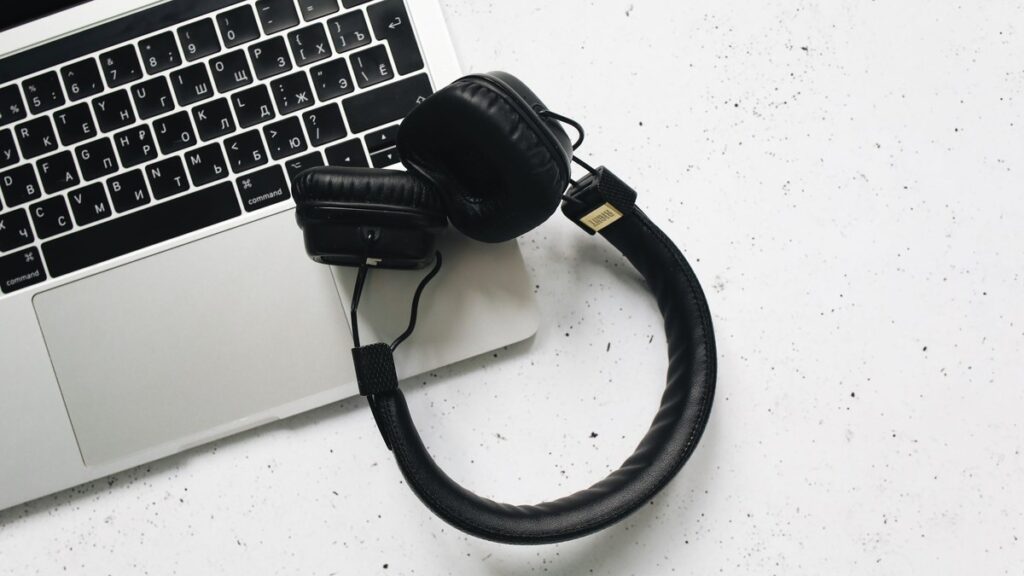
How to Put Headphones Into Pairing Mode
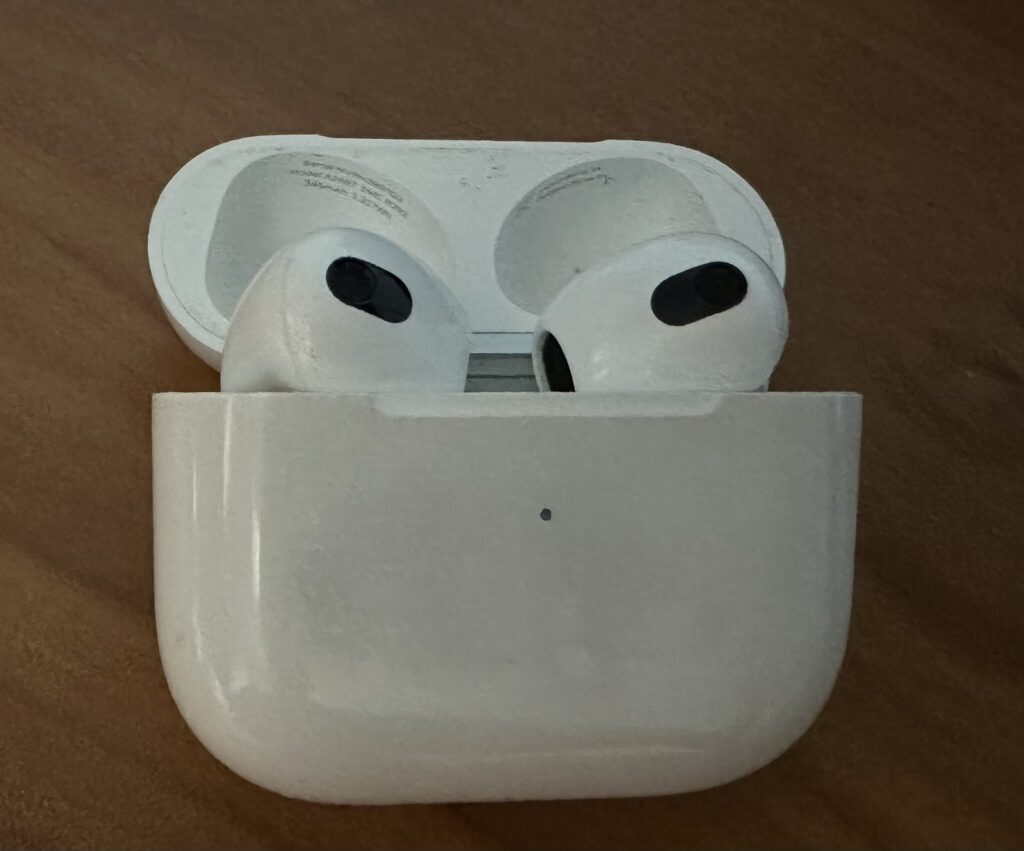
Pairing mode is a special state in which headphones announce themselves to nearby devices, and every brand hides it behind a slightly different gesture. On many Sony and Bose models, you hold the power button for several seconds until a voice says Bluetooth pairing, or until the light blinks blue and white. On Samsung Galaxy Buds, you open the case and hold the touch areas, or use the Galaxy Wearable app to start pairing. On Apple AirPods, you open the case and hold the setup button on the back until the light flashes white. The pattern is always the same idea, which is a long press that the normal power-on press does not trigger.
A common trap is trying to pair headphones that are already connected to another device, because most headphones will not enter pairing mode while they hold an active connection. Turn off Bluetooth on your phone temporarily, or disconnect the headphones from the phone first, and then start pairing mode. Some headphones also refuse new pairings when their paired list is full, which happens after years of connecting to many devices. In that case, reset the headphones by holding the power and volume buttons together for ten seconds, following the manual for your exact model. A reset clears the old list and gives Windows a clean target.
Battery level also affects pairing mode in a way that is easy to miss. Headphones with very low charge may switch on and then shut down before Windows finishes its scan, which looks like a failed pairing. Charge the headphones to at least half before you pair them for the first time, and keep the charging case nearby for earbuds. Earbuds have a second trap, which is that one bud may pair while the other stays in the case, leaving you with one-sided sound. Keep both buds in the case, open the lid, and start pairing from the case button where the model provides one.
How to Fix Bluetooth Headphones With No Sound
No sound after a successful pairing is usually a sound output problem, not a pairing problem, so check the output first. Click the speaker icon in the taskbar and confirm the headphones name appears at the top of the volume panel, then select it if another device is shown. Open Settings, then System, then Sound, and confirm the same selection under Output, because the taskbar panel and the Settings page can occasionally disagree after an update. Play a video with known audio, and watch the volume mixer to see whether Windows is sending sound to the right device. If the mixer shows movement but you hear nothing, the headphones volume itself may be muted, so check the buttons on the headphones too.
If the output is correct but sound is silent, remove the headphones from Windows and pair them again from scratch. Open Settings, then Bluetooth and devices, click the three dots next to the headphones, choose Remove device, and confirm. Restart both the PC Bluetooth toggle and the headphones, then repeat the five pairing steps in order. A fresh pairing clears a corrupted link key, which is the hidden code the two devices use to trust each other. Corrupted link keys are rare, but they cause exactly this symptom, which is a clean pairing with no audio, and only a re-pair fixes it.
Audio quality problems during calls deserve a separate explanation, because they confuse many users into returning good headphones. When a call starts, Windows switches the headphones to hands-free mode, which carries the microphone and the speaker audio over a narrower channel. Music played during a call will sound flat and distant until the call ends and Windows switches back to stereo mode. Microsoft documents this behaviour on its support pages, and it affects all brands equally, because it comes from the Bluetooth standard itself. If music sounds poor outside calls, check that the headphones are set to Stereo rather than Hands-free in the Sound settings, and update the Bluetooth driver.
When Your Headphones Keep Jumping Back to Your Phone
This section covers the problem other guides mention only in passing, yet it causes daily annoyance for millions of users. Most headphones remember the last device they connected to, and they reconnect to it automatically whenever it comes into range. If your phone is in your pocket, the headphones will often choose the phone over the PC, even though you paired them to the PC yesterday. The fix is to manage the phone side first, because Windows cannot win a tug of war against a phone that is actively pulling. Turn off Bluetooth on the phone during PC work, or open the phone Bluetooth settings and disconnect the headphones there.
Headphones with multipoint support can connect to two devices at once, and this feature changes the advice completely. Multipoint headphones, sold by Sony, Bose, Samsung, and others, hold a PC connection for audio and a phone connection for calls at the same time. If your headphones support multipoint, enable it in the maker app, and the jumping problem mostly disappears, because the headphones stop choosing between devices. If your headphones do not support multipoint, accept the one-device rule and switch manually, because no Windows setting can add multipoint to hardware that lacks it. Check the maker specifications before you buy your next pair if this feature matters to your work.
A practical daily routine makes single-device headphones painless. Keep the phone Bluetooth off while you work at the PC, and turn it back on when you leave the desk. Alternatively, disconnect the headphones from the PC when you finish, so the phone can claim them cleanly later. Some users set a simple habit of pressing the headphones power button once to disconnect, rather than fighting automatic reconnection. Small habits beat repeated troubleshooting, because the underlying behaviour is by design, not a bug. If the headphones still jump after you control the phone side, remove them from the phone paired list entirely and re-pair only to the PC.
Headphone Pairing Checklist for Windows 11
| Check | Why it matters | How to confirm |
|---|---|---|
| Bluetooth is on | No pairing without a working radio | Settings shows PC as discoverable |
| Headphones are charged | Low power drops pairing midway | Charge to at least half first |
| Pairing mode is active | Powered on is not the same as pairing | Light blinks fast or voice confirms |
| Phone Bluetooth is off | Phone may steal the connection | Headphones appear in Windows list |
| Sound output is set | Pairing alone does not route audio | Sound settings show headphones as output |
| Microphone is tested | Calls need input as well as output | Input volume bar moves when you speak |
5 Mistakes That Break Headphone Pairing
The five mistakes below account for most failed pairings, and each one takes seconds to avoid. First, pairing without turning on Bluetooth properly, because a greyed tile or a missing toggle means Windows cannot see any device. Second, forgetting pairing mode, because headphones that are only switched on stay invisible to the search. Third, pairing from too far away, because a weak signal drops the handshake halfway and leaves a half-paired entry. Fourth, leaving the phone connected, because the phone will reclaim the headphones the moment Windows pauses. Fifth, skipping the sound output step, because a paired device that is not selected as output stays silent and looks broken.
A sixth habit, though not counted in the title, is worth a warning, which is changing drivers during a simple pairing problem. Driver updates help when the adapter itself is faulty, but they rarely help when one pair of headphones refuses to pair. Try the five steps and the checklist first, and touch drivers only when Bluetooth fails for every device. This order keeps a small problem small, instead of turning it into a system-wide repair. If every device fails, the broader guide on how to fix Bluetooth on Windows 11 is the right next step, and the guide on Bluetooth missing Windows 11 covers the missing-toggle case.
Answer Box 2 If sound stays silent after pairing, set the headphones as the output in Settings, then System, then Sound. If that fails, remove the device, restart Bluetooth on both sides, and pair again. Test the microphone too, because calls switch headphones to a lower quality hands-free mode by design.
Frequently Asked Questions
Why will my Bluetooth headphones not show up on Windows 11?
The headphones are probably not in pairing mode, or they are still connected to your phone. Hold the pairing button until the light blinks fast, turn off Bluetooth on the phone, and search again from Settings, then Bluetooth and devices. Charge the headphones as well, because low battery can end a pairing attempt midway.
How do I put Sony headphones into pairing mode?
Hold the power button for about seven seconds until a voice says Bluetooth pairing, or the light blinks blue. If the headphones are already connected to a phone, disconnect them there first. The exact gesture varies by model, so check the quick start card if the long press does not work.
How do I connect AirPods to a Windows 11 PC?
Open the AirPods case, hold the setup button on the back until the light flashes white, then open Settings, Bluetooth and devices, and click Add device, then Bluetooth. Click the AirPods name when it appears, and set them as the sound output in System, then Sound. AirPods work as normal Bluetooth headphones on Windows, without the Apple-only features.
Why do my Bluetooth headphones connect but have no sound?
Windows paired the headphones but kept the old speaker as the sound output, so open Settings, then System, then Sound, and select the headphones under Output. If the output is already correct, remove the device and pair it again, because a corrupted link key can block audio while pairing looks fine. Check the headphones volume buttons too.
Why does music sound bad during a call on Bluetooth headphones?
During a call, Windows switches the headphones to hands-free mode, which carries voice both ways over a narrower channel. Music will sound flat until the call ends and stereo mode returns. This is normal Bluetooth behaviour on all brands, and it is not a fault in your headphones or your PC.
Can Bluetooth headphones connect to a PC and a phone at the same time?
Only headphones with multipoint support can hold two connections at once, and many mid-range and premium models now include it. Check the maker specifications or app settings for a multipoint option. Without multipoint, the headphones connect to one device at a time and will jump to the last used device.
How close should headphones be to the PC when pairing?
Keep the headphones within one metre of the PC during the first pairing, with no large metal objects between them. Move to your normal seat only after the connection succeeds, because a weak first handshake can leave a half-paired entry. If pairing fails repeatedly, move closer before you change any setting.
Do I need to install software to use Bluetooth headphones on Windows 11?
No, Windows 11 includes the Bluetooth drivers and pairing tools you need for standard headphones. Maker apps add extras like equaliser settings and firmware updates, but they are optional for basic listening. Install the maker app only if you want those extras, not as a fix for a pairing problem.
Why do my headphones keep disconnecting from Windows 11?
The usual causes are low battery, distance, interference from USB 3.0 ports, or the phone reclaiming the connection. Charge the headphones, move closer, turn off phone Bluetooth, and try a different USB port for any nearby dongle. If every Bluetooth device disconnects, update the adapter driver or check the power management setting.
Can I use Bluetooth headphones and a wired mouse at the same time?
Yes, Bluetooth headphones and wired or wireless USB devices work together without conflict, because they use separate systems. The only shared risk is a USB 3.0 port placed very close to a Bluetooth adapter, which can add interference. Move the adapter or dongle to a rear port if audio stutters during heavy file transfers.
How do I remove Bluetooth headphones from Windows 11?
Open Settings, then Bluetooth and devices, find the headphones in the device list, click the three dots next to the name, and choose Remove device. Confirm the removal, and restart Bluetooth on the PC before pairing again. Removing from Windows alone may not clear the headphones side, so reset the headphones if they still refuse a new pairing.
Why does Windows ask for a PIN when pairing headphones?
Some older or simpler accessories use a fixed PIN to confirm pairing, and the usual values are 0000 or 1234. Enter the code shown on screen, or try those defaults if Windows asks without showing a code. Modern headphones usually pair without a PIN, so a PIN prompt often means the accessory uses an older Bluetooth profile.
Learn more on Wikipedia: Headphones.