
How to Create Labels in Gmail: 5 Best Habits That Stop the Mess
Learning how to create labels in gmail is the fastest way to stop your inbox from turning into a pile. A label takes ten seconds to make, and it sorts a whole topic of mail with one click. This guide shows the desktop path, the phone path, and five habits that keep labels useful for months.
Labels are Gmail’s version of folders, and they do the job better than folders in one clear way. One email can carry several labels at once, so a receipt can sit under Work and under Receipts with no copy. Google said 3 billion users rely on Gmail in January 2026, and most of them never touch labels at all. That is a shame, because labels are free and they take almost no time to set up.
[SNIPPET TARGET] To create labels in Gmail, open Gmail on a computer, click More in the left sidebar, then click Create new label. Type a name, tick Nest label under if you want a sublabel, and click Create. On the phone, tap the menu icon, scroll to Labels, tap Create new, type a name, and tap Save.
ANSWER BOX 1
To create labels in Gmail on a computer, click More in the left sidebar and choose Create new label. Type a clear name, tick Nest label under if the label belongs inside another label, and click Create. The label shows in the sidebar at once, and you can drag emails onto it or apply it from the Label icon.
ANSWER BOX 2
Labels beat plain folders because one email can wear several labels at the same time. A label is only a tag, so removing it never deletes the email, and the mail stays in All Mail. Keep your label count low, give each label a clear name, and your inbox stays tidy without daily effort.
KEY TAKEAWAYS
- How to create labels in gmail starts in the sidebar: More, then Create new label, then a name, then Create.
- One email can carry several labels, which normal folders cannot do.
- The phone app can create labels but cannot nest them or set colours.
- A new label can hide until you set it to Show in Settings.
- Five habits, naming, nesting, colour, visibility and pruning, keep labels useful over time.
Contents
- What is a Gmail label?
- How to create labels in Gmail on a computer
- How to create labels in Gmail on your phone
- How to nest a label under another label
- How to colour and show your labels
- 5 best habits that stop the mess
- How to apply labels to your mail
- FAQ
What Is a Gmail Label?
A Gmail label is a tag you stick on an email so you can find it again in one click. The label shows in the left sidebar like a folder, and clicking it lists every email with that tag. Unlike a folder, a label never owns the email, because every message lives in All Mail and the label only points at it.
This tag idea changes how you should plan. You do not need a perfect folder tree, because you can tag one email with Work, Receipts and Urgent all at once. That is the core strength of labels, and it is why Gmail has used them since launch in 2004.
Gmail also ships with system labels you cannot remove. Inbox, Sent, Drafts, Spam and Trash are built in, and they do fixed jobs. Your own labels sit below them, and you can edit, hide, colour or delete them any time. Our pillar guide on how to create a folder in gmail explains the whole folder system in seven steps.
How to Create Labels in Gmail on a Computer
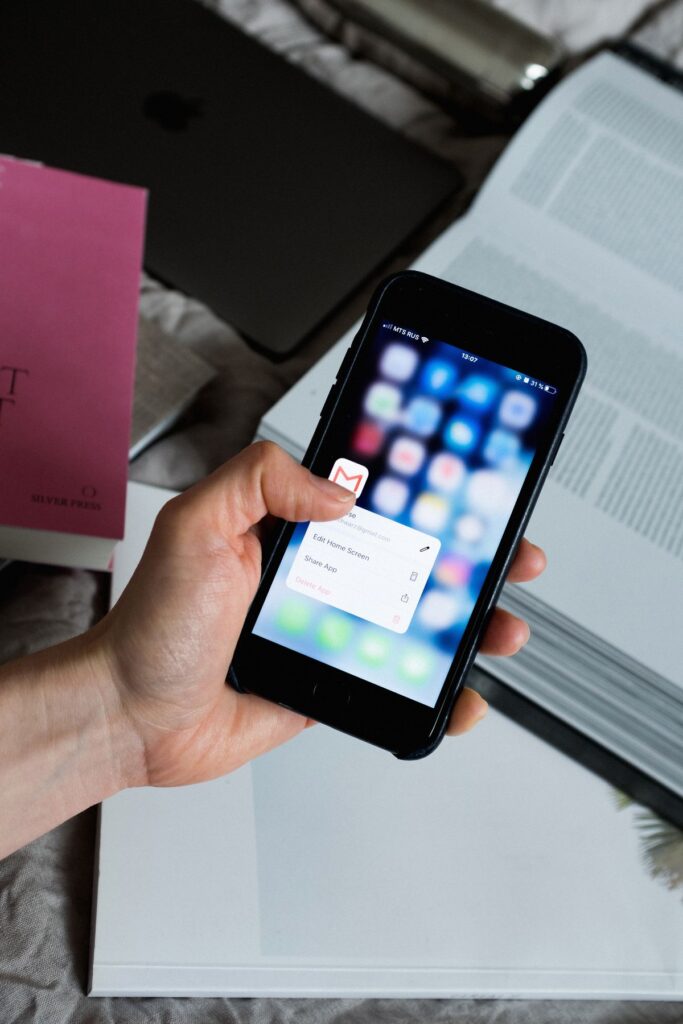
The computer is the best place to create labels, because it shows every option in one dialog. Open Gmail in your browser and sign in, then look at the left sidebar. Click More at the bottom of the sidebar to expand the list, then click Create new label.
Type a short, plain name that you will still understand in six months. Receipts, School, Work and Travel are good names, because they say exactly what belongs inside. Skip clever codes and dates in the name. Then click Create, and Gmail saves the label at once.
There is a second path that starts from an email. Open any email, click the Label icon at the top, then click Create new label. Type the name and click Create, and Gmail applies the new label to that email in the same move.
How to Create Labels in Gmail on Your Phone
The Gmail app on Android and iPhone can create labels, and the steps are short. Open the app and tap the menu icon, the three lines at the top left. Scroll down until you see the Labels section, tap Create new, type a name, and tap Save. The label syncs to your Google account, so it shows on your computer too.
Know the two phone limits before you plan on the go. The app has no Nest label under option, so a label made on your phone always lands at the top level. The app also has no label colours, so colour must be set on a computer. Both limits are easy to live with, because you can nest and colour later from a browser in under a minute.
If the Create new link is missing, update the Gmail app first. Older versions hide the option, and an update usually brings it back. If it still does not show, create the label on a computer once, and the app will pick it up on the next sync.
How to Nest a Label Under Another Label
Nesting puts one label inside another, and it is how Gmail makes subfolders. A parent label like Clients can hold Acme and Globex underneath it, so your sidebar stays short while your system stays deep.
To nest a new label, tick Nest label under in the create dialog and pick the parent from the menu before you click Create. To nest a label you already made, open Settings, then See all settings, then Labels, and click Edit next to the label. Tick Nest label under, pick the parent, and click Save. To move a sublabel back to the top level, open the same Edit screen and untick the box.
Keep the tree shallow, because a deep tree costs more clicks than it saves. Two or three levels is plenty for most inboxes, and Google publishes no maximum depth. Each nested label counts as its own label, so Clients with two children uses three labels in total. Collapse a parent in the sidebar to hide its children when you are not using them.
| Label setup | Labels used | How it looks | Best for |
|---|---|---|---|
| Flat list, 6 labels | 6 | Six separate rows | Small inboxes |
| Parent plus 3 children | 4 | One row that expands | One project, three parts |
| Two parents, 4 children | 6 | Two rows that expand | Work plus personal |
| Deep tree, 4 levels | 8 or more | Long nested rows | Avoid this shape |
| Coloured flat list | 6 | Six coloured rows | Fast visual scanning |
How to Colour and Show Your Labels
Colour turns a text list into a map your eye can read in a second. Hover over a label in the sidebar on a computer, click the three dots, then click Label colour and pick a shade. Give all money labels one colour and all family labels another. Colours set on a computer show up in the Gmail app as well.
Visibility is the setting most people miss. Open Settings, the gear at the top right, then click See all settings, then click the Labels tab. Each label has a Show, Hide, or Show if unread choice. Show keeps it in the sidebar, Hide tucks it away, and Show if unread shows it only while it holds unread mail.
A new label that seems missing is almost always set to Hide. Check the Labels tab after every new label, and set it to Show if you want it visible. You can also drag labels up or down in the sidebar to order them. Keep the visible list short, because thirty visible labels are harder to scan than a tidy inbox.
5 Best Habits That Stop the Mess
These five habits separate a label system that lasts from one that collapses in a month.
- Name labels by topic, not by sender. A label per sender explodes into hundreds of labels, and the sidebar becomes unusable. Label by project or topic, like Tax 2026 or Flight Receipts, and use search to find one sender.
- Keep the count low and the names plain. Ten clear labels beat fifty vague ones, and Google Workspace guidance says to stay under 500 labels for good speed. Start with the five topics that fill your inbox most, then add one at a time.
- Nest only when the parent is obvious. If a label clearly belongs inside another, nest it, but do not build a deep tree on day one. A flat list with a few parents is faster than four levels of nesting.
- Colour by group, not by mood. Pick one colour per group, such as green for money and blue for work, and use it for every label in that group. Random colours look fun and help nobody, because your eye cannot learn the pattern.
- Prune labels every season. Open Settings, then Labels, and delete the labels tied to finished projects. Deleting a label never deletes the mail, so pruning is safe, and a short list is a fast list. Our guide on how to delete a folder in gmail shows the safe steps.
How to Apply Labels to Your Mail
A label earns its keep only when mail wears it, so apply labels as mail arrives. Tick the box next to one or more emails, click the Label icon at the top, and tick the labels you want. The email keeps its place in the Inbox and also appears under each label you picked. This is the apply path, and it is different from moving, which takes the email out of the Inbox.
You can also drag an email onto a label in the sidebar on a computer. Dragging applies the label without removing the email from the Inbox, while the Move to icon removes it. Our guide on how to move emails to a folder in gmail explains the difference in full.
Filters apply labels on their own, and they are the real payoff of a tidy label set. Click the search options icon in the Gmail search bar, fill in a sender or a subject word, then click Create filter. Tick Apply the label, pick your label, and click Create filter. From then on, matching mail gets the label the moment it arrives, with no clicks from you at all.
How to Create Labels in Gmail FAQ
What is the difference between a Gmail label and a folder?
A label is a tag, while a folder is a place where mail lives. One email can carry several labels at once, but it can sit in only one normal folder.
How many labels can I create in Gmail?
Google Support says you can create up to 5,000 labels per account. Google Workspace guidance adds that you should use 500 labels or fewer for good performance. Most people need fewer than twenty labels in total.
Can I create labels in Gmail on my phone?
Yes, open the Gmail app, tap the menu icon, scroll to Labels, and tap Create new. Type a name and tap Save. The app cannot nest labels or set colours.
How do I make a sublabel in Gmail?
Tick Nest label under when you create a label, then pick the parent label from the menu. You can also nest an existing label from Settings, then See all settings, then Labels, then Edit. The nested label works like a subfolder.
Why is my new label not showing in Gmail?
The label is probably set to Hide. Open Settings, then See all settings, then Labels, and set the label to Show. Also click More in the sidebar, because new labels can sit below the visible list.
Can I add a colour to a Gmail label?
Yes, hover over the label in the sidebar on a computer, click the three dots, then click Label colour and pick a shade. Colours sync to the Gmail app.
Can I put one email under two labels?
Yes, one email can carry several labels at once. Select the email, click the Label icon, and tick every label you want. Open any of those labels later and you will find the same email there.
Does removing a label delete the email?
No, removing a label only untags the email, and the message stays in All Mail. Deleting the email itself is a different action, and it sends the message to Trash. Our guide on gmail folders vs labels explains the difference.
Can I rename a label in Gmail?
Yes, open Settings, then See all settings, then Labels, and click Edit next to the label. Type the new name and click Save. Renaming a label never moves or deletes the mail under it.
Do labels work the same in Google Workspace?
Yes, labels work the same in a work or school Google Workspace account. Your admin cannot see your personal labels.
How do I find all emails with one label?
Click the label in the sidebar, or type label:receipts in the search bar with your own label name. You can combine it with other words, like label:work from:boss.
What happens if I delete a label?
Deleting a label removes the tag from every email under it, but the emails stay safe in All Mail. You can still find them with search.
Final Word
Learning how to create labels in gmail takes minutes, and five small habits keep the system working for months. Name labels by topic, keep the count low, nest only when the parent is obvious, colour by group, and prune labels every season. Then let filters do the daily sorting for you.
Start with five labels that match your real inbox, and add more only when a topic keeps coming back. And once your labels are ready, our guide on how to move emails to a folder in gmail shows you how to fill them fast and keep your inbox clear.
Read more about Gmail on Wikipedia: https://en.wikipedia.org/wiki/Gmail