
How to Connect Google Home to WiFi in 7 Easy Steps, Avoid Mistakes
Learning how to connect google home to wifi takes about ten minutes once you have your WiFi password ready. You plug in the speaker, open the Google Home app, tap the plus icon, tap Set up device, and pick your home WiFi network. This guide gives you the seven steps in order, covers Nest Hub too, and lists the mistakes that stall setup.
Google Home is the smart speaker line from Google, and Google Assistant is the voice helper that lives inside it. You talk to it to play music, set timers, check the weather, and control smart home gear. The global smart speaker market was worth roughly 15.6 billion dollars in 2025, so these speakers are now a normal part of many homes. Setup is a routine job, but the first run still trips people up when the app cannot find the speaker or the WiFi password fails.
To connect Google Home to WiFi, plug in the speaker, open the Google Home app, tap the plus icon, then Set up device, then New device. Pick your home, choose your WiFi network, enter the password, and wait for confirmation. Then say, Hey Google, what time is it, to test it.
ANSWER BOX 1
To connect Google Home to WiFi, install the Google Home app and sign in. Plug in your speaker and wait for it to say it is ready for setup. In the app, tap the plus icon, then Set up device, then New device. Pick your home, choose your WiFi network, and enter the password.
ANSWER BOX 2
Setup fails most often for three simple reasons. The speaker is too far from the router, the WiFi password is typed wrong, or the app is signed in to the wrong Google account. Keep the speaker within 15 to 20 feet of the router and check the password on another device first.
KEY TAKEAWAYS
- How to connect google home to wifi starts in the Google Home app, not in a web browser, for almost every speaker model.
- Have your WiFi password and your Google sign in ready before you plug the speaker in.
- The speaker says it is ready for setup, and the app confirms when it is online.
- Nest Hub sets up on its own screen.
- A quick one room test before setup saves more time than any fix after setup fails.
Contents
- What is Google Home and what do you need before you start?
- The one room test: check placement and signal before setup
- How to connect Google Home to WiFi in 7 easy steps
- Google Home models: setup differences at a glance
- How to connect Google Home to WiFi on Nest Hub
- How to change WiFi after a new router or password
- 7 mistakes to avoid when you connect Google Home to WiFi
- What to do if Google Home will not connect to WiFi
- FAQ
What Is Google Home and What Do You Need Before You Start?
Google Home is the smart speaker family from Google, and Google Assistant is the voice helper that runs on it. The Google Home, Google Home Mini, Nest Mini, Nest Audio, Nest Hub, and Nest Hub Max are all part of the same family. You talk to them to play music, set timers, check the weather, and control smart home gear. The Google Home app has been downloaded more than 500 million times, and Google Home works with more than 50,000 smart home devices from over 10,000 brands.
Before you plug anything in, gather four things: your WiFi network name and password, a phone with the Google Home app installed and updated, your Google account sign in, and a power outlet near your router.
Check your phone first, because an old phone or an old app is a common setup blocker. Google Support says you need Android 9.0 or later, or iOS 17.0 or later, with the latest Google Home app. Update the app before you start, and turn on Bluetooth and location, because the app uses Bluetooth briefly to find the speaker.
Check your WiFi band before you start. Current Google Nest speakers work on both 2.4 GHz and 5 GHz networks. The older Google Home Mini is 2.4 GHz only, so it will not see a 5 GHz network name at all. Pick the 2.4 GHz name if the speaker will sit far from the router, because that band reaches further through walls.
The One Room Test: Check Placement and Signal Before Setup
Most setup failures are placement failures, and you can catch them in two minutes. This one room test checks signal strength, distance from the router, and a clear spot to hear you.
First, stand where the speaker will sit and check your phone WiFi bars. If the phone shows full bars, the speaker will connect fine in that spot. If it shows one bar or keeps dropping the network, move the speaker closer to the router.
Second, measure the distance to the router. Google Support says to keep the speaker within 15 to 20 feet of the router during setup, which is about 4 to 6 metres. Thick walls and metal shelves shrink that range fast. Start setup close to the router, then move it to its final spot once it is online.
Third, check the spot itself. The speaker needs clear space around it so it can hear you, and it should sit at ear height where you talk most. Keep it away from a loud TV and a running fan, because background noise makes voice commands fail. Keep it off the floor and out of a closed cabinet.
Fourth, check the power outlet. Use the adapter that came in the box, because a phone charger may not give enough power. A speaker that loses power mid setup will fail.
If the room fails the test, fix the room before you fix the speaker. Move the router to a higher shelf or add a WiFi extender.
How to Connect Google Home to WiFi in 7 Easy Steps
These seven steps cover the standard Google Home, Google Home Mini, Nest Mini, and Nest Audio. The whole job takes about ten minutes, so work through the steps in order and do not skip the app update step.
- Download the Google Home app and sign in. On your phone, open the App Store on an iPhone, or Google Play on Android, and search for Google Home. Install the free app and sign in with your Google account. Use the account you want the speaker tied to, because music and routines follow that account.
- Plug in your speaker with the adapter from the box. Connect the power adapter to the speaker, then plug it into a wall outlet. The speaker lights up and says it is ready for setup. If it never speaks, unplug it and plug it back in.
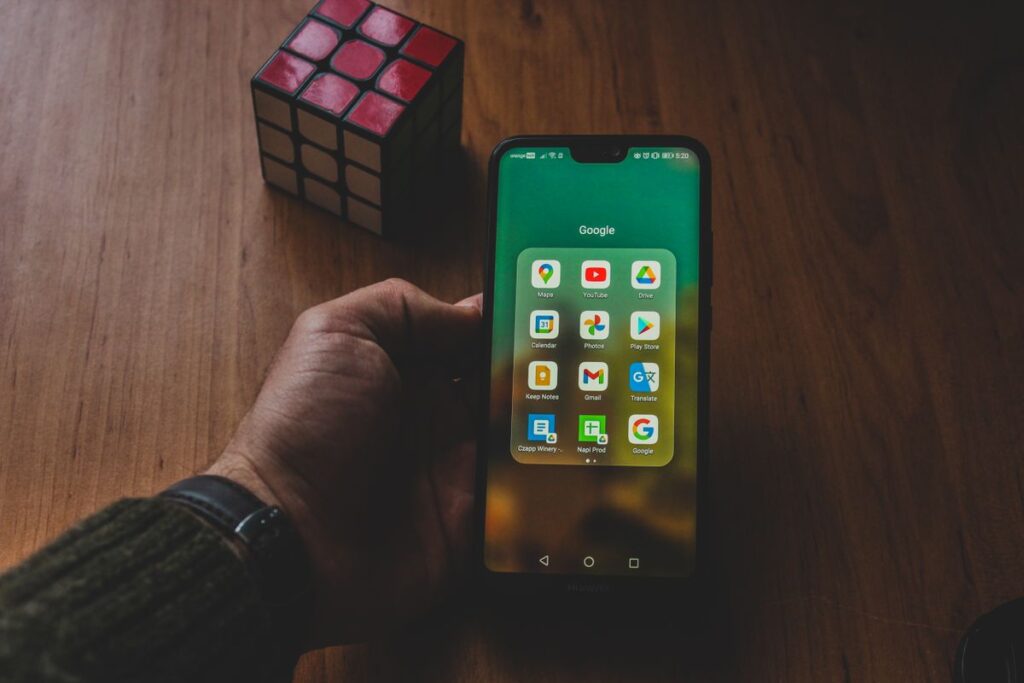
- Open the Google Home app and tap the plus icon at the top left of the home screen. Tap it, then choose Set up device, then New device for a fresh speaker.
- Pick your home and confirm the speaker. The app asks which home the speaker belongs to, so pick your home or create one. The app then looks for the speaker over Bluetooth. Tap the speaker name when it appears, and it will play a sound to confirm it is the right one.
- Choose your WiFi network and enter the password. The app shows the networks your speaker can see, so pick your home network. Type the password with care, because passwords are case sensitive. If the network does not appear, move the speaker closer to the router and tap refresh.
- Wait for the app to confirm the speaker is online. The app connects the speaker to your WiFi and links it to your Google account, which can take a minute. Let it finish and do not unplug the speaker while it works. The app may then ask about Voice Match and your home address.
- Test Google Assistant with a simple question. Say, Hey Google, what time is it, and listen for the answer. Then try, Hey Google, what is the weather today, to confirm it can reach the internet. If both answers come back, setup is done. If Google Home stays silent, read our guide on Google Home not responding first.
If the app cannot find your speaker, check three things fast. First, confirm the speaker is on and ready for setup. Second, confirm Bluetooth is on. Third, check you signed in to the right Google account.
Google Home Models: Setup Differences at a Glance
Google has sold several speakers under the Google Home and Google Nest names, and the setup path is almost the same for all of them. The wrong WiFi band can waste half an hour, so use this table to find your model.
| Model | Setup path | WiFi bands | What is different |
|---|---|---|---|
| Google Home (original) | Google Home app, plus icon, Set up device, New device | 2.4 GHz and 5 GHz | Large original speaker with a touch top for volume |
| Google Home Mini | Google Home app, plus icon, Set up device, New device | 2.4 GHz only | Will not see a 5 GHz network, so pick the 2.4 GHz name |
| Nest Mini (2nd gen) | Google Home app, plus icon, Set up device, New device | 2.4 GHz and 5 GHz | Small and round, with a wall mount slot |
| Nest Audio | Google Home app, plus icon, Set up device, New device | 2.4 GHz and 5 GHz | Larger speaker with better bass |
| Nest Hub | On screen setup, then finish in the Google Home app | 2.4 GHz and 5 GHz | Has a screen, so you pick WiFi on the device itself |
| Nest Hub Max | On screen setup, then finish in the Google Home app | 2.4 GHz and 5 GHz | Larger screen with a camera, asks about Face Match |
If you own a used speaker, check one extra thing first. A speaker set up by a previous owner may still be tied to their Google account. Reset it using our guide on how to reset Google Home, then run the seven steps above.
How to Connect Google Home to WiFi on Nest Hub
Nest Hub and Nest Hub Max set up on their own screens, so the flow looks different from a speaker with no screen. The screen guides you at each point. Plug in the Nest Hub with its adapter and wait for the screen to wake up, which can take a minute on first boot.
First, the screen asks you to pick a language. Tap your language, then pick your home network and type the password on the screen keyboard. Take care with capitals and numbers, because a wrong password is the top reason a Nest Hub fails to connect.
Next, the screen asks you to sign in to your Google account. Type your email and password on the screen, or use the code shown on the screen in a browser on your phone. Once you sign in, the Nest Hub asks about your home address and time zone.
The Nest Hub then asks about Voice Match and personal results, which let it show your calendar and messages. It also asks about Face Match on the Nest Hub Max, which uses the camera to recognise you. You can set both up now or skip them.
After setup, open the Google Home app and check that the Nest Hub appears under Devices. The app is still the best place to manage routines and privacy settings. Say, Hey Google, show me the weather, to test the screen.
How to Change WiFi After a New Router or Password
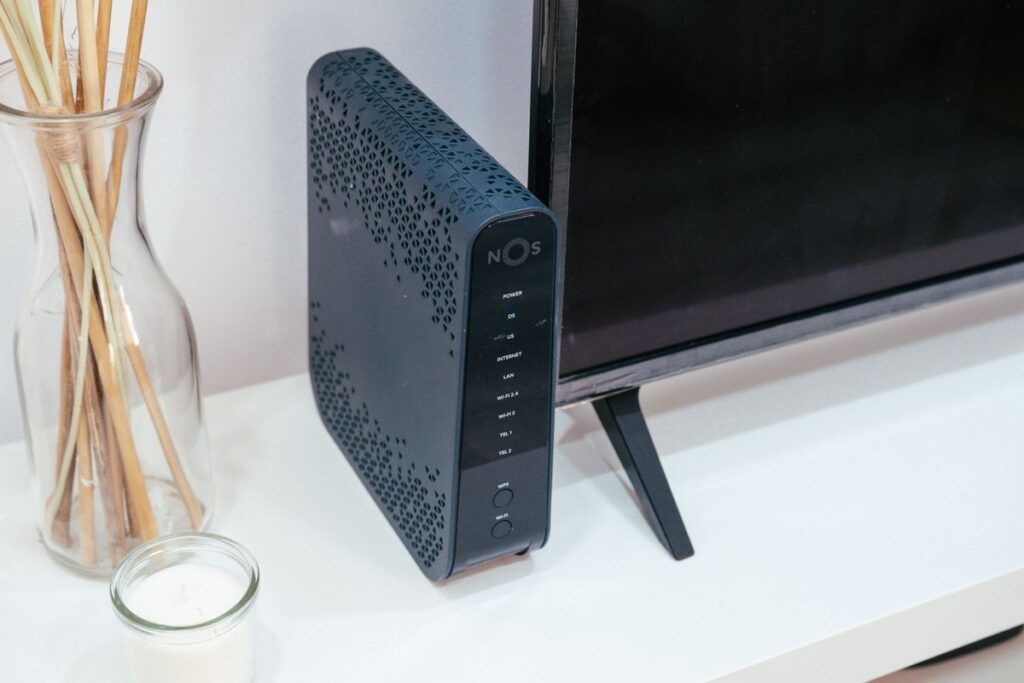
A new router or a new WiFi password is the most common reason a working Google Home goes offline. The speaker remembers the old network, so it cannot join the new one on its own. You do not need a factory reset, and the change takes about five minutes in the Google Home app.
Open the Google Home app and tap the device tile for the speaker you want to fix. Tap the settings gear, then Device information, then WiFi, then Forget this network. The speaker will then say it is ready for setup.
Now run the setup flow again, but only the WiFi part. Tap the plus icon, then Set up device, then New device, and pick your home. Pick the new network name, type the new password, and wait for confirmation.
If you changed the router but kept the same network name and password, try a simpler fix first. Restart the speaker by unplugging it for thirty seconds, then plug it back in. If that fails, restart the router the same way and wait two minutes. Only use Forget this network when the network name or password has actually changed.
7 Mistakes to Avoid When You Connect Google Home to WiFi
These seven mistakes cost new owners the most time, and every one of them is easy to avoid. Read the list before you plug the speaker in.
- Signing in with the wrong Google account. The speaker ties itself to the account you sign in with, so music and routines follow that account. Use the right account before you add the device.
- Typing the WiFi password from memory. A wrong password is the top setup failure, and it looks like a broken speaker. Check the password on a connected device or the router label.
- Putting the speaker far from the router for the first setup. Start close to the router and move the speaker later. Google Support says 15 to 20 feet is the safe range for setup.
- Skipping the app update. An old Google Home app shows old menu names, and the steps in a current guide will not match your screen. Update the app before you start.
- Picking the 5 GHz network for a Google Home Mini. The old Home Mini is 2.4 GHz only, so it will never see a 5 GHz network name. Pick the 2.4 GHz name for that model.
- Placing the speaker where it cannot hear you. A speaker jammed against a wall or next to a noisy appliance hears you badly. Give it clear space and place it at ear height where you talk most.
- Ignoring Voice Match and privacy settings until later. Voice history builds up from day one, and most owners never go back to check it. Set up Voice Match during setup week and teach the household the mic off switch.
What to Do If Google Home Will Not Connect to WiFi
If setup fails, do not reset the speaker first. A reset wipes everything and forces you to start over. Work through the cheap checks first, and reset only if nothing else works.
First, check the password and the network name. A single wrong character is the most common setup failure, and the app does not always say the password was wrong. Check the password on a phone that is already connected, or read it from the router label. Also confirm you picked the right network.
Second, restart the speaker and the router. Unplug the speaker, wait thirty seconds, and plug it back in. If your internet is also acting up, restart the router the same way and wait two minutes. Then run the setup flow again.
Third, move the speaker closer to the router and try again. If the speaker sits far from the router or behind thick walls, the WiFi signal may be too weak for setup. Bring the speaker into the same room as the router, finish setup there, then move it back. Our guide on Google Home not connecting to WiFi walks through every fix in order.
Fourth, check the router settings. Some routers hide the network name, block new devices by MAC address, or run a guest network that blocks smart home gear. Turn off MAC filtering for setup, or add the speaker to the main network. A speaker cannot join a network with a captive portal sign in page.
If nothing above works, reset the speaker as a last step. Our guide on how to reset Google Home shows the button hold for each model. After the reset, run the seven steps from the start.
How to Connect Google Home to WiFi FAQ
How long does it take to connect Google Home to WiFi?
Setup takes about ten minutes for a standard speaker, and a little longer for a Nest Hub.
Can I connect Google Home to WiFi without the Google Home app?
For most speakers, no, you need the Google Home app, because it handles WiFi and account sign in. Nest Hub devices pick WiFi on their own screens, but the app is still best for settings after setup.
Why is my Google Home not finding my WiFi network?
The most common causes are a speaker too far from the router, a hidden network name, or a 5 GHz only list on a Google Home Mini. Move the speaker closer to the router and pick the 2.4 GHz name for a Home Mini.
Does Google Home work on 5 GHz WiFi?
Yes, current Google Nest speakers work on both 2.4 GHz and 5 GHz WiFi. Use 5 GHz near the router, and 2.4 GHz far away, because 2.4 GHz reaches further through walls. The older Google Home Mini is 2.4 GHz only.
Can I change the WiFi network on Google Home later?
Yes, you can change the WiFi network any time in the Google Home app. Open the device tile, tap the settings gear, then Device information, then WiFi, then Forget this network. Then run the setup flow again.
How do I connect a second Google Home to WiFi?
Set up the second speaker the same way, in the Google Home app, under the plus icon, then Set up device, then New device. Use the same Google account and give it a clear room name, like Bedroom Mini.
What is the difference between Google Home and Google Nest?
Google Home is the original name for the speaker family, and Google Nest is the newer name for the same family. A Nest Mini is the newer version of the Home Mini, and the setup path is the same for both.
Why does Google Home say it cannot connect to WiFi during setup?
The most common causes are a wrong WiFi password, a speaker too far from the router, or a router that needs a restart. Check the password on another device and move the speaker closer to the router.
Can I connect Google Home to a hotel or public WiFi network?
No, not in most cases, because hotel and public networks use a captive portal that opens a sign in page. Google Home speakers cannot complete a web sign in.
Do I need a Google account to set up Google Home?
Yes, you need a Google account, because the speaker registers to that account. Music and routines follow that account, so use the account you want the speaker tied to.
What should I do first after Google Home is connected to WiFi?
Set up Voice Match, link your music service, set your home address, and build one routine. Then test Google Assistant from the rooms where you use it most, and show the household the mic off switch.
Why does my Google Home keep disconnecting from WiFi?
The most common causes are a weak signal in the speaker room or a router that reboots often. Move the speaker closer to the router and restart the router.
Final Word
Connecting Google Home to WiFi is a ten minute job when the password is ready and the speaker sits near the router. Run the one room test first, install the app, plug in the speaker, tap Set up device, pick your network, and test it with a simple question. Then spend ten more minutes on Voice Match and routines. And once WiFi is done, our guide on how to use Google Home shows the commands to learn first.
If setup stalls, do not jump to a reset. Check the password and the distance to the router, and restart the speaker and the router first. And if Google Home goes quiet after setup, our guide on Google Home not responding walks through the fixes in order.
Read more about Google Home on Wikipedia: https://en.wikipedia.org/wiki/Google_Home