
Google Home Not Responding? 8 Easy Fixes to Avoid Costly Mistakes
Google Home not responding usually has a simple cause, and most fixes take less than five minutes. First check the mic switch on the back of the speaker, then check the volume, then unplug the speaker for 30 seconds and restart your router. If it still stays silent, check your wake phrase, Voice Match, and the Google Home app, and save the factory reset for last.
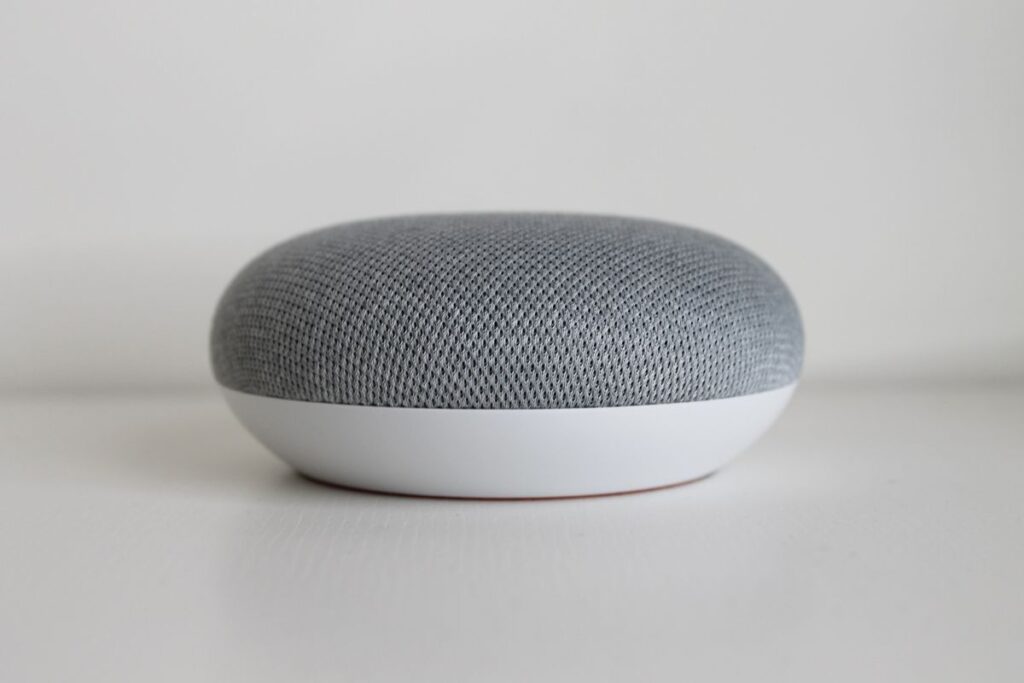
Google Home is the smart speaker line from Google, and the same fixes apply to Google Nest Mini, Nest Audio, and Nest Hub. Google Assistant is the voice software inside these speakers. The global smart speaker market was worth roughly 15.6 billion dollars in 2025 (Grand View Research, 2025), and about 11 percent of US adults own a Google Nest device (Statista, latest available, via 16best, 2026).
If Google Home is not responding, first check the mic switch on the back of the speaker and make sure it is on. Then raise the volume, unplug the speaker for 30 seconds, and restart your router. If it still does not answer, check your wake phrase, Voice Match, and the Google Home app. Only use a factory reset as a last resort.
ANSWER BOX 1
Google Home not responding most often means the mic is muted, the volume is down, or the WiFi dropped. Check the mic switch on the back of the speaker first, then say, Hey Google, turn the volume to 50 percent. Unplug the speaker for 30 seconds and plug it back in, then restart your router if it still stays silent.
ANSWER BOX 2
Do not factory reset your Google Home first. A reset wipes your settings, your linked accounts, and your routines, and it rarely fixes a simple fault. Work through the mic, the volume, the power, the WiFi, the wake phrase, Voice Match, and the app check first. Reset only when the speaker still does not answer after all seven earlier fixes.
KEY TAKEAWAYS
- Google Home not responding is usually a mic, volume, power, or WiFi problem.
- A reboot is not a reset: unplugging keeps your settings, while a factory reset wipes them.
- Use the diagnosis table first, so you try the right fix instead of all 8 blindly.
- Check Voice Match and your wake phrase before you reset anything.
- Factory reset is the last step, after the other 7 fixes have failed.
Contents
- What is your Google Home doing? Diagnose it first
- Fix 1: Check the mic switch and the volume
- Fix 2: Check the power and the outlet
- Fix 3: Reboot the WiFi and the router
- Fix 4: Use the right wake phrase and check Voice Match
- Fix 5: Check the speaker in the Google Home app
- Fix 6: Factory reset, the last resort
- 8 costly mistakes to avoid with a silent Google Home
- FAQ
What Is Your Google Home Doing? Diagnose It First
Before you try any fix, watch what your speaker is doing, because the symptom points to the cause. A speaker with no lights at all has a power problem, while a speaker that lights up but makes no sound has a volume or mic problem. A speaker that says something went wrong has a WiFi or account problem.
| What the speaker does | Likely cause | Try this fix first |
|---|---|---|
| No lights at all, even after you speak | No power, dead outlet, or wrong adapter | Fix 2: power and outlet |
| Lights up but makes no sound | Volume is at zero, or the mic is muted | Fix 1: mic switch and volume |
| Hears you but says something went wrong | WiFi dropped, or the app lost the device | Fix 3: WiFi and router reboot |
| Answers only sometimes, or only for one person | Wake phrase is wrong, or Voice Match is off | Fix 4: wake phrase and Voice Match |
| Lights spin, then stop, with no answer | App or account problem, or a stuck update | Fix 5: Google Home app check |
| Nothing works after all other fixes | Deep software fault | Fix 6: factory reset last |
Start with the row that matches your speaker. If your speaker shows no lights, do not waste time on Voice Match, because a speaker with no power cannot hear you at all. If the lights come on but there is no sound, do not reset the speaker, because a reset cannot fix a volume set to zero.
Fix 1: Check the Mic Switch and the Volume
The mic switch is the most common cause of a silent Google Home, and it is also the easiest to miss. On Nest Mini and Nest Audio, it sits on the back, near the power cable. On Nest Hub, it sits on the back edge, next to the volume buttons. Slide it to the on position, and the speaker will confirm that the mic is on.
Volume is the second silent killer, and it hides in plain sight. Say, Hey Google, turn the volume to 50 percent, and listen for the answer. If the speaker stays silent, open the Google Home app, tap your speaker, and drag the volume slider up. A speaker set to zero volume still lights up when it hears you, so the lights can fool you.
Fix 2: Check the Power and the Outlet
A Google Home with no lights at all is almost always a power problem. Check that the power cable is pushed in fully at the back of the speaker, because a loose cable slips out when you dust the shelf. Then try a different outlet you know works, and wait one minute for it to start up. If it wakes up there, the old outlet is the problem.
Use the original power adapter that came in the box, because Google Home speakers need the right power to run. A phone charger may fit the plug, but it may not give enough power, and the speaker can boot up and then shut down again. If you lost the original, buy a genuine replacement from Google. Also use a wall outlet, not a power strip, because some strips cut power to save energy.
Fix 3: Reboot the WiFi and the Router
Google Assistant answers from the cloud, so a silent speaker often means the WiFi dropped, not the speaker. Reboot the speaker first, and remember that a reboot is not a reset: unplug it for 30 seconds, then plug it back in and wait two minutes. If it still does not answer, reboot the router the same way, and wait two to three minutes for the internet to come back.
If other devices work but the speaker still drops off, it may sit too far from the router, so move it closer to test. Try the 2.4 GHz network name if your router shows two names, because that band reaches further through walls than 5 GHz. Our guide on Google Home not connecting to WiFi covers the full WiFi fix, and our pillar guide on how to connect Google Home to WiFi walks through setup again.
Fix 4: Use the Right Wake Phrase and Check Voice Match
Google Home only listens after it hears its wake phrase, so a wrong phrase looks exactly like a dead speaker. The correct phrases are Hey Google and OK Google, and nothing else will wake the speaker. Say the full phrase clearly, and pause for half a second before your question. Test in a quiet room, because background noise can steal the wake phrase too.
Voice Match is the next check, because it controls personal answers. Open the Google Home app, tap your profile picture, then Assistant settings, then Voice Match, and confirm your voice is set up. If it was never set up, or it turned off after an update, retrain your voice in a quiet room. Voice Match also explains why a speaker answers one person and ignores another.
Fix 5: Check the Speaker in the Google Home App
The Google Home app shows the truth about your speaker, even when it stays silent. Open the app and look for your speaker on the home screen. If it shows as offline, the speaker lost WiFi, so reboot the router. If it shows as online but does not answer, tap the speaker card and try the volume slider and the play button to test the connection without your voice.
Update the Google Home app next, because an old app can lose touch with the speaker after a firmware change. The Google Home app has been downloaded more than 500 million times (Google Play data, as of 2024), so updates roll out often. Also check Do Not Disturb and Night mode in the speaker settings, because both can silence a healthy speaker. Turn both off, test the speaker, and turn them back on later.
Fix 6: Factory Reset, the Last Resort
A factory reset is the last fix, and you should only try it after the other seven fixes have failed. A reset wipes your settings, your linked accounts, your routines, and your Voice Match data. For Nest Mini, press and hold the centre, where the lights are, for about 15 seconds. For Nest Audio, switch the mic off first, then do the same.
For Nest Hub, press and hold both volume buttons together for about 10 seconds, and listen for the reset message before you let go. Do not unplug the speaker during the reset, because cutting power halfway can leave it stuck. After the reset, set the speaker up again in the app, and read our guide on how to reset Google Home first, because the button hold is different on each model.
8 Costly Mistakes to Avoid With a Silent Google Home
These eight mistakes cost owners the most time. Read the list before you press any button.
- Resetting the speaker first. A factory reset wipes everything, and it cannot fix a muted mic or a dead outlet.
- Confusing a reboot with a reset. Unplugging the speaker for 30 seconds keeps your settings, while a reset wipes them.
- Using a phone charger instead of the original adapter. A weak charger can starve the speaker of power.
- Typing the WiFi password from memory. A wrong password looks like a broken speaker, so check it on a connected device first.
- Placing the speaker far from the router for the first test. Test close to the router first.
- Ignoring the mic switch after cleaning. The switch is easy to knock when you dust the shelf, so check the back of the speaker first.
- Skipping the app update. An old Google Home app can lose touch with the speaker after a firmware change.
- Forgetting Do Not Disturb and Night mode. Both silence the speaker on a schedule, so check them first.
Google Home Not Responding FAQ
Why is my Google Home not responding to Hey Google?
The mic may be muted, the volume may be at zero, or the speaker may have lost WiFi. Check the mic switch, raise the volume, then reboot the speaker and the router.
How do I know if my Google Home mic is muted?
Look at the speaker lights and the mic switch on the back. When the mic is off, the speaker shows a steady orange light and will not answer any wake phrase.
Why does Google Home light up but not answer?
The volume may be at zero, so the speaker hears you but cannot speak back. Say, Hey Google, turn the volume to 50 percent, or drag the slider up in the app.
Why does Google Home say something went wrong?
That message usually means the WiFi dropped, or the speaker lost its link to your Google account. Reboot the router, wait two minutes, then reboot the speaker.
Should I factory reset my Google Home if it stops responding?
No, not first. A factory reset wipes your settings, routines, and linked accounts, so try the other seven fixes first.
What is the difference between rebooting and resetting Google Home?
A reboot means unplugging the speaker for 30 seconds, and it keeps all your settings. A reset means pressing and holding the reset buttons, and it wipes the speaker back to factory state.
Why does Google Home only respond sometimes?
The cause is usually background noise, distance, or a weak WiFi signal. Test the speaker in a quiet room, six feet away, with no TV or music playing.
Why does Google Home answer my partner but not me?
Voice Match may be set up for your partner and not for you, so the speaker treats your voice as a guest. Add your voice in the app under Voice Match.
Can a power adapter cause Google Home to stop responding?
Yes, a weak adapter can starve the speaker of power, so it boots up and then goes silent at random. Always use the original Google adapter.
Why is my Google Home offline in the app?
The speaker lost its WiFi connection, or your phone is on a different network. Check that both share the same WiFi, turn off mobile data, and refresh the app.
Does Google Home need internet to respond?
Yes, most answers come from Google servers in the cloud, so the speaker needs a working internet connection. If your internet is down, every speaker will stay silent.
What should I do if Google Home still does not respond after a reset?
Set it up again from scratch in the Google Home app, and test it close to the router on a known good outlet. If it still stays silent, check the warranty and contact Google support.
Final Word
Google Home not responding is almost never a dead speaker, and it is almost always one of the eight fixes in this guide. Start with the diagnosis table, check the mic and the volume, then the power, then the WiFi, then the wake phrase and Voice Match, then the app, and reset only at the very end.
Remember the one rule that saves the most time: a reboot is not a reset, and a reset is never the first step. Unplugging keeps your settings, while wiping costs you an hour of setup. Once it answers again, test the basic commands with our guide on how to use Google Home, and if the WiFi keeps dropping, our pillar guide on how to connect Google Home to WiFi shows how to fix it for good.
Read more about Google Home on Wikipedia: https://en.wikipedia.org/wiki/Google_Home