
How to Use Google Home: 10 Simple Tricks You Should Never Miss
Learning how to use google home is easy once you know the wake phrase. Say Hey Google or OK Google, then speak your request in plain words. The speaker answers questions, plays music, sets timers, and controls smart home devices. This guide gives ten simple tricks, a first week plan, and the mistakes you should never make.
Google Home is the speaker family, and Google Assistant is the voice software. The Nest Mini, Nest Audio, and Nest Hub are the common models, and all three work the same way. You speak, the speaker hears its wake phrase, and Google Assistant answers from the cloud. The global smart speaker market was worth roughly 15.6 billion dollars in 2025 (Grand View Research, 2025). Google Assistant was projected to reach 91.9 million US users in 2025 (Insider Intelligence / eMarketer forecast, 2025).
To use Google Home, say Hey Google or OK Google, then speak your request in plain words. Try Hey Google, what is the weather today, or Hey Google, set a timer for ten minutes. Use the Google Home app on your phone for settings, routines, and smart home devices.
ANSWER BOX 1
To use Google Home, say Hey Google or OK Google, then say what you want in plain words. Ask for the weather, set a timer, play a song, or ask a question. The speaker answers out loud, and the four lights on top show it is listening. Open the Google Home app for settings, routines, and linked services.
ANSWER BOX 2
Most people use only a small part of Google Home, and that is a waste of a smart speaker. The best tricks are routines that run many actions at once, broadcasts that send your voice to every speaker, and Voice Match that gives each person their own answers. Learn those three features in your first week.
KEY TAKEAWAYS
- How to use google home starts with one phrase: Hey Google or OK Google.
- Basic commands cover weather, timers, alarms, music, and quick questions.
- Routines, Voice Match, and broadcasts make Google Home truly useful.
- The Google Home app controls settings, rooms, and routines.
- Set privacy controls, including the mic switch, in the first week.

Contents
- What is Google Home?
- Wake phrase and commands
- Music and news
- 10 simple tricks
- Smart home control
- Routines
- Calls and broadcasts
- Voice Match
- First week plan
- Room by room
- 10 mistakes to avoid
- If it stops responding
- FAQ
What Is Google Home and How Does It Work?
Google Home is a line of smart speakers that runs Google Assistant. The Nest Mini, Nest Audio, and Nest Hub are the common models. The speaker sends your request to Google servers and reads the answer back, so it needs WiFi. If you have not set up WiFi yet, start with our guide on how to connect Google Home to WiFi first. You manage the speaker in the Google Home app, which has been downloaded more than 500 million times (Google Play data, as of 2024).
How to Use Google Home With the Wake Phrase and Basic Commands
The wake phrase is the key to everything. Say Hey Google or OK Google, wait for the four lights to glow, then speak your request. Speak at a normal volume and in plain words. If the lights do not glow, the speaker did not hear you, so move closer and try again. Start with questions, timers, and alarms, because they are the easiest to learn.
| Task | Example voice command |
|---|---|
| Weather | Hey Google, what is the weather today |
| Timer | Hey Google, set a timer for ten minutes |
| Alarm | Hey Google, set an alarm for 7 AM |
| Reminder | Hey Google, remind me to call Mum at 6 PM |
| Quick question | Hey Google, how tall is the Eiffel Tower |
| Music | Hey Google, play some relaxing music |
How to Use Google Home for Music, Podcasts and News
Music is the most popular use of Google Home after questions and timers. Link your music service in the app first, under Settings, then Music. YouTube Music and Spotify link in the same place. Once linked, say, Hey Google, play some relaxing music, or name a song, artist, or playlist. Say, Hey Google, pause, to stop the music, and Hey Google, next, to skip a track. Podcasts work the same way, and Google remembers where you stopped. For news, pick two trusted sources in the app, under Settings, then News.
10 Simple Tricks You Should Never Miss
These ten tricks are the heart of this guide. Test each one out loud as you read it.
- Ask follow-ups without the wake phrase. After Google answers, ask, What about tomorrow.
- Ask for the weather at your next stop. Say, Hey Google, what is the weather in Paris this weekend.
- Set named timers for cooking. Say, Hey Google, set a pasta timer for eight minutes.
- Use it as a kitchen converter. Say, Hey Google, how many grams are in two cups of flour.
- Cast video to your TV by voice. Say, Hey Google, play a nature documentary on the living room TV.
- Ask for a story or a joke. Say, Hey Google, tell me a story, for kids at bedtime.
- Check traffic before you leave. Say, Hey Google, how long will it take to drive to work.
- Use the speaker as a white noise machine. Say, Hey Google, play rain sounds, at bedtime.
- Ask for sports scores fast. Say, Hey Google, what is the score in the cricket match.
- Use interpreter mode with guests. Say, Hey Google, be my Spanish interpreter.
How to Use Google Home to Control Smart Home Devices
Smart home control is where Google Home earns its place in the house. Most lights, plugs, and cameras can connect, so start with one device. Add each device in the app first, under Devices, then the plus icon, then Set up device. Name every device by its room, such as Living Room Lamp. Group devices by room, then say, Hey Google, turn off the living room, and everything switches off together.
Routines: Make Google Home Work on One Command
A routine is a single command that runs many actions at once. Say, Hey Google, good morning, and the speaker reads the weather, the traffic, and turns on the kitchen light. To build a routine, open the app and tap Automations, then the plus icon. Pick a starter, such as a voice command or a time of day, then add actions. Keep the first routine short, with three actions, and test it out loud first.
Calls, Broadcasts and Finding Your Phone
Google Home can make calls, send messages to other rooms, and find a lost phone. Set these up in the app first, under Settings, then Communication. Broadcasts send your voice to every speaker in the house. Say, Hey Google, broadcast dinner is ready, and every speaker plays your message. Say, Hey Google, find my phone, and it rings at full volume, even on silent. Say, Hey Google, call Mum, and it dials the contact from your Google account.
Voice Match: Teach Google Home to Know You
Voice Match teaches Google Home to recognise who is speaking, so each person gets their own answers. With Voice Match, your calendar, reminders, and music stay personal. To set it up, open the app, tap your profile picture, then Assistant settings, then Voice Match. Read the short phrases out loud when asked, and it builds a voice model from them. Without Voice Match, anyone in the room could ask for your calendar or your messages.
Your First Week With Google Home: A Day-by-Day Plan
Your first week sets the pattern for years to come. This plan spreads setup over seven days, so no day feels heavy.
Day 1: Basics and placement. Put the speaker where you spend the most time, and try the weather and a timer.
Day 2: Music and news. Link your music service, pick your news sources, and test play and volume by voice.
Day 3: Smart home control. Add one smart light or plug, name it by its room, and test it by voice.
Day 4: Routines. Build one Good Morning routine with three actions, then test it the next morning.
Day 5: Voice Match. Set it up for every adult in the home, and test it with a calendar question.
Day 6: Broadcasts and calls. Test a broadcast to the whole house, and try, Hey Google, find my phone.
Day 7: Privacy check. Turn the mic off and on once, review your voice history, and turn on auto delete.
Room by Room: How to Use Google Home in Every Room
Each room uses Google Home in a different way. Start with one speaker in the room you use most.
In the kitchen, it is a cooking helper. Set named timers, ask for conversions with messy hands, and play music while you cook.
In the living room, it is an entertainment centre. Play music, cast video to the TV, and dim the lights for a film night.
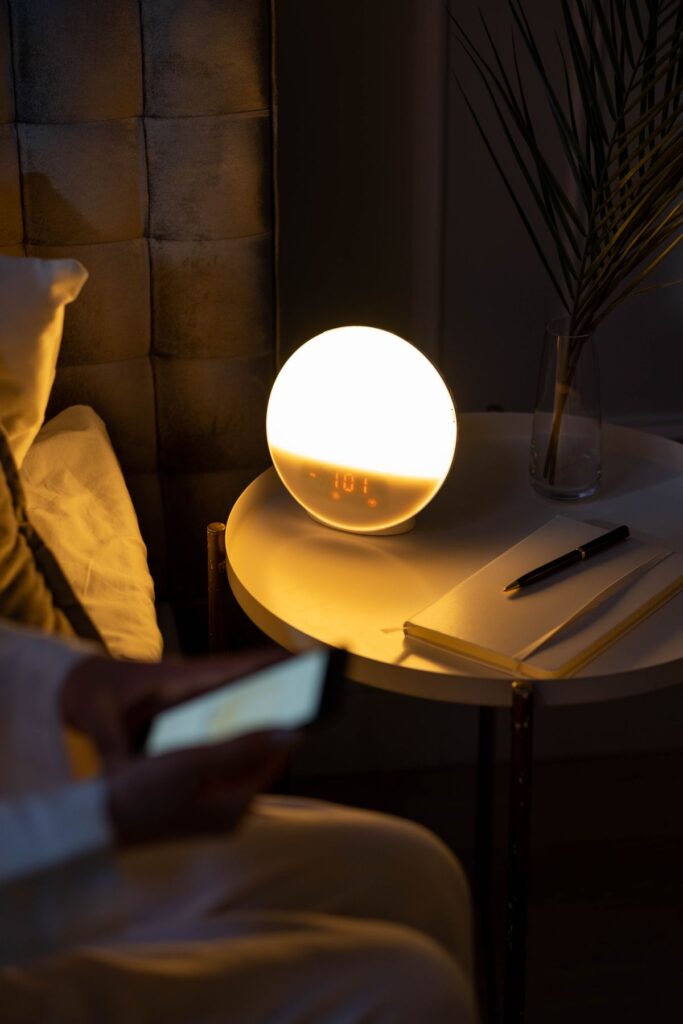
In the bedroom, it is an alarm clock and sleep helper. Set a gentle alarm with your favourite song, and play rain sounds at night.
In the home office, it is a focus tool. Set a timer for deep work, ask for reminders about meetings, and play soft background music.
In the bathroom, use it with care, because water and electronics do not mix. A small Nest Mini on a high shelf can play music.
10 Mistakes to Avoid When You Use Google Home
These ten mistakes waste time and cause frustration, and every one is easy to avoid. Read the list before your first week ends.
- Never shout at the speaker when it does not answer. Move closer and speak clearly.
- Never place the speaker against a wall or in a closed cabinet. The microphones need clear space.
- Never skip Voice Match in a shared home. Without it, anyone can hear your calendar and messages.
- Never use the same name for two devices. Name each device by its room.
- Never ignore the mic-off switch. Learn where it is on day 1.
- Never link a music service you do not use. Every request goes to the wrong default.
- Never build five routines on the first day. Build one and test it for three days.
- Never put the speaker far from the router. Keep it in good WiFi range, and read our guide on Google Home not connecting to WiFi if the signal drops.
- Never forget to set your home address in the app. Without it, weather and traffic answers will be wrong.
- Never reset the speaker as your first fix. Check the mic switch and WiFi first, and read our guide on how to reset Google Home to learn when a reset is truly needed.
What to Do When Google Home Stops Responding
If Google Home stops responding, do not reset it first. A reset wipes everything, and it rarely fixes a simple fault. First, check the mic switch, because an orange light shows when the mic is off. Second, restart the speaker by unplugging it for thirty seconds. Third, check for a Google outage, because a wide outage can silence every speaker. Our guide on Google Home not responding has the full fix list.
How to Use Google Home FAQ
How do I start using Google Home?
Say Hey Google or OK Google, then speak your request in plain words. Try the weather or a timer first.
What is the wake word for Google Home?
The wake words are Hey Google and OK Google, and both work on every Nest speaker. You cannot change the wake word to a custom word.
Can I use Google Home without the Google Home app?
You can ask questions, set timers, and play music without the app. But you need the app for routines, smart home devices, and Voice Match.
Does Google Home work without WiFi?
No, Google Home needs WiFi for almost everything. Without WiFi, voice control will not work.
How do I play music on Google Home?
Link your music service in the app first, under Settings, then Music. Then say, Hey Google, play some relaxing music.
How do I set a routine on Google Home?
Open the Google Home app, tap Automations, then the plus icon. Pick a starter, then add the actions you want.
What is Voice Match on Google Home?
Voice Match teaches Google Home to recognise who is speaking. Set it up under Assistant settings, then Voice Match.
Can Google Home control my lights and smart home devices?
Yes, it controls lights, plugs, cameras, and thermostats. Add each device in the app first, name it by its room, and control it by voice.
How do I stop Google Home from listening?
Flip the mic switch on the back of the speaker, and a small orange light shows the mic is off. You can also delete voice history in the app.
Why is my Google Home not responding?
The most common causes are a muted mic, a WiFi problem, or a speaker that needs a restart. Check the mic light and restart the speaker.
Can Google Home make phone calls?
Yes, it can call contacts through Google Duo or a linked phone number. Say, Hey Google, call Mum, and it dials the contact.
How do I find my phone with Google Home?
Say, Hey Google, find my phone, and it rings at full volume, even on silent. Your phone must be linked to the same Google account.
Final Word
Learning how to use google home takes one week, not one day, and this plan shows the path. Start with the wake phrase and basic commands, then add music, one smart device, and one routine. Set up Voice Match on day 5, learn the broadcast trick on day 6, and check privacy on day 7. Keep the speaker near good WiFi, name devices by their room, and never reset it as your first fix.
Read more about Google Home on Wikipedia: https://en.wikipedia.org/wiki/Google_Home