
How to Scan QR Code on Android Without App: 4 Easy Ways, Never Fail
Learning how to scan qr code on android without app is simple, because your phone already has four scanners built in. Open the Camera app, point it at the code, and tap the link that pops up. No download is needed, and no money changes hands. This guide walks through all four no-app ways, gives you a chart for picking the right one, and lists the traps that make built-in scanning fail.
Nearly 100 million Americans were projected to scan a QR code in 2025, and 43 percent of smartphone users scan at least one QR code per week. The QR code itself was invented in 1994 by Masahiro Hara at Denso Wave in Japan, for tracking car parts.
[SNIPPET TARGET] To scan a QR code on Android without app, open the Camera app and point it at the code. Hold the phone steady and wait for the link preview, then tap it. If nothing appears, open Google Lens.
ANSWER BOX 1
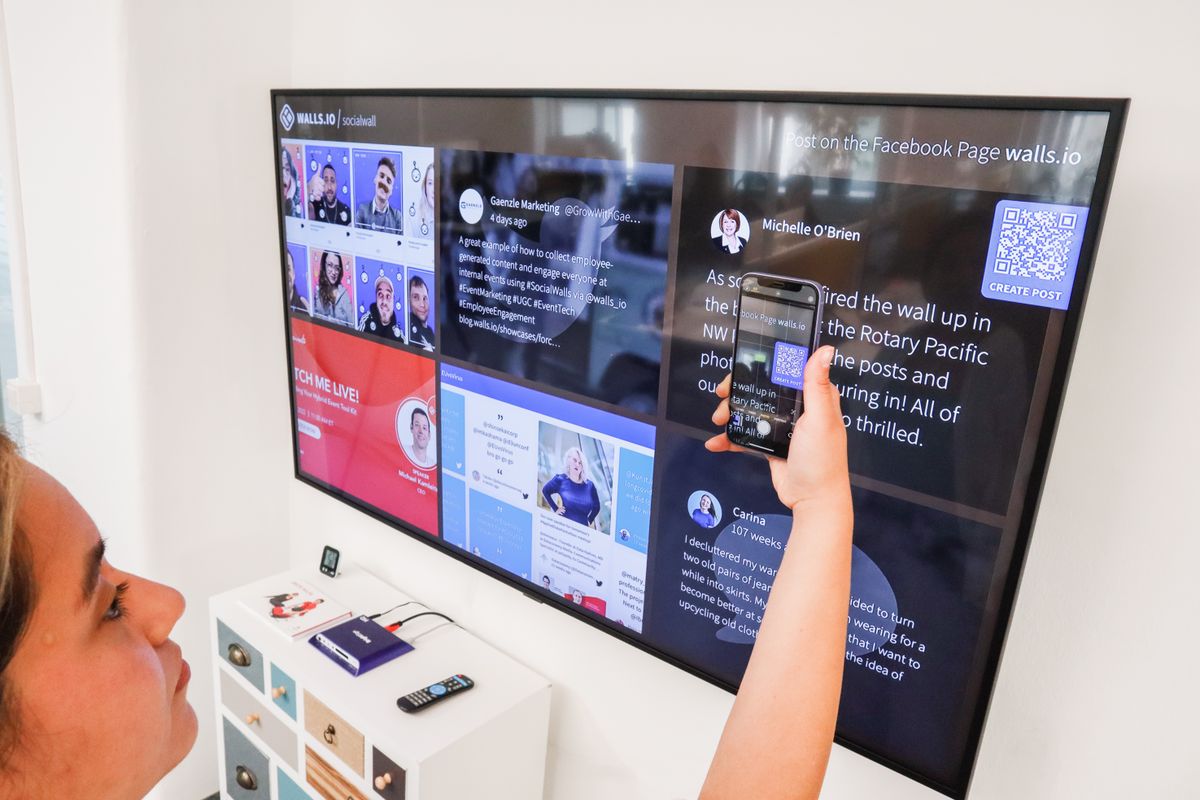
To scan a QR code on Android without app, open the built-in Camera app and stay in Photo mode. Point the rear camera at the code so the whole square fits on the screen. Hold the phone steady until the link preview appears. Tap the preview to open the link.
ANSWER BOX 2
No-app scanning works because the reader is part of Android itself, not an extra download. The Camera app reads printed codes, Google Lens reads codes in photos, and Chrome reads codes on web pages. If one built-in tool misses a code, try the next one before you install anything.
KEY TAKEAWAYS
- How to scan qr code on android without app starts in the Camera app, and it needs no download.
- Google Lens reads codes in photos and screenshots, which the Camera app cannot do.
- Chrome reads a code on any web page with a long-press, and Samsung Internet has its own QR icon.
- The decision chart below picks the right built-in tool for each situation.
- Skip the free scanner apps, because they add ads and ask for data.
Contents
- 4 easy ways to scan QR code on Android without app
- Way 1: scan with the Camera app
- Way 2: scan with Google Lens
- Way 3: scan with Chrome and Samsung Internet
- The no-app scanner decision chart
- 4 traps that make no-app scanning fail
- What to do when no built-in scanner works
- FAQ
- Final Word
4 Easy Ways to Scan QR Code on Android Without App
Your Android phone has four ways to scan a code with nothing extra installed. The Camera app is fastest for a printed code, Google Lens is best for a code in a photo, Chrome reads codes on web pages, and Samsung Internet adds a fourth route on Galaxy phones.
The key idea is simple. A QR code reader is part of Android itself since Android 9, released in 2018, so the phone does not need a separate scanner app. Google built the reader into the Camera app, into Lens, and into Chrome, and Samsung added its own reader to Samsung Internet and Bixby Vision. The free scanner apps in the Play Store mostly repeat what your phone already does.
Use the table below as a quick map, then read the walkthrough for the method that fits your situation.
| Way | Tool | Best for | Needs internet |
|---|---|---|---|
| Way 1 | Camera app | A printed code in front of you | No, for the scan itself |
| Way 2 | Google Lens | A code in a photo or screenshot | Yes |
| Way 3 | Chrome long-press | A code shown on a web page | Yes |
| Way 4 | Samsung Internet | A code on a web page, on Galaxy phones | Yes |

Way 1: Scan With the Camera App
The Camera app is the fastest no-app method, and it is the one to learn first. Open the Camera app on your phone and stay in Photo mode. Point the rear camera at the code so the whole square fits on screen.
Hold the phone six to twelve inches from the code and keep it steady for two seconds. Do not tap the shutter button, because scanning needs no photo. A link preview appears on the screen. Read the preview before you tap it, because the preview shows the real destination.
Tap the preview to open the link, join the WiFi network, or save the contact, based on what the code holds. If no preview appears, move the phone a little closer or further away until the code sharpens. Then check that Lens suggestions are switched on in the Camera settings.
The Camera app works offline for the scan itself, though opening the link still needs internet. It handles printed codes on tables, posters, and tickets. It struggles only with codes on your own screen, because the camera cannot easily photograph its own display, and that is where Lens takes over. Our guide on how to scan QR code on Android covers the same steps in more detail, plus the 30-second safety check. Once you know how to scan qr code on android without app, the Camera app is enough.
Way 2: Scan With Google Lens
Google Lens is the best backup, and it is the only built-in tool that reads codes from images already on your phone. Open the Lens app, or tap the Lens icon inside the Camera app. Point it at the code, and Lens reads it in seconds.
Lens also reads codes inside photos and screenshots, which no other built-in tool can do. Open the photo in Google Photos or your gallery and tap the Lens icon, and Lens reads the code inside the image. Take a screenshot of a code on your own screen, open the screenshot in Lens, and tap the preview to open the link.
Lens needs internet, because it sends the image to Google servers to read it. It also translates text and finds products. Lens is free and made by Google, and it is already on most Android phones. If it is missing, install it free from the Play Store.
Lens can also read a code from a photo you took days ago, as long as the code is clear in the image. That makes it the right tool for a code on a receipt, a ticket stub, or a flyer you photographed and kept. So learning how to scan qr code on android without app with Lens takes seconds.
Way 3: Scan With Chrome and Samsung Internet
Chrome reads a code on any web page with a long-press, and it is the fastest route when the code is already on your screen. Find the code image on the page, touch and hold it for a second, and tap Search with Google Lens. Lens reads the code and shows the link preview, and you tap it to open the link.
Samsung Internet has its own QR icon, which suits Galaxy owners who browse with it. Open Samsung Internet, tap the address bar, and tap the QR icon on the right side. Our guide on how to scan QR code on Samsung covers the Samsung Internet scanner and Bixby Vision in full detail.
Both browser methods need internet, because they open the link at once. They are handy when a code arrives by email or message. And if you want the same question answered brand by brand, our guide on how to scan QR code on Android phone maps the differences across Pixel, Motorola, OnePlus, and Xiaomi. That is why knowing how to scan qr code on android without app in a browser helps.
The No-App Scanner Decision Chart
Four tools can feel like too many, so use this chart to pick the right one in seconds. Find your situation in the left column, then use the tool in the right column.
| Your situation | Use this tool | Why it fits |
|---|---|---|
| A printed code on a table, poster, or ticket | Camera app | Fastest, works offline for the scan |
| A code in a photo or screenshot on your phone | Google Lens | Only built-in tool that reads saved images |
| A code shown on a web page in Chrome | Chrome long-press | No need to leave the page |
| A code shown on a web page, on a Galaxy phone | Samsung Internet QR icon | Built into the Galaxy browser |
| A dark room with a small code | Camera app with flashlight, or Lens | Light plus a second reader |
| A code on another phone screen | Camera app, brightness up | Glare control beats a new app |
| A code you photographed days ago | Google Lens in Photos | Reads codes from old images |
If you remember only one row, remember the first one. The Camera app handles most codes, and Lens handles the rest. The chart shows how to scan qr code on android without app for each situation.
4 Traps That Make No-App Scanning Fail
These four traps cause most failed no-app scans. Avoid them, and learning how to scan qr code on android without app gets easier.
- The QR switch is off in Camera settings. Some phones ship with Lens suggestions or Scan QR codes switched off, so the Camera app ignores every code. Open the Camera settings gear and switch it on.
- The phone is too close to the code. A code that fills the whole screen cannot be read, because the camera needs the corner squares in view. Pull back until the whole code fits.
- The light is bad and nobody fixes it. A code in shadow or glare will fail on any phone, so fix the light first. Turn on the flashlight or move the code.
- A free scanner app is doing the damage. Many free scanner apps show a full-screen ad after every scan, and some ask for contacts and location they do not need. Delete the app and use the built-in tools instead.
What to Do When No Built-In Scanner Works
If all four built-in tools miss the same code, the code itself is usually at fault, not your phone. Knowing how to scan qr code on android without app starts with ruling out the code.
First, test a different code. Scan the code on a product box or a receipt. If that one works, the first code is damaged, too small, or printed with low contrast.
Second, clean the lens and restart the phone. Wipe the rear lens with a soft cloth, and restart the phone. Then update the Camera app, Google Lens, and Chrome in Google Play.
Third, check the app permissions. Open Settings, then Apps, then Camera, then Permissions, and confirm the Camera app can use the camera. Do the same for Lens and Chrome if those tools fail too.
If nothing works and the code matters, ask the business for another copy of the code or for the link in plain text. iPhone owners should read our guide on how to scan QR code on iPhone. Before you ask, test how to scan qr code on android without app on another code.
How to Scan QR Code on Android Without App FAQ
Do I need an app to scan a QR code on Android?
No. Android 9 and later scan codes in the built-in Camera app, and Google Lens, Chrome, and Samsung Internet are also built in. Only phones on Android 8 or older need the free Google Lens app.
How do I scan a QR code on Android without downloading anything?
Open the Camera app, point it at the code, and tap the link preview. That is the no-app method on Android 9 and later. Google Lens and Chrome are also built in.
Can I scan a QR code on Android with Google Lens?
Yes, open the Lens app or tap the Lens icon in the Camera app, and point it at the code. Lens also reads codes in photos and screenshots. Lens needs internet to read the image.
How do I scan a QR code in Chrome on Android?
Find the code image on the web page, touch and hold it, and tap Search with Google Lens. Lens reads the code and shows the link preview. This works for any code shown in Chrome.
Can I scan a QR code from a screenshot without an app?
Yes, take a screenshot of the code, open it in Google Photos or your gallery, and tap the Lens icon. Lens reads the code inside the image.
Why is my Android phone not scanning QR codes without an app?
A dirty lens, bad light, or the QR switch turned off are the usual causes. Clean the lens, move the code into even light, and check the Camera settings gear. Then try Google Lens.
Is it safe to scan a QR code without an app?
Yes, the built-in tools are safer than most free scanner apps, because they ask for no extra permissions and show the link preview before anything opens. Read the preview before you tap it, and never enter a password from one.
Can I scan a QR code on Android without internet?
Yes, the Camera app reads a code with no internet, because the scan happens on the device. You only need internet to open the link or page the code points to. Lens and Chrome need internet to read the image.
What is the best free QR scanner for Android?
The best free scanner is the one already on your phone, which is the Camera app plus Google Lens. Both are free, made by Google, and ask for no extra permissions. Skip the third-party scanner apps.
How do I scan a QR code on Samsung without an app?
Open the Camera app and point it at the code, or use Bixby Vision in the Camera app under More. Samsung Internet also has a QR icon in the address bar. All three are built in.
Can I scan a QR code on Android with the front camera?
No. The front camera does not scan codes, because the reader only works with the rear camera. Flip the phone around and use the rear camera.
Does scanning a QR code without an app save a history?
No, the Camera app does not save a history of scanned codes. The link opens in your browser, so it appears in your browser history. Clear the browser history to remove the trace.
Final Word
Learning how to scan qr code on android without app is a ten-second skill. Use the Camera app for printed codes, Lens for photos and screenshots, and Chrome for codes on web pages. Keep the QR switch on, read the preview before you tap, and delete the ad-filled scanner apps.
If a scan fails, do not download a new app first. Fix the light, clean the lens, check the settings switch, and try the next built-in tool. And if you want the full Android picture, our guide on how to scan QR code on Android covers the safety check and the fix list. With practice, how to scan qr code on android without app becomes a ten-second habit.
Read more about QR code on Wikipedia: https://en.wikipedia.org/wiki/QR_code