
How to Scan QR Code on iPhone in 5 Smart Steps, Stop Errors
Learning how to scan qr code on iphone takes about ten seconds, because the scanner is already built into your Camera app. Open the Camera app, point it at the code, and tap the yellow banner that appears. No download is needed. This guide gives you the five steps in order, compares the three built-in iPhone scanners, and shows you how to scan a code from a photo already on your phone.
Apple added native QR code scanning to the iPhone Camera app in iOS 11, released in September 2017. That means every iPhone from the iPhone 6s onward scans codes out of the box, with nothing to install. Nearly 100 million Americans were projected to scan a QR code in 2025, and the global QR code market was valued at 13.04 billion dollars in 2025.
[SNIPPET TARGET] To scan a QR code on iPhone, open the Camera app and point it at the code in Photo mode. Hold the phone steady and wait for the yellow banner. Tap the banner to open the link. If nothing appears, switch on Scan QR Codes in Settings, then Camera.
ANSWER BOX 1
To scan a QR code on iPhone, open the built-in Camera app and stay in Photo mode. Point the rear camera at the code so the whole square fits on screen. Hold the phone steady until the yellow banner appears. Tap the banner to open the link, join the WiFi network, or save the contact.
ANSWER BOX 2
Scans fail most often for three simple reasons. The Scan QR Codes switch is off in Settings, the lens is dirty, or the code sits in bad light. Check Settings, then Camera, and switch Scan QR Codes on. Clean the lens and move the code into even light before you try again.
KEY TAKEAWAYS
- How to scan qr code on iphone starts in the Camera app, built into every iPhone since iOS 11.
- Stay in Photo mode, wait for the yellow banner, then tap it.
- The Control Center Code Scanner adds a flashlight for dark rooms.
- Live Text scans codes already saved in your photos, with no second phone needed.
- The Scan QR Codes switch is the first thing to check when scans fail.
Contents
- How to scan QR code on iPhone in 5 smart steps
- 3 built-in iPhone scanners compared
- Scan a QR code from a photo already on your iPhone
- Turn on the Scan QR Codes switch
- 5 errors to stop when you scan QR codes on iPhone
- What to do when your iPhone will not scan a code
- FAQ
- Final Word
How to Scan QR Code on iPhone in 5 Smart Steps
These five steps work on any iPhone running iOS 11 or later, from an old iPhone 6s to the newest model. The whole job takes about ten seconds. Once you learn how to scan qr code on iphone, the five steps take seconds.
- Open the built-in Camera app, not a third-party camera, because Apple built the code reader into its own app. The app opens in Photo mode by default.
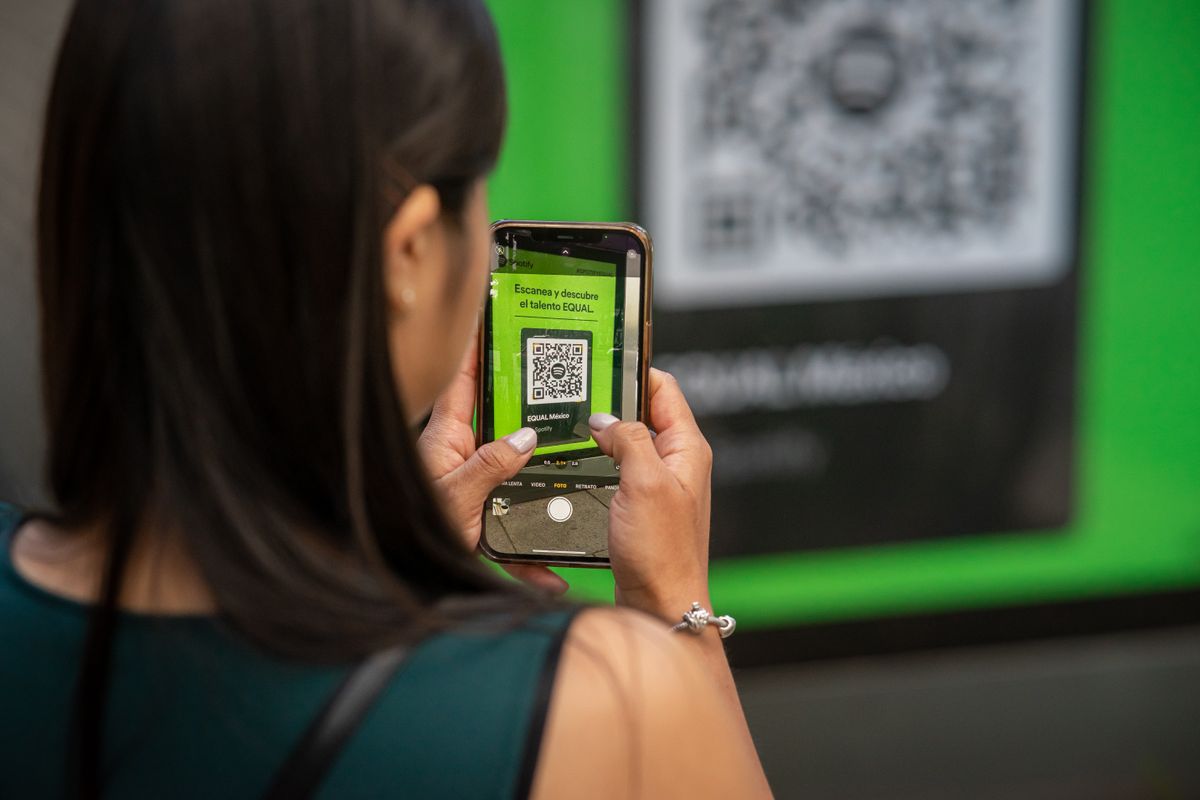
- Point the rear camera at the QR code, so the whole code fits on the screen with space around it. Keep the phone six to twelve inches from the code and hold it still.
- Wait for the yellow banner to appear at the top of the screen after one or two seconds. It tells you where the code leads. Do not press the shutter button, because scanning needs no photo at all.
- Read the banner before you tap it. It shows the web address or the action, such as opening a menu or joining a WiFi network. Check that the address looks like the business you expect.
- Tap the banner to open the link. Your iPhone opens the page in Safari, joins the WiFi network, or saves the contact, based on what the code holds. If the banner never appears, check the switch in the section below.
If you also carry an Android phone, our guide on how to scan QR code on Android covers the Android Camera app and Google Lens in the same plain style.
3 Built-In iPhone Scanners Compared
Your iPhone has three scanners, not one, and each one fits a different moment. The Camera app is fastest, the Code Scanner adds a flashlight, and Live Text reads codes already saved on your phone.
| Scanner | Where to find it | Best for | Needs internet | Extra help |
|---|---|---|---|---|
| Camera app | Home screen camera icon | A printed code in front of you | No, for the scan itself | Fastest, about 2 seconds |
| Code Scanner | Control Center, Scan Code control | Dark rooms and small codes | No, for the scan itself | Built-in flashlight button |
| Live Text | Photos app, long-press the code | A code in a photo or screenshot | No, for the scan itself | No second phone needed |
The Camera app is the scanner to learn first, because it is always one tap away and needs no setup. Open it, point, and tap the yellow banner, and you are done. It handles menus, posters, tickets, and product boxes, but it cannot scan a code shown on its own screen. The Camera app is the fastest way to learn how to scan qr code on iphone.
The Code Scanner lives in Control Center and opens a full-screen scanning view with a flashlight button. Add it in Settings, then Control Center, by tapping the plus next to Code Scanner.
Live Text is the scanner most iPhone owners never discover, and it solves the hardest case of all. It reads codes inside photos, screenshots, messages, and emails already on your phone. The next section walks through it step by step, because it saves you from needing a second phone or a printout.
Scan a QR Code From a Photo Already on Your iPhone
A code on your own screen is the one case the Camera app cannot handle, because a camera cannot photograph its own display. Live Text fixes that on any iPhone running iOS 15 or later, whether the code sits in a photo, a screenshot, a message, or an email.
First, open the photo or screenshot that holds the code, wherever it arrived. Make sure the whole code is visible on the screen, and zoom in if the code looks small. Live Text needs a clear view of the square, just like the camera does.
Next, touch and hold the code itself for a second. A menu appears with the link the code holds, plus options to open it, copy it, or share it. Tap Open Link to go straight to the page. The menu shows the address before anything opens, so read it like the yellow banner.
If the long-press menu does not appear, try the Photos app route instead. Open the photo, tap the Live Text icon at the bottom right, and then tap the code. The same menu appears with the link inside. Update iOS if the icon is missing, because Live Text needs iOS 15 or later.
And if a friend sends you a code by message, you never need to ask them to print it or hold up a second phone. Live Text is how to scan qr code on iphone from a message or photo.
Turn On the Scan QR Codes Switch
The Scan QR Codes switch controls whether the Camera app looks for codes at all. Apple ships it switched on, but an update or a reset can turn it off. If your camera ignores every code, this switch is the first place to look.
On iOS 17 and earlier, open Settings, then Camera, and switch on Scan QR Codes. On iOS 18 and later, open Settings, then Apps, then Camera, and switch it on there. The path changed, but the switch does the same job.
If the switch is missing entirely, your iPhone may be running an old iOS version, or a Screen Time restriction may hide camera features. Update iOS in Settings, then General, then Software Update.
After you switch it on, test it at once with any code nearby. The yellow banner should appear within two seconds. If it still does not appear, restart the iPhone, because a stuck camera process can block the reader. Once the switch is on, learning how to scan qr code on iphone is quick.
5 Errors to Stop When You Scan QR Codes on iPhone
These five errors cause most failed scans and most unsafe taps.
- Tapping the banner without reading it. The banner shows the real destination, so read it first.
- Using a third-party scanner full of ads. The App Store is full of scanner apps that show ads and ask for contacts they do not need. Your built-in Camera app already scans codes.
- Holding the phone too close to the code. A code that fills the whole screen cannot be read. Pull back until the whole code fits with space around it.
- Scanning in bad light and blaming the phone. A code in shadow or glare will fail on any phone, so fix the light first. Use the Code Scanner flashlight or move the code.
- Entering a password from a scanned code. A menu code should never ask for a password. Close the page when it asks for more than its job needs.
What to Do When Your iPhone Will Not Scan a Code
A camera that ignores a clear code is annoying, but the fix is usually small. Work through these fixes in order.
First, check the switch and the mode. Confirm Scan QR Codes is on in Settings, and confirm the Camera app is in Photo mode, not Video or Portrait. Photo is the only mode that shows the yellow banner.
Second, clean the lens and fix the light. Wipe the rear lens with a soft cloth, and move the code into even light. Turn on the flashlight in the Code Scanner if the room is dark.
Third, try the Code Scanner in Control Center. It uses a dedicated scanning view that sometimes reads codes the Camera app misses. If it works, your Camera app needs an update or a restart.
Fourth, update iOS and restart the iPhone. Open Settings, then General, then Software Update, and install any update waiting there. Then restart the phone. Test a different code too, because a damaged or tiny print can be unreadable on any phone.
If the problem follows you across every code, check the camera itself with a normal photo. A blurry photo means the lens or the focus is at fault, not the scanner. Samsung owners should read our guide on how to scan QR code on Samsung, and Android owners should read our guide on how to scan QR code on Android phone. Readers who want every no-app method can also read our guide on how to scan QR code on Android without app. If you practice how to scan qr code on iphone this way, most codes read fast.
How to Scan QR Code on iPhone FAQ
Do I need an app to scan a QR code on iPhone?
No. Every iPhone running iOS 11 or later scans codes in the built-in Camera app, and Code Scanner and Live Text are also built in. Skip the third-party scanner apps.
Why is my iPhone not scanning QR codes?
The Scan QR Codes switch may be off, the Camera app may be in the wrong mode, or the light may be bad. Check Settings, then Camera, switch Scan QR Codes on, and stay in Photo mode.
How do I scan a QR code on iPhone from a screenshot?
Open the screenshot in the Photos app and touch and hold the code. A menu appears with the link, and you can tap Open Link. This uses Live Text, and it needs iOS 15 or later.
Where is the QR code scanner on iPhone?
There is no single scanner app, because the reader lives inside the Camera app. Open the Camera app and point it at a code, or open the Code Scanner from Control Center for a dedicated view.
Can I scan a QR code on iPhone with the front camera?
No. The front camera does not scan codes, because the reader only works with the rear camera. Flip the phone around and use the rear camera.
How do I add the Code Scanner to Control Center?
Open Settings, then Control Center, and tap the plus next to Code Scanner. On newer iOS, touch and hold the Control Center background, tap Add a Control, then pick Scan Code.
Why does the yellow banner not appear when I scan a code?
The banner appears only when the Camera app is in Photo mode and the Scan QR Codes switch is on. Check both, then clean the lens and fix the light.
Can my iPhone scan a QR code from another phone screen?
Yes. Point your camera at the other phone screen and hold steady, but turn the brightness up on that screen. Tilt the phones slightly to cut glare.
Is it safe to scan any QR code I see?
Most codes are safe, but a code can point to any web page, so read the yellow banner before you tap it. Avoid codes on random stickers, and never enter a password from a code you did not expect.
What iOS version do I need to scan QR codes?
You need iOS 11 or later for Camera app scanning, which covers every iPhone from the iPhone 6s onward. Live Text needs iOS 15 or later.
Can I scan a QR code on iPhone without WiFi or mobile data?
Yes, the scan itself needs no internet, because the camera reads the code on the device. You only need internet to open the link the code points to. A WiFi code can join a network with no data at all.
Does scanning a QR code save a history on my iPhone?
No, the Camera app does not save a history of scanned codes. The link opens in Safari, so it appears in your Safari history. Clear Safari history to remove the trace.
Final Word
Learning how to scan qr code on iphone is a ten-second skill, and your iPhone already has three scanners waiting for you. Use the Camera app for codes in front of you, the Code Scanner when the room is dark, and Live Text when the code is already on your phone. Keep the Scan QR Codes switch on, read the yellow banner before you tap, and skip the ad-filled scanner apps entirely.
If a scan fails, do not download a new app first. Check the switch, check Photo mode, clean the lens, and try the Code Scanner. And when the code sits in a photo instead of on paper, Live Text is the answer. With practice, how to scan qr code on iphone becomes a ten-second habit.
Read more about QR code on Wikipedia: https://en.wikipedia.org/wiki/QR_code