
Where Do Downloads Go on iPhone? 7 Best Spots, Never Lose a File
Where do downloads go on iPhone? Most downloads land in the Files app, inside a folder called Downloads. Safari saves PDFs, ZIP files, and documents there by default, usually under iCloud Drive. Photos and videos go to the Photos app instead, songs land in Music, and WhatsApp files stay inside WhatsApp. [SNIPPET TARGET] In short, there is no single downloads folder on the home screen, so you check the Files app first and then the app that handled the file.
Apple reported more than 2.5 billion active devices in its installed base in January 2026 (Apple, 2026). Safari held 24.71 percent of worldwide mobile page views in September 2026 (StatCounter, 2026). That scale explains why one small folder confuses so many people. This guide gives you that place, plus the six other spots.
ANSWER BOX 1
Open the Files app, tap Browse, then tap Downloads. If the folder is not listed, open iCloud Drive and tap Downloads there. Still nothing? Check On My iPhone, then Downloads. That covers most Safari downloads in under a minute on any modern iPhone.
KEY TAKEAWAYS
- Safari downloads land in the Files app, inside a folder called Downloads.
- That folder sits in iCloud Drive by default, or in On My iPhone if you changed it.
- Saved photos go to Photos, songs go to Music, and app files stay in their app.
- Search Files by file name when you know it.
- Check the seven fixes in order before you assume a file is gone.
ANSWER BOX 2
Photos you save go to the Photos app, not Files. Music goes to the Music app, and files from WhatsApp or Mail stay in those apps until you move them. Search in Files by file name when you know it. Change the Safari download location in Settings to stop files from splitting across two folders.
Contents
- Where Do Downloads Go on iPhone at a Glance
- How to Find Downloads on iPhone in the Files App
- How to Change Where Safari Saves Downloads on iPhone
- Where Do Downloads Go on iPhone by File Type
- Find Downloads Inside Other iPhone Apps
- Downloads Not Showing? 7 Best Fixes That Stop Lost Files
- The 5 GB iCloud Trap Most Guides Skip
- What to Do After You Find Your Download
- Where Do Downloads Go on iPhone FAQ
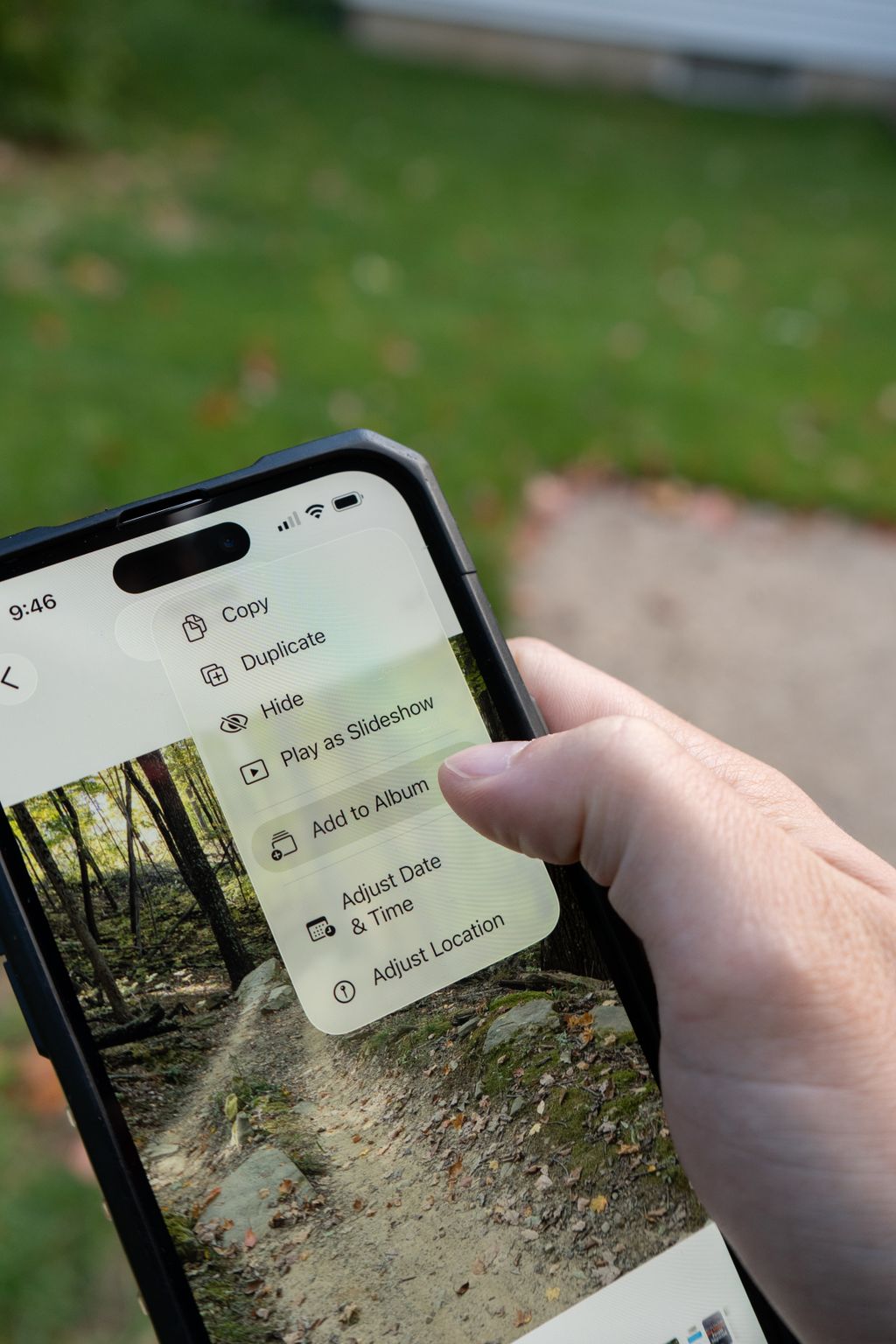
Where Do Downloads Go on iPhone at a Glance
A download on iPhone is any file your phone saves from the internet, a message, or an email. Safari sends most documents to the Downloads folder in the Files app. That folder sits in iCloud Drive by default, or in On My iPhone if you changed it. Photos and videos break the pattern, because a saved image goes to Photos, a song goes to Music, and app files follow their own rules.
| What you downloaded | Where it goes | How to open it |
|---|---|---|
| Safari PDFs, docs, ZIP files | Files, Downloads folder | Files, Browse, Downloads |
| Saved photos and videos | Photos app | Photos, Collections, Recently Saved |
| Songs and podcasts | Music or podcast app | Music app, Library, Downloaded |
| Mail attachments | Files Downloads, or Mail | Mail, open message, Save to Files |
| WhatsApp media and files | WhatsApp chat media list | Chat, name, Media Links and Docs |
| Chrome downloads | Files Downloads, or Chrome list | Chrome, three dots, Downloads |
| Offline shows and books | Inside the app | App, Library or Downloads section |
Use the table as your map, and start with the row that matches what you downloaded. Follow the path in the third column to open the right place. If the file is not there, the fixes section near the end walks through seven checks that find nearly every lost file. Most people find their file in the first two rows.
How to Find Downloads on iPhone in the Files App
The Files app is the front door for iPhone downloads. Open it, then tap Browse at the bottom of the screen. Tap Downloads to see files saved by Safari and by apps that use Save to Files. If Downloads is not listed, tap iCloud Drive first and look for the folder there.
- Open the Files app, the blue folder icon.
- Tap Browse at the bottom of the screen.
- Tap Downloads to see your saved files.
- If Downloads is missing, tap iCloud Drive, then Downloads.
- If it is still missing, tap On My iPhone, then Downloads.
QUICK ANSWER: Why is my Downloads folder empty?
Your Downloads folder looks empty when Safari is saving to the other location. Check both iCloud Drive and On My iPhone before you assume the file is gone. A second cause is a download that never finished, so check the Safari list too. A third cause is a full iCloud account, which can stop new files from saving.
Sort by date to find the newest file fast. Tap the three dots, choose Sort by Date, then look at the top of the list. Long press a file to share it, move it, rename it, or delete it. The search bar finds files by name across both locations at once.
How to Change Where Safari Saves Downloads on iPhone
Safari decides where new downloads go, and you can change that choice in under a minute. Open Settings, tap Apps, tap Safari, then tap Downloads. You will see iCloud Drive, On My iPhone, and Other as your choices. Pick On My iPhone to keep files local, or pick Other to choose one folder. Your pick applies to future downloads only.
The iCloud Drive choice syncs files to your iPad and Mac. The On My iPhone choice keeps files private to the phone and avoids the iCloud storage limit. If you change phones often, iCloud Drive is the safer pick. Our pillar guide on how to change the alarm sound on iPhone shows the same Settings-first habit in another everyday iPhone task.
Where Do Downloads Go on iPhone by File Type
Photos and videos saved from Safari, Messages, Mail, or AirDrop go to the Photos app. Open Photos, tap Collections, then check Recently Saved. A photo saved from Safari never lands in Downloads, the most common confusion in this guide. If you need the image as a file, open it in Photos and choose Save to Files.
PDFs, Word documents, spreadsheets, and ZIP files go to the Downloads folder in the Files app. Tap a ZIP file once to unzip it, and a new folder appears beside it. A PDF opened in Safari can also be saved to Apple Books, which moves it out of Downloads. Check both places when a document seems to vanish.
Songs and podcasts stay inside the app that downloaded them, so check the Music or podcast app first. Voice messages and memos live in their own apps too, and a file saved from Mail goes to the last Downloads folder you used. See our guide on how to send a voice message on iPhone when the file you need is a voice note. The rule is simple, because Apple sends each file to the app built to open it.
Find Downloads Inside Other iPhone Apps
WhatsApp keeps photos, videos, and documents inside the chat where you received them. Open the chat, tap the contact or group name, then tap Media, Links, and Docs to see everything in one list. You can also tap a file and choose Save to Files for a copy in Downloads. If group chats are eating your time as well as your storage, read our guide on how to remove yourself from a group text.
Mail attachments stay in Mail until you save them, so open the message and tap the attachment. Tap Share, then Save to Files for a copy in Downloads, or Save Image for a photo in Photos. Chrome keeps its own download list, so tap the three dots and open Downloads. Chrome still writes most files to the same Downloads folder, so check both lists.
Offline shows, songs, and books never appear in Files, because they live inside the app that downloaded them. Open Netflix, Spotify, Apple TV, or your reading app and look for a Downloads or Library section. These files are locked to the app, so you cannot move them to Files. Delete them from inside the app when you need the space back.
Downloads Not Showing? 7 Best Fixes That Stop Lost Files
A missing download usually means the file went to a second folder, never finished, or the phone ran out of room. Work through these seven fixes in order, because the first three solve most cases in under two minutes. Start at the top and stop when the file shows up. The same checks work the next time a file goes missing.
1. Check both Downloads folders
Open Files, tap Browse, and look in iCloud Drive, then Downloads. Then check On My iPhone, then Downloads. Safari saves to only one of these at a time.
2. Check the Safari downloads list
Open Safari and tap the downloads arrow next to the address bar. This list shows downloads in progress and recent ones, even when the file has not reached Files yet. Tap a finished file to open it.
3. Search Files by file name
Type the file name in the search bar at the top of the Files app. Search covers iCloud Drive and On My iPhone at once. You can also swipe down on the home screen and use Spotlight search.
4. Check the Photos app
A saved image or video goes to Photos, not to the Downloads folder. Open Photos, tap Collections, then check Recently Saved. If the photo came from a message, check that app album as well.
5. Check the app that sent it
Files from WhatsApp, Mail, and Chrome often stay in the app that fetched them. Open the app and find its downloads or media list before you search anywhere else. This single check ends most hunts.
6. Check storage and iCloud space
Open Settings, tap General, then tap iPhone Storage to see how much room is left. Then tap your name and tap iCloud to check your free storage. A full phone or a full iCloud account can stop a download without warning. If support asks for your phone details, find the IMEI number on iPhone first.
7. Restart and download it again
Restart the iPhone, then download the file once more from the same link or message. A restart clears a stuck download, and a fresh download often lands in the right folder.
The 5 GB iCloud Trap Most Guides Skip
Apple gives every Apple Account 5 GB of free iCloud storage (Apple Support). That small pool holds backups, photos, files, and messages, so it fills up fast on a modern iPhone. When the pool is full, Safari downloads can fail, syncing can stop, and files can seem to vanish. Most guides never mention this limit, yet it sits behind many lost download reports.
Check storage in Settings, tap your name, then tap iCloud to see how much room is left. If the bar is full, move big files to On My iPhone, delete old downloads, or upgrade to iCloud+. Apple lists the 50 GB iCloud+ plan at $0.99 per month in the United States (Apple, 2026). Save large files to On My iPhone from the start, because local files never touch the 5 GB limit.
What to Do After You Find Your Download
Open the file once to confirm it is the right one. Move it to a named folder in Files when you plan to keep it. Share it from the Share menu, and delete extra copies. Delete old ZIP files and installers first when you need room.
Where Do Downloads Go on iPhone FAQ
Where do downloads go on iPhone?
Most downloads go to the Downloads folder in the Files app, usually inside iCloud Drive. Photos go to Photos, songs go to Music, and app files stay in their apps.
Why can’t I find my downloads on my iPhone?
The file is often in the second Downloads folder, since Safari saves to either iCloud Drive or On My iPhone. It may also sit in Photos, in the sending app, or unfinished in Safari.
How do I change where Safari saves downloads?
Open Settings, tap Apps, tap Safari, then tap Downloads. Choose iCloud Drive to sync, On My iPhone to keep files local, or Other to pick one folder.
Where do Safari downloads go on iPhone?
Safari downloads go to the Downloads folder in the Files app. The folder sits inside iCloud Drive by default, or inside On My iPhone when you change the setting.
Do downloads go to iCloud Drive or On My iPhone?
They go to whichever location you picked in Settings, under Apps, then Safari, then Downloads. iCloud Drive is the usual default, and On My iPhone keeps files on the phone only.
Where do photos I download go on iPhone?
Photos you download go to the Photos app, not to Downloads. Open Photos, tap Collections, and check Recently Saved.
Where do PDF downloads go on iPhone?
PDF downloads go to the Downloads folder in the Files app. If you saved one to Apple Books, check the Books app instead.
Where do WhatsApp downloads go on iPhone?
WhatsApp downloads stay inside the chat where you received them. Open the chat, tap the name at the top, then tap Media, Links, and Docs to see them all.
How do I find a download from Chrome on iPhone?
Tap the three dots in Chrome and open Downloads. Chrome also writes most files to the Downloads folder, so check both places.
Can I see a list of recent downloads in Safari?
Yes, tap the downloads arrow next to the address bar in Safari. The list shows downloads in progress and recent downloads, and you can jump to each file folder from there.
How do I delete downloads on iPhone?
Open Downloads in Files, long press the file, and tap Delete. Deleted files sit in Recently Deleted for 30 days, so empty that folder too when you need space.
Do downloads use iCloud storage?
Downloads saved to iCloud Drive count toward your 5 GB of free iCloud storage. Downloads saved to On My iPhone use phone storage only and do not touch your iCloud limit.
Final Word
Where do downloads go on iPhone? Start in the Files app, inside Downloads, and check both iCloud Drive and On My iPhone. Then check Photos for images, Music for songs, and the app that sent the file. Use the seven fixes in order when a file hides, and watch the 5 GB iCloud limit.
Read more about the iPhone on Wikipedia: https://en.wikipedia.org/wiki/IPhone